
Key takeaways
- Start with 2x enlargement rather than 4x. It usually produces fewer invented details.
- Use moderate sharpening first, then compare the result at 100% zoom.
- For a high-ISO portrait, reduce noise before applying strong sharpening.
- Use face recovery only when the face occupies enough pixels to contain real structure.
- Export a 16-bit TIFF for further editing, or high-quality JPEG for web and family sharing.
For most people, the best AI photo enhancers in 2026 are Topaz Photo AI for maximum detail recovery, Adobe Lightroom or Photoshop for an all-purpose workflow, DxO PureRAW for noisy RAW files, and Upscayl for a free desktop option.
Quick comparison: which AI photo enhancer fits your images?
| Software | Best for | Enhancement quality | Batch processing | Supported files | Typical 2026 pricing |
|---|---|---|---|---|---|
| Topaz Photo AI | Blurred, noisy, low-resolution photos | Excellent for sharpening and enlargement | Yes, with queued processing | JPEG, TIFF, PNG, and common RAW formats | Usually $200–$250 for a perpetual version, with upgrade terms varying |
| Adobe Lightroom | Everyday editing and large photo libraries | Very good, especially for RAW noise reduction | Yes | JPEG, TIFF, PNG, DNG, PSD, and many camera RAW formats | Usually $10–$25 per month, depending on the plan |
| Adobe Photoshop | Selective retouching and compositing | Very good, with the most control | Yes, through actions and batch tools | JPEG, TIFF, PNG, PSD, WebP, DNG, and many RAW formats | Usually $20–$35 per month as a single-app plan |
| DxO PureRAW | RAW noise reduction before editing | Excellent for high-ISO detail and lens correction | Yes | Camera RAW files and exported DNG, JPEG, or TIFF workflows | Usually $120–$150 per major version |
| ON1 NoNoise AI | Noise reduction with a simpler interface | Very good for noisy portraits and wildlife | Yes | RAW, JPEG, TIFF, PSD, and other common formats | Usually $60–$100 as a standalone purchase or upgrade |
| Upscayl | Free enlargement on Windows, macOS, and Linux | Good for suitable low-resolution images | Limited compared with commercial tools | Primarily JPEG, PNG, and other standard raster images | Free |
| Remini | Quick phone-based portrait restoration | Good for faces, but can look artificial | Usually limited in mobile workflows | Common phone image formats | Usually free with limits; paid plans often cost $5–$15 per month |
1. Topaz Photo AI: best for maximum recovery
Topaz Photo AI is the strongest choice when the original image is technically poor: soft focus, camera shake, heavy ISO noise, or too few pixels for the intended print. Its main advantage is combining sharpening, noise reduction, face recovery, and enlargement in one application rather than forcing you to move between separate tools.
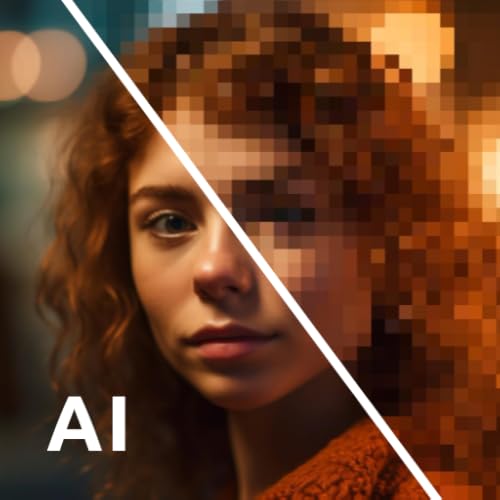
AI Photo Enhancer - Photo Plus
Included for 'Best AI Photo Enhancers for Sharper, Cleaner Images' because the listing specifies Photo Plus, details this guide uses to compare options.
View on Amazon
AI Photo Enhancer Remove Objects, Upscale Images, Retouch Portraits
Included for 'Best AI Photo Enhancers for Sharper, Cleaner Images' because the listing specifies Upscale Images and Retouch Portraits, details this guide uses to compare options.
View on Amazon
AI photo Enhancer
Included for 'Best AI Photo Enhancers for Sharper, Cleaner Images' as a relevant option in this category; details come from the product listing.
View on Amazon
CyberLink PhotoDirector 2026 | AI Photo Editing Software for Windows | Generative AI, Photo Retouching, Layer Editing, Effects & Design Tools | Box with Download Code
Included for 'Best AI Photo Enhancers for Sharper, Cleaner Images' because the listing specifies AI Photo Editing Software for Windows and Generative AI, details this guide uses to compare options.
View on AmazonIt works particularly well on portraits, wildlife, sports photographs, and old scans where the subject is recognizable but lacks clean detail. The trade-off is that AI face recovery can invent texture. At high strengths, skin may become waxy, eyelashes may look repeated, and small text can turn into convincing-looking nonsense.
Recommended starting settings
- Start with 2x enlargement rather than 4x. It usually produces fewer invented details.
- Use moderate sharpening first, then compare the result at 100% zoom.
- For a high-ISO portrait, reduce noise before applying strong sharpening.
- Use face recovery only when the face occupies enough pixels to contain real structure.
- Export a 16-bit TIFF for further editing, or high-quality JPEG for web and family sharing.
Topaz is the best purchase if enhancement itself is your main task. It is less attractive if you mainly organize, color-grade, and print a large library, because Lightroom offers a more complete catalog and editing environment.
2. Adobe Lightroom and Photoshop: best for an integrated workflow
Lightroom is the most practical option for photographers who want AI enhancement alongside exposure, color, cropping, masking, cataloging, and exporting. Its AI-powered Denoise is especially useful for RAW files from older cameras or high-ISO shooting. Enhance features can also improve resolution, but Lightroom is not as specialized in severe blur recovery as Topaz Photo AI.
Photoshop is preferable when only part of a photograph needs enhancement. You can duplicate a layer, apply sharpening selectively, mask the subject, and preserve the original background. That matters for portraits: sharpening eyes and hair while leaving skin smoother usually looks more natural than enhancing the whole frame equally.
Adobe’s subscription is a meaningful cost, but it may be the cheapest choice for someone who already pays for Creative Cloud. Photoshop also handles layered TIFF and PSD documents better than most dedicated enhancers, making it suitable for professional retouching and composites.
3. DxO PureRAW: best for RAW noise and lens problems
DxO PureRAW is designed to improve RAW files before they reach Lightroom, Photoshop, or another editor. Its strengths are noise reduction, demosaicing, lens correction, and recovering fine detail from difficult camera files. It is a strong choice for night photography, indoor sports, wildlife, and travel images shot at high ISO.
PureRAW is not the best tool for repairing a tiny, blurry JPEG or rebuilding a severely damaged family scan. It is most effective when the source is a genuine RAW file containing substantial unused sensor data. The normal workflow is simple: process a batch of RAW files, export enhanced DNG files, and continue editing those files in your preferred application.
Choose DxO PureRAW over Topaz Photo AI when noise and lens softness are the main problems. Choose Topaz when enlargement, motion blur, or low-resolution faces are the bigger concern.
4. ON1 NoNoise AI: a useful middle ground
ON1 NoNoise AI focuses on cleaning noise while retaining detail, with support for common photographic formats and batch processing. It is a sensible choice for photographers who want a dedicated application without committing to a full Adobe subscription.
It is particularly useful for landscapes, wildlife, and portraits where color noise is distracting but aggressive sharpening would make the image brittle. Its results depend heavily on the source: a clean, correctly exposed RAW image needs less processing than an underexposed JPEG pushed several stops during editing.
ON1’s wider software ecosystem can also appeal to users who want browsing, effects, and photo editing in one product. For pure maximum enlargement quality, Topaz remains the more specialized option.
5. Upscayl: best free desktop enhancer
Upscayl is an appealing free choice for casual users, game-art creators, scanned illustrations, and people who do not want a subscription. It uses AI upscaling models locally, so images do not need to be uploaded to an online service.
Its limitations are important. It is primarily an enlarger, not a complete photo editor. Results vary substantially between models, and batch controls, RAW support, and advanced face restoration are less extensive than in commercial applications. It also needs a reasonably capable graphics processor for comfortable processing at large output sizes.
Use Upscayl when the source is reasonably sharp but small, such as a web image or game screenshot. Do not expect it to reconstruct genuine detail from severe motion blur.
6. Remini: fastest phone option for faces
Remini is convenient for restoring portraits directly on a phone. It can make small or soft faces appear clearer with very little technical setup, which suits social-media images and quick family-photo repairs.
The convenience comes with compromises. Processing may be cloud-based, free usage is usually limited, and the result can alter facial identity or create overly smooth skin. Avoid it for archival restoration where preserving the exact appearance matters. For sensitive family photographs, check the service’s current privacy and retention terms before uploading.
Decision matrix: pick by the problem, not by the brand
| Your situation | Best first choice | Why | What to avoid |
|---|---|---|---|
| Modern RAW photo with heavy ISO noise | DxO PureRAW or Lightroom Denoise | RAW data gives the denoiser more genuine information | Starting with aggressive sharpening |
| Small portrait with a soft face | Topaz Photo AI or Remini | Specialized face and enlargement models work faster | Maximum face-recovery strength |
| Old printed photograph or scan | Topaz Photo AI plus Photoshop | One tool enlarges and sharpens; the other repairs masks and defects | Expecting AI to restore missing facial identity accurately |
| Thousands of travel photographs | Lightroom | Cataloging, batch edits, RAW support, and export are integrated | Processing every image at 4x by default |
| Free enlargement of PNG or JPEG files | Upscayl | No subscription and local desktop processing | Using it as a RAW developer |
| Selective retouching of one important image | Photoshop | Layers, masks, and controlled local adjustments | Applying global enhancement to skin and background equally |
A practical enlargement calculation
Upscaling does not create the same detail as a higher-resolution camera, so choose the smallest enlargement that meets the output requirement. Suppose a portrait is 2,000 pixels wide and you need a 12-inch print at 300 pixels per inch. The target width is:
12 inches × 300 pixels per inch = 3,600 pixels.
The required scale is therefore 3,600 ÷ 2,000 = 1.8x. A 2x enhancement is appropriate; a 4x export would produce 8,000 pixels, far beyond the print’s requirement and more likely to show synthetic texture. For a web image displayed at 1,200 pixels wide, no enlargement is needed if the original is already 2,000 pixels wide. Resize down after enhancement instead of enlarging first.
How to get cleaner results from any AI enhancer
- Keep the original untouched. Work from a duplicate so you can compare the AI result with the source.
- Correct exposure and white balance first. A dark, color-shifted image can cause the model to interpret noise as texture.
- Use the lowest useful scale. Try 1.5x or 2x before 4x.
- Inspect faces, text, and repeating patterns at 100%. These areas reveal invented eyes, letters, feathers, and bricks.
- Mask the result. Apply stronger enhancement to clothing, hair, or architecture and weaker enhancement to skin and smooth backgrounds.
- Export according to the destination. Use 16-bit TIFF for continued editing, PNG for graphics with transparency, and high-quality JPEG for ordinary sharing.
Final verdict
Topaz Photo AI is the best all-round specialist among the best AI photo enhancers when the source needs serious sharpening, denoising, or enlargement. Lightroom is the better long-term choice for organized libraries and everyday editing, while Photoshop wins for precise local control. DxO PureRAW leads for high-ISO RAW cleanup, Upscayl covers basic free enlargement, and Remini is the quickest phone solution for portraits. Start by matching the software to the image’s actual defect, then use the lowest enhancement strength that reaches your intended viewing or print size.
