Key takeaways
- Keep fewer than six active tabs on a TV with 1GB of RAM. Background tabs can consume memory even when they are not visible.
- Use the browser’s reader or simplified view where available for text-heavy pages. This reduces animation and advertising scripts.
- Set video quality to 720p on an older 1080p TV if playback stutters. The lower decode load is often more useful than a sharper stream the TV cannot play smoothly.
- Pair a Bluetooth keyboard only for searches and passwords; use the remote for normal navigation.
For most Android TV and Google TV sets, TV Bro is the best browser for smart TV because its large controls, remote-friendly tabs, download support, and low hardware demands suit television use better than desktop-style browsers; Samsung TV owners should start with Samsung Internet, while Amazon Fire TV users should consider Silk Browser.
Best browser for smart TV: the short list
| Browser | Best fit | TV compatibility | Remote navigation | Video playback | Older hardware |
|---|---|---|---|---|---|
| TV Bro | Android TV and Google TV | Strong on compatible Android TV devices | Excellent | Good for standard web video; site-dependent for DRM | Very good |
| Samsung Internet | Samsung smart TVs | Designed for supported Samsung TV platforms | Very good | Strongest match for Samsung-supported services | Good, depending on TV generation |
| Silk Browser | Fire TV devices | Designed for Fire TV | Good | Good for many web players; DRM varies by service | Good on recent Fire TV hardware |
| BrowseHere | Android TV and Google TV users wanting a simple interface | Available on some Android TV platforms | Good | Suitable for ordinary HTML5 video | Good when memory is limited |
| Vewd Browser | TVs that include it from the manufacturer | Depends on the TV brand and model | Good for basic browsing | Varies substantially by TV platform | Often appropriate for constrained TVs |
1. TV Bro: the best all-round choice for Android TV
TV Bro is built around the limitations of a television remote rather than a mouse and keyboard. Its interface uses large controls, supports tabs and bookmarks, and makes text entry less frustrating than a conventional desktop browser scaled onto a television screen. It is especially useful for news sites, web apps, forums, documentation, and video pages that use standard HTML5 playback.
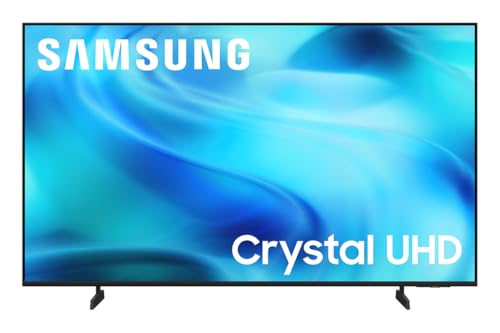
Samsung 43-Inch Class Crystal UHD U8000H Series Samsung Vision AI Smart TV (2026 Model, 43U8000H) Processor 4K, Endless Free Content, Motion Xcelerator, Color Booster, Alexa Built-in
Included for 'Best Browser for Smart TV: Top Picks' because the listing specifies 43U8000H) Processor 4K and Endless Free Content, details this guide uses to compare options.
View on Amazon
TOSHIBA 40" Class V45 Series QLED FHD 1080p Smart Fire TV, Voice Remote with Alexa, Free & Live TV
Included for 'Best Browser for Smart TV: Top Picks' because the listing specifies Voice Remote with Alexa and Free & Live TV, details this guide uses to compare options.
View on Amazon
Amazon Ember 55" 4-Series with Fire TV (newest model), 4K Ultra HD smart TV with Alexa Remote, HDR10+, fast processor, Dolby Audio, Ambient Experience, free and live TV, find shows faster with Alexa+
Included for 'Best Browser for Smart TV: Top Picks' because the listing specifies 4K Ultra HD smart TV with Alexa Remote and HDR10+, details this guide uses to compare options.
View on Amazon
TCL 40-Inch Class R3D Series QLED Roku Smart TV | FullView Bezel-Less Design, Google Cast & AirPlay 2 | Television for Bedroom, Dorm & Kitchen (40R3D, 2026) Streaming Live Local News, Sports & Movies
Included for 'Best Browser for Smart TV: Top Picks' because the listing specifies FullView Bezel-Less Design and Google Cast & AirPlay 2, details this guide uses to compare options.
View on AmazonIts main advantage is efficiency. A browser that loads one page with a modest number of scripts is more usable on an older Android TV box than a browser designed for a powerful computer. TV Bro is not a universal replacement for streaming apps, however. Premium services may require DRM systems, app-specific authentication, or device certification that a TV browser cannot provide.
Best settings for TV Bro
- Keep fewer than six active tabs on a TV with 1GB of RAM. Background tabs can consume memory even when they are not visible.
- Use the browser’s reader or simplified view where available for text-heavy pages. This reduces animation and advertising scripts.
- Set video quality to 720p on an older 1080p TV if playback stutters. The lower decode load is often more useful than a sharper stream the TV cannot play smoothly.
- Pair a Bluetooth keyboard only for searches and passwords; use the remote for normal navigation.
2. Samsung Internet: the sensible Samsung TV option
Samsung Internet is the natural first choice when it is available on a Samsung smart TV. It is more closely integrated with Samsung’s TV software than a sideloaded Android browser, so remote focus, page scaling, and media support are generally better aligned with that television’s platform.
It is a strong option for ordinary browsing and web video, but compatibility still depends on the TV’s year and operating-system version. A Samsung TV released several years ago may have an older browser engine and weaker support for modern JavaScript, codecs, or security standards. If a site displays a blank page, endlessly reloads, or reports an unsupported browser, the problem may be the TV platform rather than Samsung Internet itself.
When Samsung Internet is the better choice
- You want the fewest installation and compatibility problems.
- Your television remote has dedicated pointer or directional controls that Samsung’s browser already supports.
- You mainly browse lightweight sites or use services that also offer a Samsung TV app.
- You prefer a browser maintained as part of the TV manufacturer’s software ecosystem.
3. Silk Browser: best for Fire TV
Silk Browser is the most practical choice for a Fire TV device because it is designed around the Fire TV remote, television display, and Amazon’s software environment. It handles ordinary sites, search, bookmarks, and many web video players without requiring a separate sideloaded browser.
Silk is most useful when a service does not have a native Fire TV app but offers a properly designed web player. It should not be treated as a guaranteed workaround for every streaming restriction. A browser may load a service’s homepage while failing when protected video begins, particularly if the service requires a supported app or a certified playback path.
For older Fire TV hardware, avoid opening several media-heavy tabs at once. A page containing autoplay video, animated advertising, and live chat can use more memory than a simple article. Closing the tab after watching video is often more effective than repeatedly refreshing it.
4. BrowseHere and Vewd: useful alternatives on limited TVs
BrowseHere is worth considering on compatible Android TV and Google TV devices when the priority is a simple, remote-oriented browser rather than advanced desktop features. It can be a good fit for an older television used for occasional browsing, provided it is available through that device’s official app store.
Vewd Browser is different: on many televisions it is supplied by the manufacturer or platform rather than selected from a broad app marketplace. It can remain useful on TVs with limited storage and processing power, but feature availability varies widely. The same browser name does not guarantee identical video support across different TV brands.
These browsers are best for short sessions, text pages, and basic video. They are less suitable for complex productivity sites, browser-based games, or pages that expect a current desktop Chrome-class engine.
Head-to-head: what matters on a television
Remote-control navigation
Remote navigation is more important than benchmark speed. A browser can load a page quickly and still be unpleasant if the directional pad cannot move predictably between buttons. TV-focused browsers generally enlarge links and provide clearer focus indicators. Desktop-oriented browsers often place tiny controls too close together, forcing repeated zooming.
For frequent typing, a phone remote app or Bluetooth keyboard is a major improvement. For occasional searches, voice input is usually faster. Avoid relying on a wireless mouse as the only control method: some TV browsers support pointer input inconsistently, and mouse acceleration can feel awkward from a sofa.
Video and codec support
Web playback depends on three separate layers: the browser engine, the TV’s hardware decoder, and the website’s DRM requirements. H.264 video at 1080p is the safest target on older hardware. HEVC playback is common on newer 4K televisions, while AV1 support is much more dependent on the TV’s chipset and browser platform.
A browser may technically support HTML5 video but still fail with a particular website because that site uses a codec, DRM license, subtitle format, or authentication method unavailable on the TV. If a native app exists, it is usually the more reliable option for premium streaming.
Privacy features
TV browsers can expose the same browsing data as other browsers: cookies, search history, login sessions, and tracking identifiers. Look for private browsing, cookie controls, permission management, and a way to clear site data. Private mode prevents local history from being retained, but it does not make browsing anonymous to the internet service provider, website, or network administrator.
On any shared television, sign out of accounts after use and avoid saving passwords in the browser. A separate streaming profile is safer than leaving a primary email or payment account logged in.
How much bandwidth does a TV browser need?
As a practical estimate, use the stream’s bitrate rather than its advertised resolution. A 1080p stream at 8 Mbps needs approximately:
8 megabits per second × 1.25 overhead ÷ 8 = 1.25 megabytes per second
That equals about 75 MB per minute, or 4.5 GB per hour. The 1.25 factor allows for network overhead and normal variation. For reliable playback, target at least 12 Mbps of sustained bandwidth for that stream, not merely a momentary speed-test peak. A 4K stream at 20 Mbps similarly benefits from roughly 30 Mbps of stable capacity.
If the browser buffers despite sufficient internet speed, check Wi-Fi signal, TV decoder capability, and other devices using the connection. Reducing video quality from 4K to 1080p lowers both bandwidth and decoding demand; switching from a browser to the platform’s native app can also remove browser-engine limitations.
Decision matrix: choose by your TV and usage
| Your situation | Recommended choice | Why |
|---|---|---|
| Android TV or Google TV, regular web browsing | TV Bro | Remote-focused controls and low overhead |
| Samsung smart TV with a built-in browser | Samsung Internet | Best platform alignment and remote integration |
| Fire TV device | Silk Browser | Designed for Fire TV software and remote controls |
| Older Android TV with limited memory | TV Bro or BrowseHere | Fewer interface demands than a desktop-style browser |
| TV supplied with Vewd | Vewd Browser | Usually the most compatible option for that platform |
| Premium protected video | Native TV app | More reliable DRM, codec, and remote support |
Final verdict
Choose TV Bro as the best browser for smart TV if you use Android TV or Google TV and want the most flexible remote-friendly experience. Choose Samsung Internet for a supported Samsung TV and Silk Browser for Fire TV. For video services, use the native app whenever possible; browsers are most valuable for sites that lack an app, lightweight browsing, and occasional web playback.