Our Top Picks
A CPU socket is the physical connector on a motherboard that holds the processor and links it electrically to the rest of the system, and it decides which processors a board can accept. If the socket on your board does not match the socket your CPU is designed for, the two will not fit or work, so matching them is the first step in any PC build or upgrade.
How a CPU socket works
A processor needs hundreds to well over a thousand electrical connections to carry power, memory signals, PCI Express lanes and more. The socket provides those connections in a fixed pattern. Two main designs are used in desktop PCs.
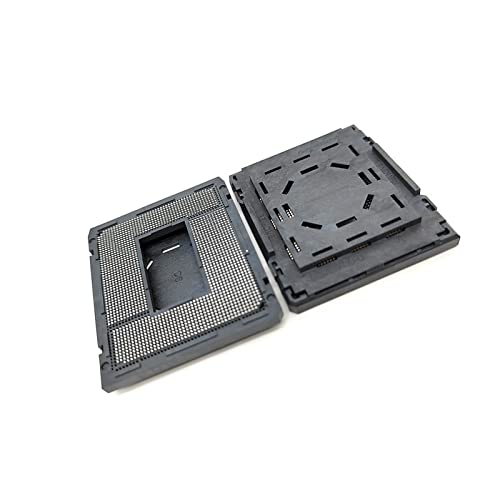
LGA1700 LGA 1700 CPU Socket Base BGA Connector, 1Pcs | For replacing motherboard CPU socket
Chosen because it specifies 1Pcs and For replacing motherboard CPU socket.
View on Amazon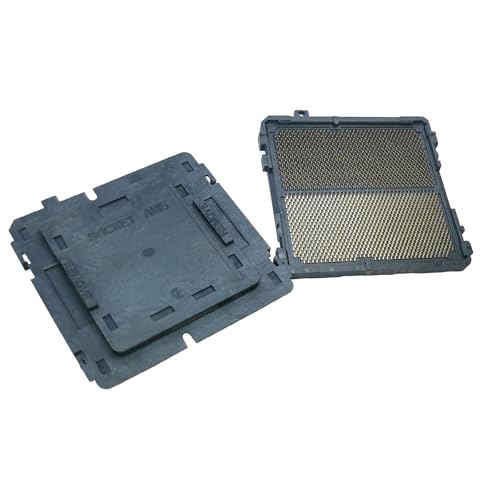

AM4 1331 BGA CPU Socket PZ1331A-51ZZ1-1H | For Motherboard Repair
Chosen because it specifies For Motherboard Repair.
View on Amazon- PGA (pin grid array). The pins are on the processor and the socket has holes. Older AMD desktop sockets worked this way.
- LGA (land grid array). The processor has flat contact pads and the socket holds the pins. Intel desktop processors have used this approach for years, and AMD’s current AM5 platform uses it too.
In both cases a retention mechanism, such as a lever or a load plate, holds the processor in place and applies even contact pressure. The cooler then mounts around or onto the socket area, which is why socket type also affects which cooler mounting hardware you need.
Why the socket matters for gaming PCs
The socket is the first compatibility gate in a build. It determines which processors you can choose, and indirectly which memory type, which PCI Express generation and which features you get, because those are tied to the platform that uses that socket. For gamers this decides upgrade paths. A board on a socket the maker keeps supporting for several processor generations lets you upgrade the CPU later without replacing the board, while a socket that is retired means a new CPU generally requires a new motherboard.
The socket is not the whole picture. Even with a matching socket, a board may need a BIOS update before it recognizes a newer processor, and a chipset sets the number of features and ports. Always check the motherboard maker’s CPU support list before buying.
Current desktop sockets
| Socket | Maker | Type | Used by (examples) | Memory |
|---|---|---|---|---|
| AM4 | AMD | PGA | Ryzen 1000 to 5000 series, including 5800X3D | DDR4 |
| AM5 | AMD | LGA | Ryzen 7000, 8000G and 9000 series, including 9800X3D | DDR5 |
| LGA1700 | Intel | LGA | 12th, 13th and 14th Gen Core | DDR4 or DDR5, depending on the board |
| LGA1851 | Intel | LGA | Core Ultra 200S series | DDR5 |
AMD has said it plans to support AM5 for several years, and Intel’s LGA1851 was introduced with the Core Ultra 200S desktop line. Platform longevity claims are intentions, not guarantees, so look at the maker’s latest statements and the board’s CPU support list for the specific processor you want.
How to check your own socket
- Use Windows. Open Task Manager, go to the Performance tab and select CPU. Some versions show the socket, though not always. The System Information tool lists the processor model, which you can look up on the maker’s site for its socket.
- Use a system tool. Free hardware information programs such as CPU-Z list the package or socket on the CPU tab.
- Check the motherboard. The socket name is often printed on the board near the socket, and the product page and manual state it.
- Check the processor’s product page. The maker’s specification page lists the socket the chip uses, called “Sockets Supported” by Intel and “Socket” by AMD.
Before touching anything inside, power the PC off, switch off the power supply and unplug it. Touch bare metal on the case to discharge static before handling components.
Installing or swapping a CPU safely
If you are replacing a processor, a few handling rules from the makers apply. Never force a processor into the socket. Align the processor’s marker, usually a small triangle, with the matching mark on the socket, and it should seat with no pressure. On LGA sockets, the pins on the board are delicate. Bent pins can cause memory or other errors and can void the warranty. Do not touch the pins or the contact pads. Keep the socket cover on until the processor is installed, and keep it safe in case you need to return the board.
When installing a new CPU on an existing board, update the BIOS first if the maker’s CPU support list says a newer version is required. Many boards offer a BIOS update feature that works without a CPU, which is useful if the board does not yet support your processor. BIOS changes carry some risk, so follow the maker’s steps exactly and keep power uninterrupted during the update.
Common misconceptions
- “Same socket means same compatibility.” Not always. Some boards need a BIOS update for newer chips, and certain chipsets cannot support every processor that fits physically.
- “The socket sets performance.” The socket is just the interface. Performance comes from the processor and the rest of the build, although the platform around a socket sets limits like memory type.
- “Any cooler fits any socket.” Coolers need the right mounting hardware. Many modern coolers include brackets for several sockets, but check the cooler maker’s compatibility list.
- “Bent pins can be bent back easily.” Repair is risky and often not covered by warranty. Prevention is the best approach.
- “A socket name tells me the chipset.” The socket only narrows the options. Different chipsets share a socket and differ in ports and features.
When to care and when to ignore it
Care about the socket when you buy a motherboard or a processor on its own, when you plan an upgrade, and when you buy a cooler. Ignore it when you buy a prebuilt system you do not plan to upgrade, or when buying components that do not touch the CPU area, such as a graphics card, case fans or storage. In a prebuilt, you are less likely to need to know the socket unless you plan to change the processor later.
Planning an upgrade path is the real payoff. For example, if you pick a board on a platform that is still receiving new processors, a future CPU swap may be an easy, low-cost upgrade. If you pick a board on a platform at the end of its life, plan on buying a new board and possibly new memory along with the next CPU.
Quick compatibility checklist
| Check | Where to look |
|---|---|
| Socket match between CPU and board | Both product pages |
| BIOS version needed for the CPU | Board maker’s CPU support list |
| Memory type supported | Board specification page |
| Cooler mounting support for the socket | Cooler maker’s compatibility page |
| Cooler clearance and height | Case and cooler specifications |
Frequently Asked Questions
Can I put an Intel CPU in an AMD socket?
No. Intel and AMD processors use different physical layouts and electrical designs, so they are not interchangeable. The processor must match the socket the board uses.
How do I find out what socket my CPU uses?
Look up your processor’s model on the maker’s product page, where the socket is listed under specifications. A system information tool can show you the processor model if you do not know it. The motherboard manual and product page also state the socket.
Does a new CPU always need a new motherboard?
No. If the new processor uses the same socket and the board maker lists support for it, you may be able to drop it in, sometimes after a BIOS update. If the socket changes between generations, you will need a new board.
Will my old cooler fit a new socket?
Possibly. Coolers fit based on their mounting hardware and the hole pattern around the socket. Check the cooler maker’s compatibility list, since some sockets share a pattern and others require an additional bracket.
What is the difference between a socket and a chipset?
The socket is the physical processor connector, while the chipset is a set of controller functions on the motherboard that determines features such as the number of USB ports, storage lanes and overclocking support. Several chipsets can use one socket.
What should I do if I bent a pin?
Stop and do not attempt to power the PC on. Contact the motherboard or CPU maker’s support to ask about options, as damage from handling may not be covered. A qualified technician may offer repair, but the risk of further damage is high.