Our Top Picks
To clean case fans, shut the PC down, unplug it from the wall, take the side panel off, hold each fan blade still, and brush or blow the dust off in short bursts; for heavy buildup, unscrew the fan, wipe the blades with a slightly damp lint-free cloth, and let everything dry fully before reassembly. The job takes about 20 to 30 minutes and typically lowers temperatures and noise when dust was the cause.
Why Dusty Fans Matter
Dust coats blades and filters, reducing airflow and trapping heat. Symptoms include rising CPU and GPU temperatures, louder fan noise as the system ramps speed, and thermal throttling during games. Cleaning is routine maintenance, and PC case makers commonly advise periodic dust removal, with frequency depending on your home, pets, and whether you use filters.
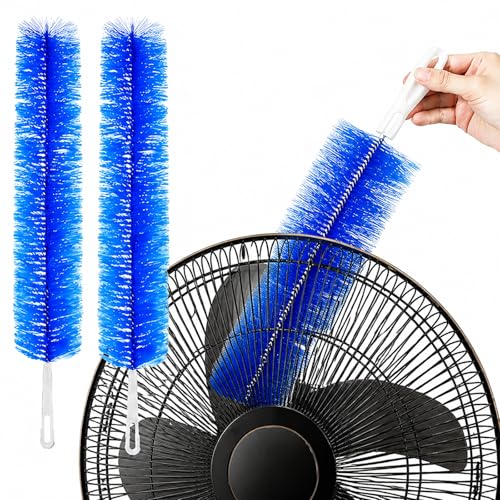
2 Pcs Fan Cleaning Brush, Bendable Micorfiber Crevice Duster Cleaner | Soft scratch-resistant bristles, bendable design for tight corners, clean fans, air vents & heaters
Chosen because it specifies Bendable Micorfiber Crevice Duster Cleaner and Soft scratch-resistant bristles.
View on Amazon
Clean Beastie Ceiling Fan Cleaner Duster with 6 Ft/77'' Extendable Handle | Fan Cleaner, Microfiber Chenille Duster for Cleaning Ceiling Fan Blades, Vents, and Hard to Reach High Places
Chosen because it specifies Fan Cleaner and Microfiber Chenille Duster for Cleaning Ceiling Fan Blades.
View on Amazon
Fan Cleaning Brush, Bendable Micorfiber Crevice Duster Cleaner, Air Conditioning, Home, Car Vents Curtain and Bendable Design for Tight Corners, Clean Fans, air Vents & heaters(3 Pack)
Chosen because it specifies Bendable Micorfiber Crevice Duster Cleaner and Air Conditioning.
View on Amazon
QIXIAMO 500x400x3/5MM Computer Filter Mesh PC for Case Fan Dustproof Cover Sponge for Keepping Your Pc Clean Dust
Picked as a relevant option in this category.
View on AmazonPrerequisites and Tools
- A screwdriver that fits your case and fan screws (usually Phillips).
- A soft brush, such as a clean paintbrush or makeup brush.
- A can of compressed air or an electric duster designed for electronics.
- Lint-free cloth and isopropyl alcohol (high concentration) or plain water.
- Cotton swabs and a flashlight.
- A small bag or tray for screws, and a phone camera to record cable routing.
- Optional: a wrist strap or the habit of touching bare metal on the case to discharge static.
Safety First
- Power the PC off and unplug the power cable from the wall. Press the power button once to drain residual charge, then flip the power supply switch off.
- Never open the power supply. It holds components that can store dangerous charge even when unplugged. Clean only the outside vents and fan grill with a brush.
- Do not use a household vacuum on the PC’s internals; it can generate static and its suction can spin fans too fast.
- Do not spray liquids inside the case, and do not use water or cleaners on electronics.
- If you notice damage, burnt smell, or melted plastic near a connector, especially the graphics card’s 12VHPWR / 12V-2×6 power connector, stop and follow the GPU and PSU maker’s guidance or contact the maker.
Step-by-Step
- Shut down and unplug. Power off from the operating system, switch off the PSU, and disconnect the mains cable and peripherals.
- Move the PC to a ventilated place. A garage, balcony, or well-ventilated area keeps dust from landing on your desk.
- Open the case. Remove the side panel, normally held by thumbscrews or latches at the back. Tempered glass panels are heavy and fragile, so lay them flat on a soft surface.
- Photograph the layout. Take a picture of fan cable routing so you can restore it.
- Hold the blades still. Use a finger, a soft stick, or a cable tie through the frame to stop the fan from spinning while you blow air. Spinning a fan with compressed air can overspeed the bearings or generate voltage on the connector.
- Blow short bursts. Hold the can upright and use bursts of one to two seconds, keeping it several centimeters away. Tilting or shaking the can can discharge cold liquid propellant.
- Brush stubborn dust. Use a soft brush along the blades and frame. Work from the fan outward so dust leaves the case.
- Remove and wash if needed. Unplug the fan header from the motherboard (a pull on the connector, not the wires), unscrew the fan, and lift it out. Wipe the blades with a damp lint-free cloth and use a swab on the edges. Do not dunk fans; most are not designed to be submerged.
- Clean the dust filters. Slide out the front, top, and bottom filters, wash them with water if the maker permits, and let them dry completely. Fit them back only when fully dry.
- Clean radiator and heatsink fins. Brush the fins gently and blow air through them while holding the fan still. Take care not to bend the fins.
- Check airflow direction. Look for the arrows on the fan frame. Front and bottom fans typically pull air in, rear and top fans push air out, though your case manual may differ.
- Reinstall and reconnect. Secure screws gently, without over-tightening plastic frames, and plug the header back into the same fan connector. Tidy cables so they cannot touch blades.
- Close, power up, and monitor. Plug in, boot, and watch fan speeds and temperatures in the BIOS or a monitoring tool.
What Result to Expect
Fans should spin freely with no wobble or rattle, run quieter at a given load, and temperatures should drop if dust was restricting flow. If temperatures stay high after cleaning, the cause may be dried thermal paste, a failing pump on a liquid cooler, or poor case airflow rather than dust.
Quick-Reference Table
| Component | Method | Caution |
|---|---|---|
| Case fan blades | Soft brush, short air bursts, damp cloth | Hold blades still while blowing |
| Dust filters | Rinse or brush, dry fully | Reinstall only when dry |
| Radiator fins | Gentle brush and air | Do not bend fins |
| CPU cooler fan | Brush and air, remove only if needed | Avoid disturbing the cooler on the CPU |
| GPU fans | Brush and air in place | Hold fans still, avoid taking the card apart |
| Power supply | Clean exterior vents only | Never open the PSU |
Common Mistakes
- Letting fans spin freely under compressed air. This can damage bearings.
- Using a vacuum on internals. Static can harm parts.
- Soaking components. Use a damp cloth, not a bath.
- Refitting damp filters. Moisture near electronics is a risk.
- Reversing fan direction. The case can pressurize wrongly and run hotter.
- Forgetting the PSU intake and GPU fans. These collect dust too.
- Using sticky or oily lubricants. Most modern fans are sealed; follow the fan maker’s guidance.
When Not to DIY
If the PC is under warranty and the maker forbids opening it, contact support. If a fan makes grinding noises after cleaning, replace it. If you see swollen components, burnt marks, or leaking liquid from an all-in-one cooler, stop and contact the maker or a qualified technician. Do not disassemble a liquid cooler’s radiator or pump.
Prevention
- Use intake filters and keep them clean.
- Place the PC off the carpet, with room around vents.
- Clean every few months in dusty or pet-heavy homes, and less often in clean ones.
- Keep slightly positive case pressure (more intake than exhaust airflow) so air enters through filters.
Frequently Asked Questions
How often should I clean my case fans?
It depends on the environment. A quick look every two to three months is common, with a full clean when filters look clogged or temperatures rise. Homes with pets or carpet may need it more often.
Can I use compressed air safely?
Yes, in short bursts with the can upright and fan blades held still. Avoid tilting the can, which can spray cold liquid.
Is it safe to wash fans with water?
A slightly damp cloth is safer than submerging. Some fans are rated for washing, but check the fan maker’s guidance and dry completely before use.
Why is my PC louder after cleaning?
A fan may be misaligned, a screw may be loose, or a cable may touch a blade. Re-seat the fan and check for contact. If a bearing is worn, replace the fan.
Should I clean the GPU fans too?
Yes, brush and blow dust from the shroud and fans in place while holding the blades. Removing the cooler can void warranties, so leave that to the maker or a technician.