Key takeaways
- One-cable convenience connects displays, power, network, and peripherals instantly.
- Dual 4K@60Hz support on the right docks enables a genuine multi-monitor workstation.
- High-wattage passthrough charging keeps your MacBook powered while docked.
- Integrated laptop stands on some models save space and aid cooling.
What's inside
Modern MacBooks are astonishingly capable, but their sparse port selection means a good docking station is practically essential the moment you want a multi-monitor desk setup. A single USB-C connection can transform a cable-light laptop into a full workstation — driving dual 4K displays, charging at full speed, connecting wired Ethernet, and hosting all your peripherals through one cable you plug in when you sit down and unplug when you leave.
The catch with Apple silicon is that not all docks handle multiple external monitors the same way, so choosing correctly matters. We’ve compared the leading MacBook docks and hubs — from compact travel adapters to full dual-monitor stations — to help you find the right fit for your Mac and your desk.
As an Amazon Associate we earn from qualifying purchases at no extra cost to you. Product prices and availability are accurate as of the date shown and are subject to change.


🎮 Get More From Your Setup — Free
Prime Gaming gives you free PC games every month, in-game loot, and a free Twitch channel sub — plus fast free shipping on all the gear above. New members get a 30-day free trial.
Watch: Dock Station Macbook: Review & Buyer’s Guide — Video Review
Design & Build
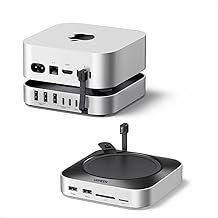
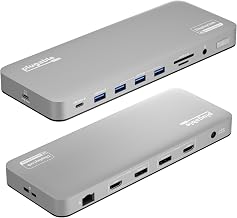
These range from pocketable to permanent-fixture. The Anker 5-in-1 USB-C Hub and Anker 7-in-2 Mac Dock are compact, travel-friendly designs — the 7-in-2 plugging directly into both MacBook ports for a clean, dongle-free look. Stepping up, the Anker 8-in-1 Laptop Docking Station and the PULWTOP dual-monitor docks are larger desktop units built for a fixed setup, with the PULWTOP models cleverly incorporating a laptop stand to save desk space and improve airflow. The TobenONE 16-in-2 is the most expansive here, a full-featured station with a generous array of USB, dual HDMI, Ethernet, and 100W charging aimed at demanding professional desks. Build quality across the board is solid, with aluminum housings that double as heat sinks.
Performance
The dividing line is monitor support. For a true dual-4K@60Hz multi-monitor setup on MacBook Pro models, the PULWTOP Dual Monitor docks and TobenONE 16-in-2 are the picks — they’re specifically engineered for dual displays with the bandwidth to drive them smoothly, plus fast 10Gbps USB and Gigabit Ethernet for a complete workstation. The Anker 8-in-1 also handles dual HDMI with 85W charging, making it a versatile all-rounder. The compact Anker hubs — the 5-in-1 and 7-in-2 — are better suited to single external displays plus peripherals and charging, ideal for travel or a lighter setup. Note that MacBook Air models handle multiple external monitors differently than Pros, so match the dock’s capability to your specific machine.
Pros & Cons
- One-cable convenience connects displays, power, network, and peripherals instantly.
- Dual 4K@60Hz support on the right docks enables a genuine multi-monitor workstation.
- High-wattage passthrough charging keeps your MacBook powered while docked.
- Integrated laptop stands on some models save space and aid cooling.
- MacBook Air multi-monitor limits mean some docks’ dual-display features only fully apply to Pro models.
- Compact hubs are single-display oriented, so confirm before expecting dual monitors.
- Chargers sometimes sold separately on the larger docks, adding to the cost.
Alternatives to Consider
If you own a MacBook Pro and need the absolute maximum in bandwidth and daisy-chaining, a dedicated Thunderbolt dock offers the highest performance, albeit at a premium. For pure portability, a minimal single-port adapter covers occasional external display needs. But for the common goal of turning a MacBook into a dual-monitor desk workstation through one cable, the docks here strike the best balance of capability and value.
Frequently Asked Questions
Can any dock run dual monitors on a MacBook Air?
Not always. MacBook Air models handle multiple external displays differently than Pros, and some require specific DisplayLink docks to drive two monitors. Check both your Mac’s capability and the dock’s compatibility notes before buying for a dual-display Air setup.
What’s the difference between a hub and a docking station?
A hub is typically a compact, travel-oriented adapter for a few ports and a single display. A docking station is a larger, powered desktop unit built for multiple monitors, more ports, and high-wattage charging — better for a permanent workstation.
Will a dock charge my MacBook?
Most of these support power passthrough, with wattages from 85W up to 100W. That’s enough to charge or maintain most MacBooks while connected, though the largest 16-inch Pros benefit from the higher 100W options.
Do I need dual HDMI or is USB-C enough?
If you want two external monitors, a dock with dual HDMI (or HDMI plus another output) is the straightforward path. A single USB-C or HDMI hub covers one external display plus peripherals, which is plenty for many users.
Verdict
For a full dual-monitor MacBook Pro workstation, the PULWTOP Dual Monitor docks and the feature-packed TobenONE 16-in-2 are the standouts, with integrated stands and the bandwidth to drive two 4K screens. If you travel or need just one external display, the compact Anker 7-in-2 is a tidy, effective choice. Match the dock to your Mac model and monitor plans, and one cable will run your whole desk.