The most effective ways to lower gaming laptop CPU temp are to improve airflow, switch from Turbo to a balanced performance profile, limit unnecessary CPU workloads, and cap frame rates when your system is generating more heat than necessary. If temperatures remain unusually high, check for blocked vents, cooling problems, or sustained thermal throttling.
A gaming laptop can run hot during demanding games because its CPU and GPU share a compact cooling system and operate within limited power and thermal budgets. A high temperature reading alone does not necessarily indicate a fault, but persistent performance drops, unexpected shutdowns, or temperatures repeatedly reaching the processor’s thermal limit deserve investigation. Intel explains that processors use thermal controls to reduce power and clock speeds when necessary to manage temperature.
This guide focuses on Windows 11 gaming laptops, with notes for Windows 10 and manufacturer-specific controls. Start with the reversible changes before considering advanced tuning or hardware maintenance.
1. Check Your CPU Temperature Before Changing Anything
First, establish whether your laptop is actually overheating. Record the CPU temperature at idle and during a repeatable gaming session, along with CPU utilization, clock speed, fan behavior, and any noticeable stuttering.
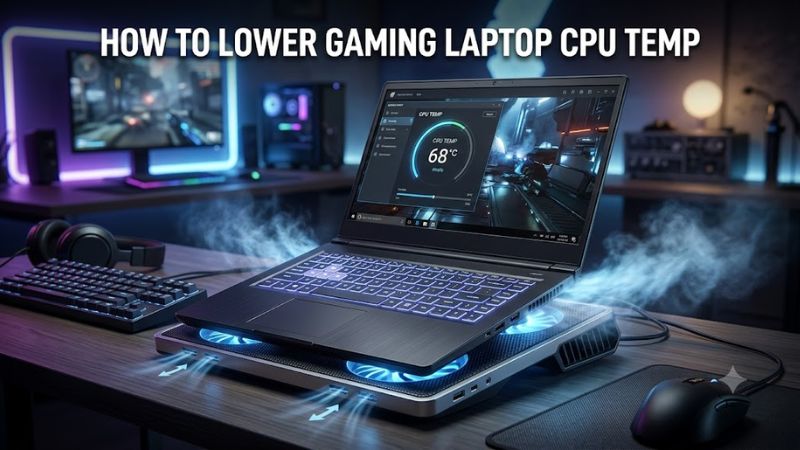
You can use your laptop manufacturer’s monitoring software or a reputable hardware-monitoring utility that supports your processor. Common manufacturer utilities vary by model and may expose CPU temperature, fan speed, power limits, and performance modes.
Use this basic diagnostic process:
- Restart the laptop and close unnecessary applications.
- Let the system settle for several minutes after startup.
- Record the idle CPU temperature.
- Launch a game you regularly play and use the same settings and scene for a consistent comparison.
- Record the peak temperature and, more importantly, the sustained temperature during gameplay.
- Check whether clock speeds fall or performance becomes inconsistent as the temperature rises.
Do not judge the cooling system from one brief temperature spike. CPU temperature changes rapidly with workload, and short boosts can produce higher readings than sustained light activity.
What CPU temperature is too high for a gaming laptop?
There is no single temperature threshold that applies to every gaming laptop. The CPU model, laptop cooling design, power limits, ambient temperature, and workload all affect the result.
| Observed behavior | What it may mean | What to do |
| Temperature rises briefly during a demanding scene | Normal boost behavior may be responsible | Monitor sustained temperatures and performance |
| Temperature remains high but performance is stable | The laptop may be operating within its designed thermal limits | Check the processor’s specifications and laptop manufacturer’s guidance |
| Temperature reaches its thermal limit while clock speeds drop | Thermal throttling may be occurring | Check airflow, power settings, and cooling performance |
| Unexpected shutdowns, severe stuttering, or fans that do not work | Possible cooling or hardware fault | Stop demanding workloads and investigate the fault |
For Intel CPUs, the maximum junction temperature varies by processor and is often in the 100–110°C range, but that is not a recommended target for every laptop. Intel specifically advises checking the specifications for the exact processor and consulting the system manufacturer about laptop thermal behavior. AMD processor limits also vary by model.
The goal is not necessarily to reach a particular temperature. It is to keep the system within its designed operating limits without unnecessary performance loss, excessive noise, or instability.
2. Use a Balanced or Quiet Performance Mode
One of the easiest ways to lower gaming laptop CPU temperature is to reduce the amount of power the processor is allowed to use when maximum performance is unnecessary.
Most gaming laptops include manufacturer software with modes such as Quiet, Balanced, Performance, and Turbo. The names and behavior vary by model, but more aggressive performance modes can allow higher power consumption, faster clock speeds, and more fan noise.
How to change the performance mode
- Open your laptop’s manufacturer control application.
- Find the thermal, performance, or power profile setting.
- Select Balanced or Quiet instead of Turbo or Maximum Performance.
- Run the same game and compare temperatures, clock speeds, fan noise, and frame rates.
On some laptops, the manufacturer’s profile overrides or supplements Windows power settings. Change one setting at a time so you can identify which adjustment actually helps.
You can also change the Windows power mode:
- Open Settings → System → Power & battery in Windows 11.
- Find Power mode and select Balanced or Best power efficiency.
- Retest the game to see whether temperatures or performance change.
Microsoft documents these power modes and notes that available options depend on the device and its configuration.
Trade-off: Lower power limits can reduce CPU boost clocks and performance in CPU-heavy games. If frame rates become noticeably worse, try Balanced rather than the most restrictive mode.
3. Improve Airflow Around the Laptop
Poor airflow is a straightforward cause of excessive heat. A gaming laptop needs unobstructed intake vents and exhaust openings to move heat away from its internal components.
Follow these steps:
- Place the laptop on a hard, flat desk or table.
- Avoid gaming on a bed, blanket, cushion, or other soft surface.
- Keep the intake and exhaust vents clear of walls, papers, and other objects.
- If the laptop has bottom intake vents, consider a stand that raises the rear without blocking those openings.
- Keep the room reasonably cool and avoid direct sunlight.
Dell and ASUS both identify blocked vents and restricted airflow as potential causes of overheating and performance problems.
Will a laptop cooling pad lower CPU temperature?
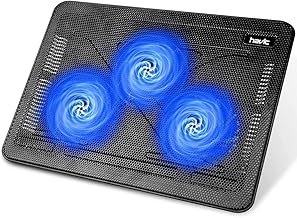
A cooling pad may help by supplying additional airflow underneath the laptop, but the result depends on the chassis design and where its intake vents are located. A simple stand can also help if it improves clearance around the existing vents.
A cooling pad is worth considering when the laptop has unobstructed vents but still benefits from additional airflow. It is less likely to solve a failing fan, a blocked internal heatsink, or a defective cooling assembly.
4. Clean Dust From the Cooling Vents
Dust can accumulate around the fan intakes and internal heatsink fins, restricting airflow even when the outside of the laptop looks reasonably clean.
Start with an external inspection. If dust is visible around the vents, follow the cleaning instructions for your exact laptop model.
- Shut down the laptop completely.
- Disconnect the power adapter and peripherals.
- Allow the system to cool.
- Inspect the intake and exhaust openings for visible debris.
- If the manufacturer permits external cleaning, use an appropriate can of compressed air according to its instructions, keeping it upright and at a suitable distance.
- Restart the laptop and compare temperatures under the same workload.
Do not direct high-pressure air into the fans or use an air compressor. ASUS specifically warns that excessive air pressure can damage fan blades. Disconnect power before cleaning, and do not open the chassis unless you are comfortable with the manufacturer’s service procedure.
If dust is packed deep inside the heatsink, external cleaning may not be enough. Professional cleaning is a sensible next step when the laptop is still under warranty or internal access is difficult.
5. Cap Your Frame Rate to Reduce Unnecessary Work
A game running at an unrestricted frame rate can keep the CPU and GPU busy producing frames beyond what your display can show or what you need for a smooth experience.
A frame-rate cap can reduce unnecessary work and may lower overall system heat. The CPU temperature improvement varies because the GPU, game engine, resolution, and scene complexity all influence system load.
How to limit FPS
- Open the game’s video or graphics settings.
- Look for Frame Rate Limit, Max FPS, or a similar option.
- Set a cap appropriate for your display and performance needs.
- If the game lacks this setting, check whether your graphics driver offers an application-specific frame-rate limit.
- Compare CPU temperature and frame-time consistency before and after the change.
For example, if a game is producing substantially more frames than your monitor can display, try a cap closer to your preferred refresh-rate target. Competitive players may prefer a higher cap for responsiveness, while single-player games often tolerate a more conservative limit.
Use the in-game setting first when available. It is easier to reverse and less likely to affect other games.
What to watch: If the CPU temperature barely changes, the game may be limited by another workload or the laptop’s cooling design. A frame-rate cap is a useful experiment, not a guaranteed temperature fix.
6. Close Unnecessary Background Processes
Game launchers, browser tabs, recording software, downloads, updates, and other background applications can add CPU work while you play.
To identify unnecessary activity:
- Press Ctrl + Shift + Esc to open Task Manager.
- Select Processes.
- Review the CPU column while the game is running.
- Identify applications using substantial CPU resources that are not needed for gameplay.
- Close only applications you recognize and do not need.
Avoid ending unfamiliar Windows processes or essential security software simply because they use CPU time. Some background tasks, including shader compilation, game updates, and antivirus scans, may be temporary and legitimate.
If a particular application consistently consumes CPU resources while idle, investigate its settings or update it rather than installing a generic PC optimizer.
How to verify the result: Compare CPU utilization and temperature with the same game scene before and after closing the unnecessary application. If CPU usage falls but temperature remains similar, the laptop’s cooling and power behavior may be the more important factors.
7. Adjust In-Game Settings That Increase CPU Load
Not all graphics settings affect the CPU equally. Lowering every setting indiscriminately may reduce image quality without solving a CPU-temperature problem.
The most useful settings to investigate are those that increase simulation, draw-call, or world-processing work.
| Setting or workload | Possible CPU effect | Practical adjustment |
| Uncapped FPS | Allows the game to process more frames | Apply a reasonable frame-rate limit |
| High player or NPC counts | Can increase simulation and AI workload | Reduce crowd or simulation density if supported |
| Large view distances | Can increase object-management and draw-call work in some games | Test a lower view-distance setting |
| Background game launchers or recording | Adds work outside the game itself | Close unnecessary applications |
| CPU-intensive strategy or simulation games | May keep multiple CPU cores busy | Reduce simulation intensity where available |
These effects are game-dependent. Higher resolution and demanding visual effects often place more load on the GPU, so lowering them may not substantially reduce CPU temperature.
Use a repeatable in-game scene and change one setting at a time. Keep the original settings available so you can restore image quality if the temperature improvement is negligible.
8. Check Fan Controls, Drivers, and Firmware
If the laptop remains hot despite adequate airflow, check its manufacturer-specific fan controls and system updates.
Use the correct fan profile
Open your manufacturer’s control application and look for fan, thermal, or performance settings. Depending on the laptop, these may be located in applications such as Armoury Crate, Lenovo Vantage, or Dell Power Manager.
For example, ASUS documents different fan profiles for supported devices, including quieter modes and modes that prioritize cooling. Availability varies by model.
If you want lower temperatures during gaming, test a profile that prioritizes cooling while monitoring the resulting noise and performance. A quieter fan profile may actually allow higher temperatures because it limits fan speed.
Update drivers and firmware carefully
Check the support page for your exact laptop model for relevant chipset drivers, thermal-management components, BIOS updates, and manufacturer utilities.
Before updating BIOS firmware:
- Confirm the exact laptop model and use its official support page.
- Read the update notes and instructions.
- Connect the correct power adapter and follow the manufacturer’s power requirements.
- Do not interrupt the update.
- Avoid BIOS updates as an experimental first response to a warm but otherwise stable laptop.
Firmware can affect fan and power behavior, but an update is not guaranteed to reduce CPU temperatures. Dell recommends checking system updates and thermal-profile settings when diagnosing persistent overheating.
9. Consider CPU Power Limits or Undervolting Only as Advanced Options
If simpler adjustments are insufficient, limiting CPU power or using a supported undervolting feature may help reduce heat. These options require more care because they can reduce performance, cause instability, or be unavailable on your hardware.
Reduce CPU power limits
Some manufacturer utilities allow manual CPU power limits or custom performance profiles. If your laptop explicitly supports these controls, make a small adjustment within the manufacturer’s documented range and test stability before changing anything else.
Lower power limits can reduce heat output, but they can also reduce sustained CPU performance in simulation-heavy games, strategy games, and other CPU-intensive workloads.
Keep a record of the original settings so you can restore them if performance becomes worse.
What about undervolting?
Undervolting reduces the voltage supplied to a processor under supported operating conditions. It may reduce power consumption and heat, but it is not available on every laptop or CPU.
Intel notes that system manufacturers control the undervolting options available on their systems and warns that changing processor voltage or frequency can affect stability, security, performance, and warranty coverage.
For that reason:
- Check whether your laptop manufacturer explicitly supports CPU undervolting.
- Do not disable firmware security protections to force voltage controls to appear.
- Change only one supported setting at a time.
- Test for crashes, errors, and inconsistent performance.
- Restore default settings if the system becomes unstable.
Avoid copying voltage offsets or power limits from another laptop, even if it uses the same processor family. Different chassis designs and firmware settings can produce different results.
When Should You Seek Professional Laptop Service?
If CPU temperatures remain unusually high after the reversible adjustments above, the cause may be deeper than Windows settings.
Arrange manufacturer support or qualified repair if you notice:
- Fans that do not spin when cooling is clearly required.
- Grinding, rattling, or other unusual fan noises.
- Unexpected shutdowns or repeated severe performance drops.
- Temperatures reaching the processor’s thermal limit alongside sustained throttling.
- Persistent overheating during light workloads or shortly after startup.
- Heavy internal dust buildup or signs of cooling-system damage.
Possible causes include obstructed internal heatsinks, failing fans, poor heatsink contact, degraded thermal-interface material, or a faulty thermal-control system. These are possibilities to investigate, not faults that can be diagnosed from temperature alone. Dell and Intel both recommend model-specific troubleshooting or manufacturer support for persistent thermal problems.
Do not rush to replace the CPU or laptop. First establish whether the system is operating within its designed thermal limits and whether the problem is airflow, software load, power configuration, or a physical fault.
Frequently Asked Questions
1. Is 90°C too hot for a gaming laptop CPU?
Not necessarily; 90°C can be within the operating behavior of some gaming laptop processors under sustained heavy load. The exact CPU model, its thermal limit, the laptop’s design, and whether throttling occurs all matter. Check the manufacturer’s specifications and investigate if high temperatures accompany shutdowns or persistent performance loss.
2. Does a cooling pad lower gaming laptop CPU temperature?
A cooling pad can lower CPU temperature on some laptops by improving airflow around the intake vents. Results depend on the laptop’s ventilation design, the pad’s airflow, and the condition of the internal cooling system. A stand that raises the laptop may also help.
3. Should I disable CPU Turbo Boost to reduce laptop heat?
Disabling CPU Turbo Boost can reduce peak CPU power and temperature on some systems, but it can also reduce gaming performance. Try the manufacturer’s Balanced profile or a supported power limit first, and only consider more restrictive settings if the temperature problem persists.
4. How often should I clean my gaming laptop fans?
Clean the external vents whenever visible dust accumulates, and inspect them periodically based on your environment and usage. Dusty rooms and pet hair may require more frequent attention. Internal cleaning intervals vary by laptop and conditions, so follow the manufacturer’s maintenance instructions rather than relying on a fixed schedule.
Final Verdict
To lower gaming laptop CPU temp, begin with the changes that are easy to reverse: improve airflow, select a balanced performance profile, cap excessive FPS, and close unnecessary background applications. Clean dusty vents using the manufacturer’s recommended method, then investigate fan controls, updates, and cooling-system health if temperatures remain high.
Measure results under the same workload rather than chasing a universal temperature target. If the laptop repeatedly throttles, shuts down, or overheats during light use, seek model-specific support instead of relying on aggressive undervolting or unverified optimization tools.