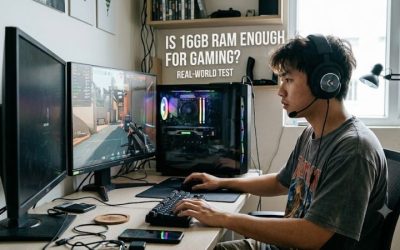
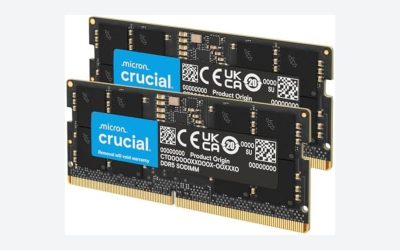
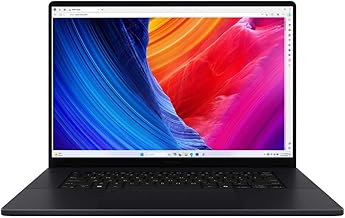
Yes, 8GB of RAM is enough for some gaming laptops and lighter PC games, but it is a limiting amount for modern gaming in 2026. You can still play less demanding titles, older games, and some competitive games with suitable hardware and settings. However, newer AAA releases, background applications, and multitasking can push an 8GB system beyond its comfortable limits.
For most people buying a gaming laptop today, 16GB of RAM is the more practical starting point, while 32GB makes sense for heavier multitasking, demanding games, extensive mods, and content creation. Intel’s gaming laptop guidance makes a similar distinction between 8GB for lighter gaming, 16GB for newer games and background applications, and 32GB for resource-intensive workloads.
The important distinction is that RAM capacity is only one part of gaming performance. Your graphics card, processor, graphics memory (VRAM), game settings, and the laptop’s cooling system also affect frame rates.
Is 8GB RAM Enough for Gaming in 2026?
It depends on the games you play and what else is running on your laptop. Eight gigabytes can work for a basic gaming setup, but it leaves less memory available for Windows, game launchers, voice chat, browsers, and other background processes.
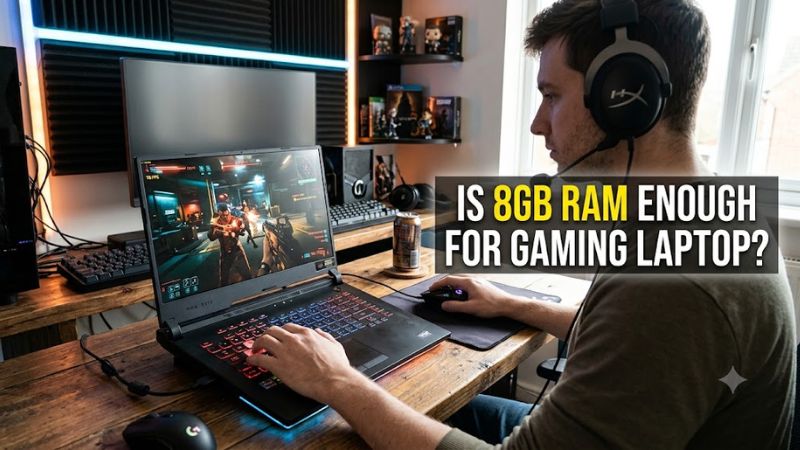
Here is a practical breakdown:
| Gaming workload | Is 8GB enough? | Recommended RAM |
| Older PC games | Usually, if other requirements are met | 8GB or more |
| Lightweight indie games | Often | 8GB–16GB |
| Competitive games with modest requirements | Sometimes | 16GB |
| Newer AAA games | Often insufficient or restrictive | 16GB–32GB, depending on the game |
| Gaming with Discord and browser tabs open | More likely to run into limits | 16GB |
| Gaming while streaming or recording | Generally not ideal | 32GB for more headroom |
| Game development and heavy creative work | Usually too restrictive | 32GB or more, depending on the workload |
These are general planning recommendations, not guarantees of compatibility. Always check the specific game’s current system requirements before deciding whether 8GB will work.
Why 8GB of RAM Can Limit Gaming Performance
RAM stores the data your games and running applications need to access quickly. When available memory becomes scarce, Windows may move some data into a page file on your storage drive. That helps the system continue operating, but storage is not a substitute for having enough physical RAM.
Three common problems can appear on an 8GB gaming laptop.
1. Stuttering and inconsistent frame rates
A game may launch and display a reasonable average frame rate but still experience occasional pauses or uneven frame delivery when memory demand rises. This can happen during busy scenes, when loading assets, or when other applications compete for RAM.
Low RAM is only one possible cause. Shader compilation, CPU limits, GPU limits, overheating, and storage issues can produce similar symptoms.
2. Less room for background applications
Windows, game launchers, browsers, voice chat, and recording software all consume some memory. On an 8GB laptop, opening several applications while gaming can leave less memory available to the game.
Closing unnecessary applications can help reduce memory pressure, but it cannot make an 8GB system equivalent to a 16GB system.
3. Some games require more than 8GB
Game requirements vary considerably, and the distinction between minimum and recommended RAM matters.
For example, the official system requirements for Cyberpunk 2077 list 12GB of RAM as the minimum and 16GB as the recommended amount for the standard non-ray-tracing requirements. Its ray-tracing minimum also calls for 16GB. An 8GB laptop therefore falls below the published system-memory minimum for these configurations.
This illustrates why a powerful GPU does not automatically make a laptop with 8GB of system RAM suitable for every game. The game must meet its memory requirements as well as its CPU and graphics requirements.
8GB vs. 16GB vs. 32GB RAM for a Gaming Laptop
General guidance for Windows gaming laptops as of October 22, 2026.
| RAM capacity | Best suited for | Main limitation |
| 8GB | Older games, lighter titles, and tight budgets | Limited room for demanding games and multitasking |
| 16GB | Most general-purpose gaming setups | Can be restrictive for heavy mods, streaming, and demanding creative workloads |
| 32GB | Heavy multitasking, streaming, modded games, and game development | Extra capacity may provide little benefit in games that do not need it |
Is 16GB enough for gaming?
For most mainstream gaming laptop users, 16GB is a sensible target. It provides more room for the operating system, the game, and everyday background applications than 8GB.
It does not guarantee that every modern game will run smoothly. Your GPU, processor, cooling, and the game’s own requirements still determine what performance you can expect.
Is 32GB worth it?
Consider 32GB if you regularly play memory-intensive games, use large mods, stream while gaming, edit video, or run development tools alongside a game.
If you mainly play lightweight titles and keep background applications to a minimum, moving from 16GB to 32GB may offer less practical improvement than upgrading a weak GPU or choosing a better-balanced laptop.
Also, more RAM does not automatically mean higher FPS. An upgrade is most useful when memory capacity is a genuine bottleneck. If your GPU is already running at its limit and memory pressure is low, adding RAM may make little difference to frame rates.
How to Check Whether Your Gaming Laptop Needs More RAM
Before buying memory, check whether your laptop is actually running short of RAM. This takes only a few minutes and can help distinguish a memory limitation from a GPU or CPU problem.
Step 1: Check memory usage in Windows
- Press Ctrl + Shift + Esc to open Task Manager.
- Select Performance, then Memory.
- Check the installed capacity, current usage, available memory, and memory speed if shown.
- Launch a game you regularly play and run it under your usual settings.
- Return to Task Manager or use a monitoring tool to check memory usage while the game is running.
If memory usage stays high and the laptop also stutters or struggles when switching between applications, RAM capacity may be contributing to the problem. A single reading is not conclusive, so observe the system during the actual workload.
Step 2: Check whether applications are consuming memory
In Task Manager, select Processes and sort by the Memory column. This shows which applications are using the most RAM.
Close unnecessary browser tabs, launchers, and background applications before gaming. Avoid ending unfamiliar Windows processes, as some are required for the operating system or hardware to function correctly.
If the game becomes more responsive after closing background applications, limited memory may be part of the issue. If the problem persists, investigate graphics settings, temperatures, drivers, and GPU utilization as well.
Step 3: Check your laptop’s upgrade options
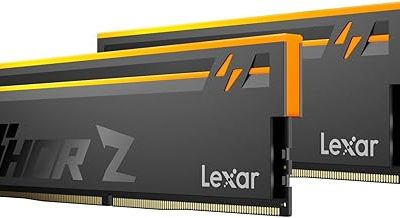
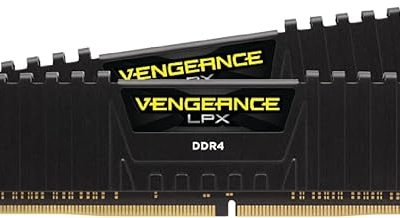
Not every gaming laptop allows its RAM to be upgraded. Some models use replaceable memory modules, some have a mixture of soldered and replaceable memory, and others have fully soldered RAM.
Check the manufacturer’s specifications or service manual for your exact laptop model. Confirm:
- Maximum supported memory capacity.
- Number of memory slots and how many are occupied.
- Whether any RAM is soldered to the motherboard.
- Supported memory generation, such as DDR4 or DDR5.
- Compatible module form factor, speed, and capacity.
DDR4 and DDR5 memory are not interchangeable. Crucial’s compatibility guidance explains why matching the memory technology and system specifications is essential before purchasing an upgrade.
Should You Upgrade an 8GB Gaming Laptop to 16GB?
If your laptop supports a RAM upgrade, moving from 8GB to 16GB is often a sensible improvement for gaming. Whether you should upgrade or replace the laptop depends on its age, graphics hardware, processor, and upgrade limitations.
Use these rules to decide:
- Upgrade to 16GB: Your laptop has a compatible upgrade path, its CPU and GPU still meet your gaming needs, and memory pressure is limiting performance.
- Consider 32GB: You regularly stream, run demanding development tools, use extensive mods, or perform other memory-intensive work.
- Keep 8GB for now: You mainly play lighter games, performance is acceptable, and upgrading would be expensive or difficult.
- Consider another laptop: The RAM is soldered, the graphics hardware is too weak for your intended games, or the total upgrade cost does not make sense.
If you have one 8GB module and a free slot, adding a compatible module may be an option. If the laptop has two occupied slots, reaching 16GB may require replacing one or both modules. Some systems also use soldered memory, so verify the exact configuration first.
A matched memory configuration can provide dual-channel bandwidth where the laptop supports it. However, the performance benefit varies by hardware and game, and dual-channel memory does not eliminate the limitations of an underpowered GPU.
Can You Improve Gaming on 8GB RAM Without Upgrading?
Yes. A few low-risk adjustments can help an 8GB laptop make better use of its available memory, although none removes the underlying capacity limit.
Close unnecessary applications
Exit browsers, background launchers, and other applications you do not need while playing. Disable unnecessary startup applications through Task Manager’s Startup apps section if they are not needed when Windows starts.
How to verify: Check memory usage and test the same game scene before and after closing applications.
Lower demanding game settings
Reduce texture quality if the game offers that option, particularly when graphics memory is also limited. Lowering resolution or other graphics settings can help when the GPU is the bottleneck, but it does not directly increase installed system RAM.
How to verify: Compare gameplay smoothness and frame-time consistency in the same scene, using the same resolution and other settings wherever possible.
Keep sufficient storage space available
Windows uses storage for its paging system when physical memory is under pressure. Keep adequate free space on the system drive and avoid disabling the page file to reclaim storage.
An SSD can improve responsiveness when paging occurs compared with a slower drive, but it cannot deliver the same access characteristics as physical RAM.
Avoid RAM-cleaning utilities
Third-party RAM cleaners and registry-boost scripts are not reliable substitutes for additional physical memory. Some may simply discard useful cached data or introduce unnecessary background activity.
If the game consistently needs more memory than the laptop can provide, upgrading compatible RAM is the more direct solution.
What to Look for When Buying a Gaming Laptop
If you are shopping for a new gaming laptop, prioritize the following:
- 16GB of RAM as a starting point. Check the specific games you intend to play, rather than assuming a single capacity works for every title.
- A suitable GPU. Graphics performance is critical for demanding games, and the laptop GPU’s actual capabilities matter more than the RAM figure alone.
- A capable CPU. Processor performance affects games that are CPU-intensive and can influence frame rates in competitive titles.
- An upgrade path. If you need to stay within a tight budget, confirm whether the laptop supports future memory upgrades.
- The complete system requirements. Check RAM, VRAM, processor, operating system, and storage requirements for your intended games.
For buyers who cannot upgrade RAM later, choosing sufficient memory at purchase is especially important. A laptop with 8GB soldered to the motherboard can be a poor long-term choice if you plan to play demanding new releases.
Frequently Asked Questions
1. Can I play GTA V with 8GB RAM on a gaming laptop?
Yes, 8GB can be sufficient for some versions and configurations of Grand Theft Auto V, but the exact requirements depend on the edition, game updates, and other hardware. Check the official requirements for the version you intend to play and leave room for Windows and background applications.
2. Does adding RAM increase FPS on a gaming laptop?
Adding RAM can improve performance when insufficient memory causes paging or stuttering, but it does not guarantee higher average FPS. The improvement depends on whether RAM is the actual bottleneck and on the laptop’s CPU, GPU, and memory configuration.
3. Is 8GB RAM enough for gaming and streaming?
Eight gigabytes is generally too restrictive for gaming while streaming, particularly if you also run voice chat, browser tabs, and recording software. A 16GB configuration is a better starting point, while 32GB provides more room for demanding multitasking.
4. Can I upgrade an 8GB gaming laptop to 16GB RAM?
Yes, if the laptop supports additional or replacement memory, but some models have soldered RAM or strict capacity limits. Check the exact model’s service manual and supported memory specifications before purchasing a module.
Final Verdict
Is 8GB RAM enough for a gaming laptop? It can be enough for older games, lightweight titles, and limited multitasking, but it is a compromise for modern PC gaming in 2026.
For most gamers, 16GB is the better baseline. Choose 32GB if your games, mods, streaming setup, or creative workloads demand additional headroom. If you already own an 8GB laptop, check its memory usage and upgrade compatibility before spending money on new hardware.
The goal is not to maximize RAM at any cost. It is to give your games enough memory while maintaining a balanced system with an appropriate processor and graphics card.