Key takeaways
- Laptop vs desktop for work compared on portability, power, cost, upgrades and ergonomics, with a decision table and a 7-point checklist before you buy.
Choose a laptop for work if you move between locations, travel, or share a desk, and choose a desktop if you work from one place and need the most performance, comfort and upgrade room for your money. A laptop trades some power and repairability for the freedom to carry your entire workstation in a bag. A desktop trades that freedom for stronger components at a given price, better cooling and parts you can swap later. The right call depends on where you work, what software you run and how long you expect to keep the machine, and the sections below turn that into a short decision process.
The quick verdict by situation
If you work at a single desk five days a week, a desktop is usually the more efficient purchase. If you split time between an office, home and client sites, a laptop is almost always the better fit, even if it costs more for the same performance. If you need both, a laptop with a dock and a monitor at home is the most common compromise.
These are tendencies rather than rules. A thin office laptop and a compact desktop both handle spreadsheets and email without strain, so the real separation appears when work becomes demanding, such as video editing, 3D modeling, data analysis or running virtual machines. In those cases, cooling and sustained power matter more than the form factor itself.
Comparison table
| Factor | Laptop | Desktop | Why it matters for work |
|---|---|---|---|
| Portability | Built in; works anywhere with a charger | Fixed to one location | Travel, hybrid schedules and meeting rooms favor a laptop |
| Sustained performance | Limited by thin cooling and power limits | Higher, thanks to larger coolers and power supplies | Long renders and compiles run steadier on a desktop |
| Performance per dollar | Lower; you pay for compactness and a screen | Higher; more power for the same budget | Matters most when tasks are heavy |
| Upgradeability | Often limited to RAM and storage, sometimes soldered | Most parts can be replaced | Extends the useful life of the machine |
| Ergonomics | Needs an external keyboard and screen for comfort | Designed around separate peripherals | Posture affects long-term comfort |
| Power backup | Battery bridges short outages | Needs a UPS for protection | Unsaved work and file integrity |
| Repair | Often manufacturer service or specialist tools | Simple, standard parts | Downtime when something fails |
| Space and noise | Small footprint; fans may spin up under load | Needs desk or floor space; quieter at the same load | Shared offices and small apartments |
Portability and the working day
Think in terms of days, not abstractions. Count how many days each week you work away from your main desk and how often you need to present, attend on-site meetings or work from a client location. If that number is two or more, the flexibility of a laptop will probably offset its disadvantages. If it is zero or close to it, you are paying for portability you rarely use.
Weight and battery life matter in practice. A laptop that is heavy or needs a charger every few hours can feel more like a desktop with extra steps. Check the specification sheet for weight, the stated battery capacity and the charger size, and be skeptical of battery-life claims that come from light-use scenarios.
Power and cooling for demanding tasks
Desktop processors and graphics cards can run at higher power levels because the case, fans and power supply are far larger than a laptop chassis allows. The result is more consistent performance over long jobs. Laptop chips may reach high speeds in short bursts and then slow down as heat builds, a behavior called thermal throttling.
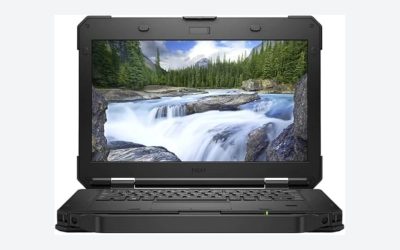
For office tasks this difference rarely shows. For editing, modeling, compiling code or running several virtual machines, it can mean noticeably shorter waits on a desktop. Workers who need a portable machine that also does programming and gaming may want to compare options such as laptops built for programming and gaming, which tend to prioritize cooling and memory capacity over thinness.
Cost, upgrades and lifespan
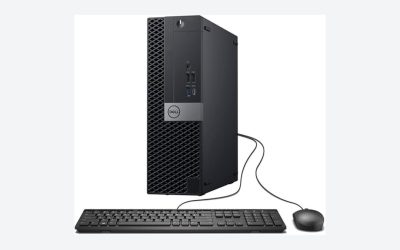
A desktop generally delivers more capability for the same budget, because it does not need to include a screen, keyboard, battery and compact cooling. It also allows parts replacement: a graphics card, extra memory or a larger drive can extend its life by years. When something fails, standard parts are easy to swap.
Laptops vary a lot. Some allow you to change memory and storage, and some solder the memory to the board, which sets its capacity permanently. If a laptop supports memory upgrades, check the compatibility details carefully, since memory type, speed and slot layout differ between models. This write-up on a 32GB DDR5 laptop memory kit and its compatibility caveats shows why verifying support before buying is worthwhile.
Think about total ownership rather than the sticker price. A desktop needs a monitor, keyboard, mouse and perhaps a webcam. A laptop may need a dock, a second display and a stand to be comfortable at a desk. Also consider the time cost of downtime: a laptop that needs mail-in repair can leave you without a work machine for days.
Ergonomics and health
A laptop used alone puts the screen and keyboard too close together, which tends to push the neck forward or raise the shoulders. Separating them with an external keyboard, mouse and a screen or stand at eye level fixes much of the problem. A desktop setup naturally supports this arrangement, which is one reason it is common in offices.
A good working position keeps the top of the screen near eye level, forearms roughly level with the keyboard and feet supported. Whichever machine you choose, plan to buy at least an external keyboard and mouse. Breaks matter too, regardless of the hardware on your desk.
Picks by type of work
- Writers, analysts and administrators: either works; choose by mobility. A laptop with a monitor at home covers most needs.
- Software developers: a laptop is convenient, but memory capacity and cooling matter for containers, virtual machines and large builds. A desktop suits fixed-location heavy builds.
- Video editors and 3D artists: a desktop is usually the stronger fit for sustained rendering, with a laptop reserved for travel and quick edits.
- Consultants and field staff: a laptop, since meetings, travel and client sites make a fixed machine impractical.
- Remote workers with a permanent desk: a desktop or a laptop-and-dock setup, depending on whether you sometimes travel.
A worked decision example
Assume a project manager works at a fixed home desk three days a week and in an office two days. The tasks are spreadsheets, video calls and presentation software, with no heavy rendering. Because the office days require carrying a machine, a desktop would require a second computer or remote access, which adds complexity. A laptop plus a home monitor, keyboard, mouse and dock solves the problem with one device. Now change the assumption: the same person edits 4K video for six hours a day at home and rarely travels. A desktop becomes more attractive, with a basic laptop for the occasional trip. The change in answer came entirely from the workload and location, not from the hardware category.
What to check before buying
- Count your weekly days away from the main desk.
- List the heaviest applications you run and look up their recommended memory, processor and graphics needs.
- Check whether memory and storage can be upgraded, and what the maximum capacities are.
- Confirm the available ports for monitors, docks and peripherals.
- Read the warranty terms and service options, including on-site or mail-in repair.
- Plan for a backup: external drive, cloud service or both.
- If buying a desktop, think about a surge protector or UPS; if buying a laptop, think about charge limits for long desk use.
When opening a desktop to add parts, power it off, unplug it and ground yourself on bare metal first. For laptops, follow the manufacturer’s instructions for battery safety, and check whether opening the case affects warranty coverage.
Related guides
Frequently asked questions
Is a laptop or desktop better for working from home?
If you work from one spot and need strong performance, a desktop usually gives more power and comfort for the budget. If you move between rooms, offices or trips, a laptop is more practical. A laptop with a monitor, keyboard and mouse at your desk gives a balanced setup for many remote workers.
Can a laptop replace a desktop for office work?
For documents, email, browsing and video calls, yes. Add an external keyboard, mouse and monitor for comfort. Demanding tasks such as long renders, large builds or heavy data processing may expose cooling and power limits, so check the application’s recommended specifications before relying on a laptop for the whole workload.
Are desktops easier to repair than laptops?
Generally yes. Desktop parts follow standard sizes, so a failed drive, power supply or graphics card can be replaced individually. Laptop repairs often need model-specific parts and careful disassembly, which may involve manufacturer service. Always power off and unplug before opening a desktop, discharge static on bare metal, and check how any repair affects your warranty.
How much RAM should a work computer have?
It depends on the software. Light office work often runs comfortably with 16 GB, while heavy multitasking, virtual machines, design or video work can benefit from 32 GB or more. Check the recommendations for your applications and whether the machine allows later upgrades, since some laptops solder memory to the board.
Is a UPS needed for a desktop used for work?
A UPS is a sensible precaution if sudden power loss would cost you unsaved work or risk file corruption. It keeps the desktop running for a few minutes so you can save and shut down safely. Laptops have a built-in battery that provides a similar bridge, though the monitor and router still lose power.