A bottleneck calculator accuracy question matters whenever you are building or upgrading a gaming PC. These tools can estimate whether a CPU and GPU are reasonably matched, but their percentages are not measurements of actual FPS loss. Understanding their limitations and checking real gaming performance can help you avoid unnecessary upgrades.
What Bottleneck Calculator Accuracy Really Comes Down To
Bottleneck calculators are useful for preliminary hardware comparisons, but they cannot accurately predict every gaming scenario. Most rely on processor and graphics card performance data, internal scoring systems, and selected resolution settings. Their results are best treated as estimates rather than definitive evidence that one component is holding back your PC.
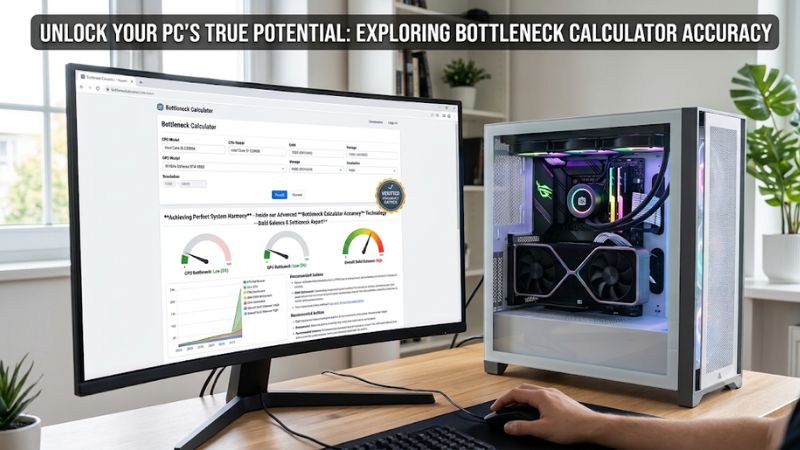
1. How Bottleneck Calculators Generate Their Results
Most online calculators ask you to select a CPU, GPU, and sometimes a resolution or gaming workload. They then compare performance data associated with those components to estimate which part might limit the system.
Some calculators use aggregated benchmark scores, while others incorporate game-specific performance profiles and resolution adjustments. More detailed tools may also account for memory capacity, memory configuration, or frame-rate targets.
The problem is that these calculations simplify a complicated rendering process. A percentage such as 15% CPU bottleneck does not automatically mean your computer loses 15% of its potential FPS. Its meaning depends entirely on the calculator’s methodology.
2. Why the Same Hardware Can Produce Different Results
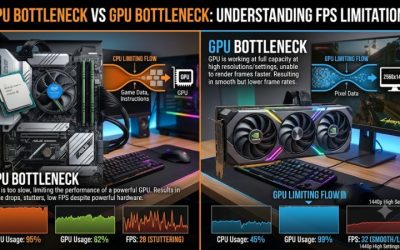
A CPU and GPU combination does not behave identically across every game. A competitive shooter with many active players may put considerable pressure on the processor, while a graphically demanding single-player game may rely more heavily on the graphics card.
Resolution also changes the relationship. At 1080p, a graphics card can produce frames quickly enough to expose processor limitations. At 1440p or 4K, increased rendering demands can shift more of the workload toward the GPU.
This explains why bottleneck calculator accuracy becomes questionable when a website provides one general percentage without identifying the game, resolution, graphics settings, or intended frame rate.
3. Why Different Calculators Disagree
There is no universally standardized formula for calculating a CPU-GPU bottleneck percentage. Each website can use its own hardware database, benchmark sources, performance weighting, and mathematical assumptions.
For example, one calculator might compare general CPU and GPU scores, while another uses gaming benchmarks at separate resolutions. Their results can differ even when you enter exactly the same hardware configuration.
A more transparent calculator should explain its data sources, calculation method, supported games, and limitations. However, even detailed methodology cannot replace measurements from the actual PC.
4. What Doesn’t Help: Treating a Percentage as a Diagnosis
A high bottleneck percentage does not automatically identify a faulty component or establish that an upgrade is necessary. Likewise, a low percentage does not confirm that your system will deliver satisfactory performance in every game.
Total CPU utilization can also be misleading. A game may depend heavily on one processor thread even when overall CPU usage appears relatively low. Similarly, high GPU utilization is often normal when the graphics card is rendering demanding scenes.
The important question is whether your PC consistently meets your performance target. If your system delivers the frame rate and frame consistency you want, an estimated imbalance may have little practical significance.
How to Check CPU and GPU Bottlenecks: Step by Step
Instead of relying entirely on a calculator, combine its estimate with game-specific benchmark results and live performance monitoring. This approach helps distinguish a theoretical hardware mismatch from a limitation that actually affects your gaming experience. Start with the games and settings you use most often rather than assuming every workload behaves identically.
Step 1: Enter Accurate Hardware and Gaming Information
Begin by identifying your exact processor and graphics card models. Laptop and desktop versions should not be treated as interchangeable because their power limits and operating conditions can differ.
Select your intended resolution, such as 1080p, 1440p, or 4K, and choose a representative game category if the calculator supports it. Some tools also provide graphics presets and target frame rates.
Avoid selecting generic hardware names when multiple versions exist. Accurate inputs improve the relevance of the estimate, although they cannot account for every variable affecting actual gaming performance.
Step 2: Compare the Result With Independent Benchmarks
Look for CPU and GPU benchmarks that use comparable hardware configurations and gaming conditions. Reputable sources such as TechPowerUp, Tom’s Hardware, and Hardware Unboxed publish independent performance comparisons that can help establish realistic expectations.
Pay attention to the processor, graphics card, resolution, graphics preset, game version, and upscaling settings. Average FPS and 1% low results provide different information, so avoid comparing one metric against another.
A bottleneck calculator accuracy assessment becomes more useful when its estimated hardware relationship agrees with relevant independent benchmark evidence. Differences should prompt further investigation rather than an immediate purchase.
Step 3: Monitor Your Actual Gaming Performance
If you already own the system, live monitoring is more useful than another online estimate. MSI Afterburner with its monitoring overlay can display GPU utilization, temperatures, clock speeds, and frame rates while a game is running.
You can also use HWiNFO to inspect CPU and GPU operating conditions, including individual processor-core activity and power-related information.
Observe the same demanding game scene several times. Look for patterns rather than isolated readings. Consistently high GPU utilization can indicate a graphics-limited workload, while low GPU utilization alongside a constrained CPU thread may suggest a processor limitation.
Step 4: Change One Setting to Confirm the Limitation
A useful diagnostic technique is to lower the rendering resolution while keeping the game scene and other settings as consistent as possible.
If FPS increases noticeably, the graphics workload was likely contributing significantly to the limitation. If performance barely changes, investigate CPU-side constraints, frame caps, background activity, and other possible causes.
Restore your original settings after the comparison. Do not assume that lowering resolution is a permanent solution; it is primarily a way to understand how the workload responds.
The following table summarizes how to interpret each stage.
| Setting or Step | Where | Effect | Risk |
| Select exact CPU and GPU | Online calculator | Improves hardware estimate relevance | Incorrect model selection produces misleading results |
| Compare gaming benchmarks | Independent benchmark reviews | Provides real-world performance context | Different test conditions can invalidate comparisons |
| Monitor component utilization | MSI Afterburner or HWiNFO | Shows actual hardware behavior | Incorrect sensor interpretation |
| Lower resolution temporarily | In-game graphics settings | Helps distinguish GPU and CPU limitations | Visual quality decreases temporarily |
The table describes diagnostic steps, not guaranteed outcomes. In particular, utilization percentages should be interpreted alongside frame times, clock speeds, temperatures, and the game’s frame-rate cap.
FAQ
1. Are Bottleneck Calculators Accurate for Gaming PCs?
Bottleneck calculators are reasonably useful for rough hardware comparisons but are not reliable measurements of actual gaming performance.
Their estimates depend on the quality of their benchmark databases, calculation methods, and selected hardware inputs. They cannot fully reproduce individual game engines, demanding scenes, driver conditions, or system configurations.
Use them to identify potentially unbalanced CPU and GPU combinations before purchasing components. For an existing PC, prioritize independent benchmarks and live monitoring.
2. What Is a Good Bottleneck Percentage?
There is no universally accepted bottleneck percentage that applies to every gaming PC.
Some calculators classify small estimated differences as balanced and larger differences as significant. However, these categories are specific to each website’s methodology and should not be interpreted as standardized performance measurements.
A GPU-limited system can be perfectly appropriate for gaming. What matters is whether the hardware meets your target resolution, frame rate, and overall gaming requirements.
3. Can a Bottleneck Calculator Predict FPS?
Some advanced calculators provide estimated FPS, but those figures should not be treated as guaranteed gaming results.
Their predictions may use aggregated benchmark data, reference systems, game profiles, and mathematical adjustments. They generally cannot reproduce your exact game version, background applications, cooling conditions, or graphics configuration.
For better estimates, compare independent benchmarks using the same CPU, GPU, resolution, and graphics settings. Check average FPS and 1% lows when both are available.
4. Should I Upgrade My CPU if a Calculator Shows a Bottleneck?
You should not upgrade your CPU based solely on a calculator’s bottleneck percentage.
First, identify whether the processor actually limits performance in your preferred games. Monitor individual CPU-core activity, GPU utilization, frame times, and performance at different resolutions.
If your system consistently fails to reach your target frame rate because of CPU limitations, a processor upgrade may be worthwhile. Before purchasing, verify motherboard socket compatibility, BIOS support, memory compatibility, and cooling requirements.
Final Thoughts
Understanding bottleneck calculator accuracy helps you make better PC gaming upgrade decisions. These tools are useful starting points, not substitutes for real performance measurements. Compare independent benchmarks, monitor your hardware, and investigate individual games before replacing components. Prioritize upgrades that address limitations you can actually identify.
More from Amazon
Programs that pair well with the guide above. Offers and eligibility are set by Amazon and may change.
Free shipping on eligible items, Prime Video and more. Eligible new members can start with a free trial.
Start a Prime free trialAd-free music streaming. Eligible new subscribers can start with a free trial.
Try Music Unlimited freeA Prime membership for ages 18-24 with a trial period. Eligibility is set by Amazon.
See Prime for Young AdultsAudiobooks and podcasts to listen to on the go. Eligible new members can start with a free trial.
Try Audible freeAs an Amazon Associate we earn from qualifying purchases.