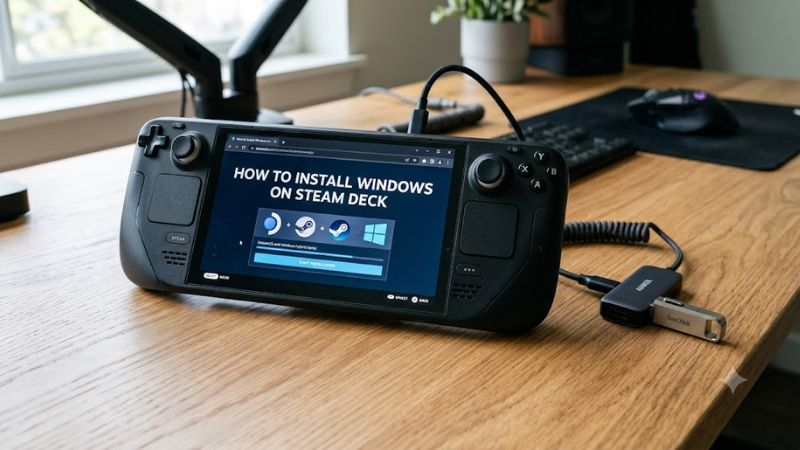
You can install Windows on a Steam Deck by creating a bootable Windows USB drive, starting the handheld from that drive, completing Windows Setup, and installing the appropriate drivers from Valve. The main decision is whether to replace SteamOS on the internal SSD or keep SteamOS and run Windows from separate storage.
Before you begin, understand the biggest risk: a standard Windows installation can erase SteamOS and the files on your internal drive. Valve’s official Windows Resources page also states that its SteamOS dual-boot installation wizard is not yet available. Community-developed dual-boot methods exist, but they require additional partitioning and boot management.
This guide focuses on a straightforward Windows installation, explains how to install the necessary hardware drivers, and shows you how to return to SteamOS if you change your mind.
What You Need Before Installing Windows
Prepare the following before changing your Steam Deck’s operating system.
- A Steam Deck LCD or OLED: Valve provides separate Windows driver packages for these models.
- A separate Windows PC: Use it to download Windows installation files and prepare the bootable USB drive.
- A USB drive: A 16GB or larger drive is a practical choice for installation media.
- A USB-C hub or adapter: This lets you connect the installer to the Steam Deck. A hub with Ethernet, USB-A ports, and power delivery is particularly useful.
- A keyboard and mouse: These make Windows Setup and initial configuration easier.
- A stable power source: Keep the Steam Deck connected to its charger throughout installation.
- A Windows license, if required: Check your license and activation status before replacing your existing operating system.
Back up important files, game saves that are not synced to the cloud, and anything else you want to preserve. Windows installation can modify or erase drive partitions, so do not proceed until you understand which storage device you intend to change.
Should you install Windows on the internal SSD or an external drive?
| Installation method | Main advantage | Main drawback |
| Internal SSD, replacing SteamOS | Uses the Deck’s internal storage and avoids relying on a separate boot drive | Removes the existing SteamOS installation if you erase the drive |
| Internal SSD, alongside SteamOS | Can preserve both operating systems | Requires careful partitioning and a separate boot-management setup |
| External USB SSD | Keeps the internal SteamOS installation intact | Requires an external drive and a reliable connection |
| microSD card | Convenient to prepare and remove | Generally a poor choice for a full Windows gaming installation because of performance and endurance concerns |
Recommendation: If you want Windows to be your main operating system, installing it on the internal SSD is the most direct route. If preserving SteamOS is important, use a separate drive or research a compatible dual-boot procedure before making any partition changes.
Valve’s official documentation describes Windows installation and recovery, but does not provide a ready-made dual-boot wizard. The dual-boot approach should therefore be treated as an advanced, community-supported procedure rather than a standard guided installation.
Step 1: Download the Windows 11 installation files
Windows 11 is the recommended starting point for a new installation because Windows 10 support ended on October 14, 2025. Microsoft no longer provides standard free Windows 10 security updates through Windows Update.
- On your separate PC, open Microsoft’s official Windows 11 download page.
- Choose the Create Windows 11 Installation Media option if you want Microsoft’s tool to prepare a bootable USB drive.
- Alternatively, download the Windows 11 x64 ISO if you plan to use Rufus.
- Save the installation files locally and confirm that the download completes successfully.
Use Microsoft’s official files rather than modified Windows images from unofficial websites. You should also check the latest Windows release information for known issues before installing.
Step 2: Create a bootable Windows USB drive
A bootable USB drive contains the files needed to start Windows Setup independently of SteamOS.
If you use Microsoft’s Media Creation Tool:
- Connect a blank USB flash drive to your Windows PC.
- Run the Media Creation Tool downloaded from Microsoft’s website.
- Accept the license terms.
- Select the option to create installation media for another PC.
- Choose the appropriate language and Windows edition, then select the 64-bit architecture.
- Select your USB flash drive and allow the tool to finish creating the installation media.
If you downloaded an ISO instead, you can use Rufus to write the image to the USB drive. Select the correct USB device and Windows ISO, then follow Rufus’s prompts.
Warning: Creating the installation media will erase the contents of the selected USB drive. Double-check the device before confirming. Microsoft’s official instructions explain both methods.
Step 3: Download the correct Steam Deck drivers
Do this before installing Windows so that the necessary drivers are ready when Windows Setup finishes.
- Open Valve’s official Steam Deck Windows Resources page.
- Find the section for your device: Steam Deck LCD or Steam Deck OLED.
- Download the driver packages listed for that model.
- Extract the downloaded archives if necessary.
- Copy the extracted driver folders to a separate USB drive or another storage device that you can access during Windows setup.
Valve provides separate driver instructions for graphics, Wi-Fi, Bluetooth, the SD card reader, and audio. Do not assume a driver intended for the LCD model is interchangeable with the OLED version.
Important preparation for the OLED model
Valve’s Windows Resources documentation includes an additional requirement for OLED Bluetooth support: update the Steam Deck BIOS through the SteamOS Beta update channel to version 3.6.9 or later before installing Windows.
The documentation also notes that Bluetooth audio microphone functionality is still being worked on. Check Valve’s current instructions before proceeding, as driver availability and requirements can change.
Step 4: Boot the Steam Deck from the Windows USB
Once the USB installer and drivers are ready, start the Steam Deck using the boot menu.
- Shut down the Steam Deck completely.
- Connect the Windows USB installer using a USB-C adapter or hub.
- Connect your keyboard and mouse if available.
- Hold the Volume Down button.
- While holding Volume Down, press the Power button.
- Release the buttons when the boot menu appears.
- Select the USB installation device, usually listed as an EFI USB device.
The Deck should load Windows Setup. Valve confirms that holding Volume Down while powering on opens the boot menu.
If the USB device does not appear, shut down and reconnect it, check that the installer was created correctly, and try another USB-C adapter if necessary. Avoid changing firmware settings without a specific reason.
Step 5: Install Windows on the intended drive
This is the most important step because choosing the wrong partition can remove SteamOS or other data.
- Follow the Windows Setup prompts for language, keyboard layout, and installation preferences.
- Continue to the screen where Windows asks where to install the operating system.
- Carefully review the available drives and partitions.
- Select the intended Windows installation target only after confirming its identity and the consequences of modifying it.
- Continue with Setup and let the Deck restart as required.
If you want Windows to replace SteamOS
A clean installation on the internal SSD can remove SteamOS and its partitions. If you deliberately want to replace SteamOS, make sure your backups are complete before changing or deleting partitions.
Do not delete partitions indiscriminately. If you cannot confidently identify the correct internal drive and understand the partition layout, stop and review the installation plan before proceeding.
If you want to keep SteamOS
Do not use the clean-install procedure above as though it were a dual-boot installation. Preserving SteamOS requires preparing separate space for Windows and ensuring that both operating systems remain bootable.
Valve states that its official dual-boot installation wizard is not yet ready. Community procedures using partition management and a boot manager are available, but they introduce additional risks. Use a guide specifically written for the current Steam Deck model and installation method.
What if Windows Setup appears sideways?
Windows Setup may appear in portrait orientation on the Steam Deck’s built-in screen. Valve documents this behavior as expected during installation, so it does not automatically mean that the display is broken.
Continue using the touchscreen, or connect a monitor, keyboard, and mouse if navigating the installer is difficult.
Step 6: Complete the first Windows startup
After Windows Setup finishes, complete the initial configuration.
- Follow the prompts to configure your region, keyboard, network, and account.
- Connect to the internet using Ethernet if Wi-Fi is not yet available.
- Complete the remaining Windows setup steps.
- Open Windows Update and install the available updates.
- Restart if Windows requests it.
You may not have working Wi-Fi immediately because the Steam Deck needs the appropriate wireless driver. This is why downloading the drivers in advance is important.
If Windows requests a product key, follow the activation options available for your license. Valve’s Windows Resources page notes that entering a key during setup may require internet access; because Wi-Fi drivers might not yet be installed, an Ethernet connection can help.
Step 7: Install the Steam Deck drivers
Windows may start successfully before all of the Deck’s hardware features work correctly. Install Valve’s drivers before treating the setup as complete.
Open the driver folders you saved earlier and follow Valve’s instructions for your particular model.
| Driver | Purpose |
| APU / graphics | Enables the appropriate AMD graphics and processor-related support |
| Wi-Fi | Enables wireless networking |
| Bluetooth | Enables supported Bluetooth functionality |
| Audio | Enables the onboard audio hardware |
| SD card reader | Enables the microSD card reader |
The installation procedure varies by driver package. Valve instructs users to run the relevant setup program for some packages and install specific .inf files for others.
For example, the LCD Wi-Fi driver uses install.bat, while the OLED Wi-Fi driver instructions specify right-clicking qcwlan64.inf and selecting Install. Follow the current instructions for your exact model rather than applying the same procedure to every package.
After installing the drivers:
- Restart Windows.
- Confirm that Wi-Fi can connect to your network.
- Test Bluetooth with a supported device.
- Check that the speakers and headphone output work.
- Confirm that the display renders correctly.
- Insert a microSD card if you need the card reader.
If a device still does not work, revisit Valve’s driver instructions before downloading drivers from third-party websites.
Step 8: Fix the screen orientation and configure gaming controls
Once Windows is running, adjust the display and check how you will control games.
Change the display orientation
If the built-in screen remains sideways:
- Open Windows Settings.
- Select System, then Display.
- Find the Display orientation setting.
- Select Landscape.
- Confirm the change if prompted.
The exact display options may vary depending on the installed graphics driver and Windows version.
Configure controller input
Do not assume that installing Windows automatically provides the same integrated controller experience as SteamOS. Some games and launchers may require additional configuration for the Deck’s built-in controls.
Start with the official Steam client and test controller behavior in a game that supports your intended input method. If a game does not recognize the controls, check its input settings and the relevant Steam configuration before installing additional controller utilities.
Check Windows activation
Open Settings → System → Activation to check whether Windows is activated. Activation depends on the license and edition you use; installing Windows does not automatically provide a valid license.
Step 9: Test Windows and your games
Before installing a large game library, verify that the operating system and Steam Deck hardware are working as expected.
Use this checklist:
- Windows starts normally after a full shutdown.
- The built-in display uses landscape orientation.
- Wi-Fi and Bluetooth work as expected.
- Speakers and headphone output function.
- The microSD card reader recognizes a supported card.
- The built-in controls work in your chosen games.
- Windows Update completes without persistent errors.
- Windows activation status is correct.
- The system can restart without returning unexpectedly to the USB installer.
Next, install the Steam client and download one game to test. Start with a title that you know runs well on your Deck, then check controller input, display behavior, audio, and performance.
Remember that installing Windows does not guarantee better game performance. Results depend on the game, drivers, power settings, and compatibility. Windows can make certain launchers and Windows-dependent games easier to access, but it may require additional configuration compared with SteamOS.
How to restore SteamOS if Windows does not work out
You can return to SteamOS using Valve’s official recovery image. This is particularly useful if you replaced SteamOS with Windows or can no longer boot the original installation.
Before starting, understand that re-imaging the device erases its data. If you installed Windows alongside SteamOS, do not assume that a full recovery operation will preserve your Windows partition.
- On another computer, open Valve’s SteamOS Installation and Repair guide.
- Download the Steam Deck recovery image from Valve’s official resource.
- Prepare a USB drive with at least 8GB of capacity, following Valve’s instructions.
- Shut down the Steam Deck and connect the recovery USB.
- Hold Volume Up while pressing the Power button to enter the firmware menu.
- Navigate to Boot Manager and select the USB recovery device.
- Wait for the recovery environment to load.
- Select the recovery option appropriate to your situation.
Valve distinguishes between Repair SteamOS, which attempts to preserve personal content, and Re-image Device, which performs a full reset and replaces the installed operating systems and data with the stock SteamOS installation. Read the descriptions carefully before selecting an option.
Frequently Asked Questions
1. Can you install Windows 11 on a Steam Deck?
Yes, you can install Windows 11 on a Steam Deck using bootable installation media and Valve’s model-specific drivers. Some hardware features may require extra configuration, and Valve does not provide a ready-made official dual-boot wizard.
2. Will installing Windows delete SteamOS?
A clean installation that deletes or replaces the internal drive’s SteamOS partitions can remove SteamOS and its data. Installing Windows on a properly prepared separate partition or external drive can preserve the original installation, but the process must be configured correctly.
3. Can you run Windows from a microSD card on Steam Deck?
Yes, Windows can be run from removable storage using suitable preparation methods, but a microSD card is generally not the best choice for a permanent Windows gaming setup. Performance, reliability, and write endurance are important considerations; an external SSD is worth considering if you want to keep Windows separate from SteamOS.
4. How do you switch back to SteamOS after installing Windows?
If SteamOS remains installed, you can select its boot entry through the Steam Deck’s boot menu, provided the boot configuration is intact. If Windows replaced SteamOS, use Valve’s official recovery image to reinstall it, taking care to back up any remaining data first.
Final Verdict
Installing Windows on Steam Deck is practical if you need Windows-specific software, launchers, or game compatibility. The safest approach is to prepare the installation media and the correct Valve drivers before changing the operating system.
If you want Windows as your primary OS, a clean internal SSD installation is the most direct option, provided you accept losing the existing SteamOS installation. If you want both systems, use a carefully researched dual-boot procedure rather than following clean-install instructions.
For most owners who primarily play compatible Steam games, SteamOS remains the simpler starting point. Install Windows when its specific compatibility benefits justify the extra setup and maintenance.