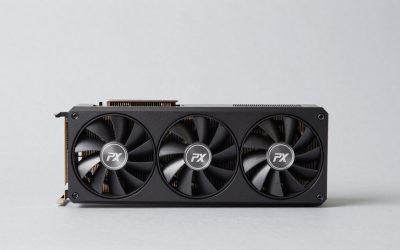
Updating your GPU driver can improve game compatibility, address graphical glitches, and provide support for newly released games. How to update graphics driver depends on whether your PC uses NVIDIA, AMD, or Intel graphics. This guide explains safe update methods, installation steps, version checks, and ways to handle common problems.
What Updating a Graphics Driver Really Comes Down To
A graphics driver allows Windows and games to communicate with your GPU. Keeping it current can resolve compatibility issues and deliver game-specific fixes, but installing every available release is not necessary. The right approach depends on your graphics manufacturer, PC configuration, and whether you need a routine update or a fix for a particular game.
1. Identify Your Graphics Card First
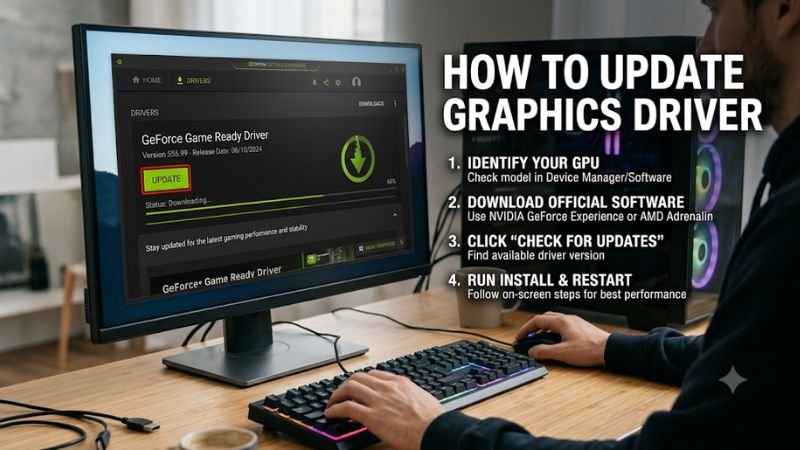
Before downloading anything, identify the graphics hardware installed in your computer. Press Windows + X, select Device Manager, and expand Display adapters. Windows should show the installed graphics devices, such as NVIDIA GeForce, AMD Radeon, or Intel Graphics.
Some gaming PCs have two graphics processors: integrated graphics built into the CPU and a dedicated graphics card. Laptops commonly use this configuration. Record both names because updating only one driver may not address a problem involving the other GPU.
2. Understand Which Driver You Actually Need
NVIDIA, AMD, and Intel publish graphics drivers for their respective hardware. A driver designed for one GPU family cannot be substituted for another, even if the installation files appear similar. Always match the graphics model and Windows version before installing a package.
Gaming laptops require additional attention. Manufacturers such as ASUS, Lenovo, Acer, and Dell may provide customized graphics packages for specific models. Their recommended driver can be a safer starting point when a generic driver causes brightness, display switching, or power-management problems.
3. Choose Between Recommended and Optional Drivers
Graphics manufacturers may provide different driver release categories. Recommended or WHQL releases generally prioritize broad compatibility and stability, while optional releases can include newer game optimizations or fixes that have not yet reached the recommended release channel.
For a gaming PC that works normally, a recommended release is a sensible default. Consider an optional update when its release notes specifically mention a game you play or a problem you experience. A newer version number alone does not establish that an update will improve performance.
What Doesn’t Help
Downloading several driver packages from unrelated websites is not a reliable update strategy. Third-party driver-updater utilities can also identify the wrong hardware or offer unnecessary software. Avoid unofficial driver bundles, modified installers, and tools that promise automatic FPS improvements.
You also do not need to uninstall your existing driver before every routine update. Standard NVIDIA, AMD, and Intel installers provide normal update procedures. More aggressive cleanup should be reserved for persistent installation failures, corrupted drivers, or specific compatibility problems.
How to Update Graphics Driver: Step by Step
The safest way to install a graphics driver is to use the software provided by your GPU manufacturer or Windows Update. Before starting, save open projects, close games, and make sure your computer has a stable internet connection. Choose the instructions that match your graphics hardware rather than installing multiple driver packages.
| Setting or Step | Where | Effect | Risk |
| NVIDIA update | NVIDIA App | Installs GeForce drivers | Temporary display flicker |
| AMD update | AMD Software: Adrenalin Edition | Updates Radeon drivers | Settings may change |
| Intel update | Intel Driver & Support Assistant | Detects and installs Intel drivers | Generic driver may affect OEM customization |
| Windows Update | Windows Settings | Installs available graphics drivers | May not offer the newest gaming release |
1. Update NVIDIA Graphics Drivers
For an NVIDIA GeForce GPU, the NVIDIA App is the convenient option. Open the application and select the Drivers section. Check for available updates, then choose the appropriate Game Ready Driver for gaming or Studio Driver for supported creative workflows. Wait for the download to finish before starting installation.
Follow the installer prompts and allow the process to complete. Your screen may briefly go black or flicker while Windows reloads the graphics driver. Restart the computer if requested. NVIDIA also provides manual driver selection through its official driver download system for users who prefer to identify their GPU and operating system themselves.
NVIDIA+1
2. Update AMD Radeon Graphics Drivers
AMD users can update through AMD Software: Adrenalin Edition. Open the application from the Windows Start menu, search for System, and select System Settings. The System page displays graphics hardware, installed software, driver information, and available update controls.
Select Manage Updates to open AMD Install Manager. Review the available packages and choose the Recommended release for a general-purpose gaming system. Optional releases may include optimizations for newer games or recently introduced fixes. Read the release notes before choosing one. When installation finishes, restart if requested and check the installed version again.
3. Update Intel Graphics Drivers
Intel graphics users can use Intel Driver & Support Assistant (Intel DSA). Install the utility, open its support interface, and allow it to identify compatible Intel hardware. It will display relevant driver and software updates when available. Review the listed graphics package before proceeding with installation.
You can also download a driver manually from Intel’s graphics driver support pages. Identify the exact processor or Arc graphics model, select the correct Windows version, and choose the corresponding package. Laptop owners should check their computer manufacturer’s support page first because customized drivers may be necessary for certain display and power-management features.
4. Update Graphics Drivers Through Windows Update
Windows Update is a useful alternative when you do not want to install a manufacturer’s management application. On Windows 11, open Settings, select Windows Update, and choose Advanced options. Under Additional options, select Optional updates and expand Driver updates if that category is available.
Select the graphics driver that matches your hardware and choose Download and install. Wait for Windows to finish, then restart the PC. Optional driver updates are not installed automatically, so you must select them manually. Windows Update may not offer the newest game-specific driver, making the manufacturer’s application a better choice when you need a particular release.
FAQ
1. How Often Should You Update Your Graphics Driver?
You should update your graphics driver when a new release addresses a game you play, fixes a problem, or improves compatibility with your system. There is no requirement to install every release immediately.
For a gaming PC that operates normally, checking periodically is sufficient. Before installing an optional driver, read its release notes to determine whether it addresses a relevant issue. If your current driver works well and the new release offers no meaningful benefit, waiting is reasonable.
2. Will Updating Graphics Drivers Increase FPS?
Updating graphics drivers can improve FPS in some games, but performance gains are not guaranteed. Certain releases contain game-specific optimizations, while others mainly address compatibility, stability, or security issues.
The actual result depends on the GPU, CPU, game version, graphics settings, and driver changes. If a game runs slowly, check its graphics settings, resolution, background applications, and hardware utilization before assuming the driver is responsible.
3. Can You Update Graphics Drivers Without Uninstalling the Old Version?
Yes, you can normally install a newer graphics driver over the existing version using the manufacturer’s standard installer. NVIDIA, AMD, and Intel provide update procedures designed for routine driver installation.
A clean installation is not necessary for every update. Consider more extensive driver removal only when normal installation repeatedly fails or an older driver appears corrupted. Before using cleanup utilities, understand that saved graphics profiles and custom settings may be lost.
4. What Should You Do If a Graphics Driver Update Causes Problems?
If a new driver causes crashes, visual artifacts, or worse gaming performance, first restart Windows and check whether the problem continues. Confirm that the installed driver matches your graphics card and operating system.
If the issue began immediately after updating, open Device Manager, expand Display adapters, right-click the affected GPU, and select Properties. Under the Driver tab, choose Roll Back Driver if Windows makes that option available. Alternatively, reinstall a previous compatible package from the GPU manufacturer’s official support page. Avoid removing drivers or changing BIOS settings without a specific reason.
Final Thoughts
Learning how to update graphics driver software helps keep a gaming PC compatible with new releases and maintain reliable performance. Use the official NVIDIA, AMD, or Intel update method, verify the installed version, and restart Windows when necessary. If problems appear afterward, consider rolling back to the previous compatible driver.