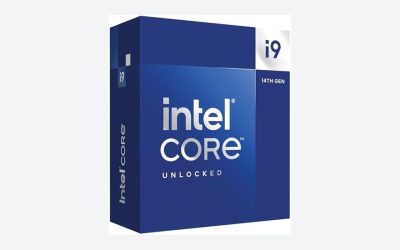
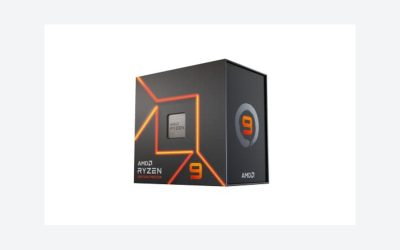
Running a how to stress test CPU procedure helps reveal overheating, unstable clock speeds, cooling problems, and system crashes before they affect everyday gaming. This guide explains how to prepare your PC, choose the right testing software, monitor temperatures, and interpret results without putting unnecessary strain on your hardware.
What CPU Stress Testing Really Comes Down To
CPU stress testing deliberately places a processor under sustained workloads to examine stability, temperature, power behavior, and cooling performance. It is useful after building a PC, changing CPU settings, installing a cooler, or investigating unexpected crashes. The important distinction is that a benchmark measures performance, while a stress test examines how reliably the system handles demanding work.
1. Understand What a CPU Stress Test Measures
A CPU stress test checks whether processor cores can maintain their expected operation under sustained demand. Depending on the workload, it can expose calculation errors, unstable overclocks, excessive temperatures, thermal throttling, and problems with motherboard power delivery.
For gaming PCs, the results help identify whether CPU cooling and power behavior remain appropriate during demanding sessions. However, a synthetic workload does not perfectly reproduce every game. A computer can pass a CPU test and still experience crashes caused by GPU drivers, RAM instability, or game-specific problems.
2. Choose the Right Stress Testing Software
Different utilities exercise processors in different ways. Prime95 is commonly used for intensive CPU and memory-related stability workloads, while OCCT provides dedicated testing modes and error monitoring. Both can help identify instability that a short benchmark might miss.
Cinebench is useful for checking single-core and multicore performance, as well as observing temperatures during rendering workloads. However, it is primarily a benchmark rather than a comprehensive stability test. Choose software based on the question you want to answer instead of assuming every tool provides the same result.
3. Understand Temperature, Power, and Throttling
CPU temperature depends on the processor model, cooler, case airflow, ambient temperature, power consumption, and workload. There is no single temperature target that applies to every Intel and AMD processor. Check the manufacturer’s specifications for your exact CPU before interpreting thermal readings.
Thermal throttling occurs when a processor reduces operating performance to manage temperature or power limits. A brief temperature increase during a demanding workload is not automatically a fault. However, sustained throttling, unexpected shutdowns, or repeated calculation errors deserve further investigation.
Intel+1
4. Know When Stress Testing Is Necessary
Stress testing is particularly useful after assembling a new desktop, replacing a CPU cooler, changing BIOS settings, or adjusting clock speeds and voltage. It can also help investigate unexplained restarts, blue screens, application crashes, or instability during demanding games.
You do not need to run a stress test every day or whenever you start your computer. For a normally functioning gaming PC, testing after meaningful hardware or configuration changes is generally more useful. If the system already shows signs of overheating, inspect its cooling before applying another heavy workload.
How to Stress Test CPU: Step by Step
A reliable procedure starts with preparation and temperature monitoring, followed by a short initial workload and more demanding tests when necessary. Avoid immediately running every available stress test at maximum intensity. The goal is to gather useful information while keeping the processor within its documented operating limits.
1. Prepare Your PC Before Testing
Save important work and close unnecessary applications before starting. Make sure the CPU cooler is operating, fans are connected correctly, and the computer has adequate ventilation. For a liquid cooler, check that the pump is powered and that its fans are functioning.
If you recently changed CPU voltage, multiplier, or memory settings, record the current BIOS configuration. For an initial baseline, return to manufacturer-recommended default settings where practical. This makes it easier to distinguish hardware or cooling problems from instability introduced by manual tuning.
2. Monitor CPU Temperature and Performance
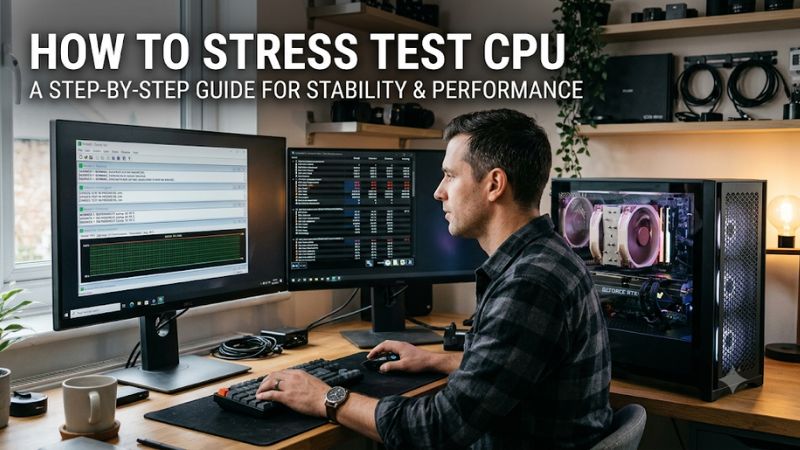
Install a hardware monitoring utility such as HWiNFO and open its sensor readings before starting the workload. Depending on the processor and motherboard, useful readings include CPU package temperature, individual core temperatures, CPU utilization, clock speeds, package power, and thermal throttling indicators.
Record idle readings first, then observe how the processor behaves under load. Pay attention to temperature trends rather than relying on one instantaneous reading. Compare the results with the specifications for your exact processor, since Intel and AMD models can have different thermal limits and operating behavior.
3. Run an Initial Stress Test
For a controlled first pass, open OCCT and select its CPU testing mode. Start with the default or moderate configuration rather than immediately selecting the most demanding workload. A short session of approximately 10–15 minutes can reveal obvious instability, abnormal temperature behavior, or cooling problems.
Watch the monitoring utility while the test runs. Stop if the system freezes, restarts, reports calculation errors, produces unusual hardware behavior, or approaches a thermal limit without stabilizing. A successful initial run only indicates that the configuration handled that particular workload for that duration.
4. Perform Additional Stability Checks
If the initial test completes normally, use Prime95 for a more intensive CPU and cache workload. Small FFTs places substantial demand on processor cores and cache, while Blend combines CPU and memory-related workloads. These modes answer different diagnostic questions and should not be treated as interchangeable.
You can also run a Cinebench multicore workload to observe performance under a rendering task. Compare repeated runs under similar conditions, checking whether temperatures and performance remain reasonably consistent. Finish by using demanding applications or games that reflect your actual usage rather than relying entirely on synthetic workloads.
The following table summarizes the main tools and testing stages.
| Setting or Step | Where | Effect | Risk |
| Hardware monitoring | HWiNFO Sensors | Tracks temperature, clocks, and power | Low; monitoring only |
| Initial CPU test | OCCT CPU test | Screens for instability and thermal issues | Increased heat and power |
| Intensive CPU test | Prime95 Small FFTs | Stresses CPU cores and cache | High sustained CPU load |
| CPU and memory test | Prime95 Blend | Exercises CPU and memory-related workloads | Can expose RAM instability |
| Performance check | Cinebench multicore | Measures rendering performance | Sustained processor load |
What Do the Results Actually Mean?
A successful test means the computer completed the selected workload without detected errors, crashes, or unacceptable thermal behavior during the recorded period. It does not establish universal stability across every game, application, temperature condition, or workload.
If OCCT or Prime95 reports errors, record the test mode, duration, CPU temperature, and BIOS settings. An error does not automatically mean the processor is defective. Unstable RAM, memory controller settings, excessive undervolting, motherboard firmware, and power delivery can also contribute to failures.
If temperatures rise rapidly, investigate cooler mounting, fan operation, airflow, and power settings before repeating the test. If the processor reaches its documented thermal limit, stop the workload and address the underlying condition rather than attempting to force it to continue.
FAQ
1. How Long Should You Stress Test a CPU?
A short test of 10–15 minutes can identify obvious problems, but longer sessions provide more information about sustained stability. For an initial thermal assessment, approximately 30 minutes is a reasonable target if temperatures remain within the processor’s specifications. Overclocked or undervolted systems may require several hours across different workloads.
2. Is Prime95 or OCCT Better for CPU Stress Testing?
Both are useful, but they serve slightly different testing purposes. Prime95 offers intensive CPU and memory-related workloads, while OCCT provides multiple testing modes and error detection. OCCT is a convenient starting point for general diagnostics, whereas Prime95 is useful for more demanding stability checks.
3. Can Stress Testing Damage a CPU?
A properly configured stress test is generally safe when the processor operates within its specified limits and the cooling system functions correctly. Modern processors include thermal protection mechanisms, but that does not mean users should ignore overheating. Stop testing if temperatures exceed the applicable limits or the system behaves abnormally.
4. Can a CPU Pass a Stress Test but Still Crash in Games?
Yes. Synthetic tests cannot reproduce every combination of CPU, GPU, RAM, drivers, and game workloads. A CPU may complete Prime95 successfully but still encounter instability in a particular game. If that happens, investigate GPU temperatures, memory stability, graphics drivers, and game-specific errors alongside CPU behavior.
Final Thoughts
Learning how to stress test CPU performance helps identify cooling limitations, unstable configurations, and potential hardware problems before they disrupt gaming or demanding applications. Start with temperature monitoring, use OCCT for an initial assessment, and follow up with Prime95 and real-world workloads to build a more complete picture of system stability.
More from Amazon
Programs that pair well with the guide above. Offers and eligibility are set by Amazon and may change.
Free shipping on eligible items, Prime Video and more. Eligible new members can start with a free trial.
Start a Prime free trialAd-free music streaming. Eligible new subscribers can start with a free trial.
Try Music Unlimited freeA Prime membership for ages 18-24 with a trial period. Eligibility is set by Amazon.
See Prime for Young AdultsAudiobooks and podcasts to listen to on the go. Eligible new members can start with a free trial.
Try Audible freeAs an Amazon Associate we earn from qualifying purchases.