Understanding cpu bottleneck vs gpu bottleneck helps you identify which component limits gaming performance before spending money on an upgrade. Both situations can reduce FPS, but they affect frame times, hardware utilization, and graphics settings differently. This guide explains the differences, shows how to diagnose each condition, and helps you choose the right solution.
What CPU Bottleneck vs GPU Bottleneck Really Comes Down To
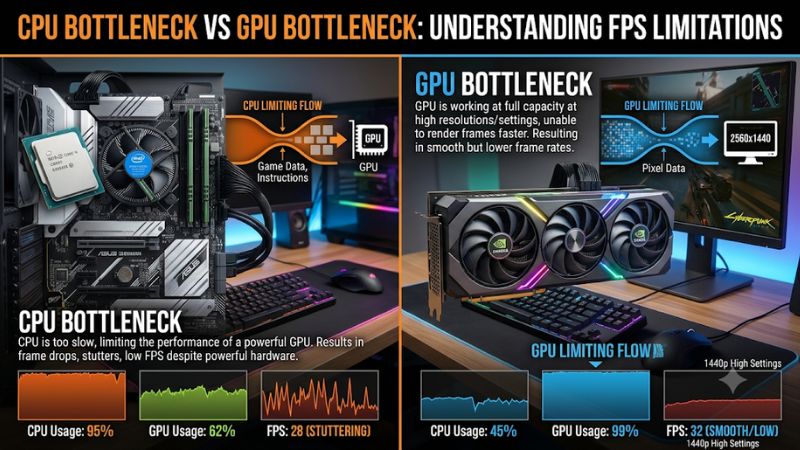
A CPU bottleneck occurs when the processor cannot prepare game data and rendering instructions quickly enough for the graphics card. A GPU bottleneck happens when graphics processing takes longer than the CPU’s preparation work. Neither condition automatically means defective hardware; the important question is which component limits performance in your games and at your preferred settings.
1. Understanding a CPU Bottleneck
The CPU handles game logic, physics calculations, artificial intelligence, player interactions, and the preparation of rendering commands. It also coordinates communication between different hardware components. When these tasks take too long, the graphics card may finish its current workload and wait for additional instructions.
This situation commonly appears in CPU-intensive games, particularly large strategy titles, simulation games, competitive shooters, and open-world environments with substantial activity. A powerful GPU cannot independently solve a processor-side limitation because it still needs the CPU to prepare work.
For example, a competitive shooter running at low graphics settings may produce relatively high FPS, increasing the workload on the processor. If the CPU cannot keep up with the requested frame rate, upgrading to a faster graphics card might produce little improvement.
2. Understanding a GPU Bottleneck
A GPU bottleneck occurs when the graphics card requires more time to render frames than the CPU needs to prepare them. Rendering resolution, lighting, shadows, textures, ray tracing, and other visual effects can increase graphics processing demands.
This condition is common when playing demanding AAA games at 1440p or 4K with high graphics settings. The graphics card may remain heavily utilized because it is continuously processing rendering workloads. In this situation, a faster GPU or less demanding graphics settings can improve performance.
A GPU limitation is not necessarily a problem with your PC configuration. It often means the graphics card is working at its intended capacity. If your game maintains a consistent frame rate and acceptable frame pacing, there may be no practical reason to upgrade.
3. Why Resolution and Game Settings Change the Bottleneck
Resolution has a significant influence on the division of work between the CPU and GPU. At 1080p, the graphics card generally processes fewer pixels than at 1440p or 4K. A sufficiently powerful GPU can therefore produce frames quickly enough to expose processor limitations.
Increasing resolution or enabling demanding visual effects usually increases GPU workload. This can move a system toward a GPU-limited condition without changing the processor. NVIDIA explains this relationship in its technical discussion of CPU-bound applications and graphics workloads.
NVIDIA+1
Game settings also influence the result. Crowd density, simulation complexity, draw distance, and certain physics options can increase CPU workload. Ray tracing, resolution, and demanding shader effects can increase GPU workload. However, individual games implement these features differently, so there is no universal setting that always creates a particular bottleneck.
4. What Doesn’t Help: Relying on Bottleneck Percentages
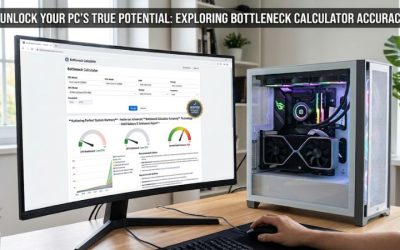
Online bottleneck calculators often estimate performance balance using a processor, graphics card, resolution, and sometimes a particular game. These tools can provide an initial comparison, but their percentages should not be treated as accurate measurements of actual gaming performance.
A CPU and GPU do not maintain one permanent performance relationship across every application. A processor that limits FPS in a competitive shooter might work perfectly well with the same graphics card in a graphically demanding single-player game.
Avoid replacing hardware simply because a calculator reports an imbalance. Also, do not assume that 100% CPU utilization automatically proves a CPU bottleneck. The game, individual processor threads, frame-rate limit, temperatures, and GPU workload all matter.
How to Identify and Compare CPU and GPU Bottlenecks
The most reliable approach is to observe hardware utilization and frame times while playing a representative game. A single utilization reading is not enough to establish the cause. Compare repeated measurements in the same scene, examine individual CPU threads, and change one graphics setting at a time to understand which component controls performance.
1. Monitor CPU and GPU Usage During Gameplay
Start by using an available monitoring tool such as MSI Afterburner with RivaTuner Statistics Server. You can configure an in-game overlay to display GPU utilization, CPU utilization, temperatures, clock speeds, FPS, and frame times.
Play for several minutes in an actual gameplay environment. Avoid relying on the main menu, loading screens, or paused gameplay because their workloads may differ considerably from normal play.
A GPU consistently operating near full utilization while FPS remains below your target suggests a GPU limitation. Lower GPU utilization alongside a heavily loaded CPU thread can suggest a CPU limitation. These are diagnostic clues rather than universal percentage thresholds.
PCWorld+2
2. Compare Performance at Different Resolutions
Resolution scaling is a useful way to investigate whether graphics processing limits your FPS. Choose a repeatable game scene and record performance at your normal resolution before lowering it.
For example, compare 1440p with 1080p while keeping the same graphics preset, game version, and other relevant settings. If FPS increases substantially at the lower resolution, the GPU was likely limiting performance. If FPS barely changes, investigate the CPU and other possible constraints.
Do not interpret this experiment as absolute proof. Resolution changes can affect more than GPU workload, and upscaling or frame generation can complicate comparisons. Keep those features consistent between runs.
3. Examine Individual CPU Threads and Frame Times
Total CPU utilization can hide a processor limitation. Many games depend heavily on one or several important threads, so a CPU showing moderate overall usage can still limit the frame rate.
Check logical processor activity using Windows Task Manager under Performance > CPU. Right-click the CPU graph and select Change graph to > Logical processors to inspect individual threads.
Frame times provide another important perspective. At 60 FPS, each frame has approximately 16.67 milliseconds available. At 144 FPS, the budget falls to approximately 6.94 milliseconds. Irregular frame times can indicate inconsistent performance even when average FPS looks acceptable.
4. Compare the Results Before Changing Hardware
Once you collect the measurements, compare the results against your actual gaming target. A PC designed for 60 FPS at 4K has different performance requirements from a competitive system targeting high refresh rates at 1080p.
| Diagnostic observation | Likely limitation | Recommended investigation |
| GPU consistently near full utilization | GPU bottleneck | Reduce demanding graphics settings |
| GPU utilization low with a heavily loaded CPU thread | CPU bottleneck | Examine CPU-heavy workloads |
| FPS barely changes after lowering resolution | Possible CPU limitation | Check CPU threads and frame times |
| FPS increases substantially at lower resolution | Possible GPU limitation | Compare GPU workload |
| CPU and GPU utilization both unexpectedly low | Other limitation possible | Check FPS caps, temperatures, RAM, and software |
| Performance drops during crowded scenes | Possible CPU limitation | Examine simulation and scene complexity |
These observations should be considered together rather than as isolated proof. Thermal throttling, background applications, memory pressure, driver issues, and frame-rate caps can all influence utilization and FPS.
CPU Bottleneck vs GPU Bottleneck: Which Upgrade Makes More Sense?
Choosing between a processor and graphics card upgrade depends on the workload that limits your preferred games. The goal is not to make both components display identical utilization percentages. Instead, identify the hardware that prevents your system from meeting its performance target and determine whether an upgrade offers meaningful improvements.
1. When Upgrading Your CPU Makes Sense
A CPU upgrade deserves consideration when your games consistently show processor-side limitations. Typical indicators include low GPU utilization during demanding gameplay, heavily loaded CPU threads, and little FPS improvement after reducing rendering resolution.
Competitive shooters, simulation games, strategy titles, and CPU-intensive multiplayer environments can benefit from faster processor performance. However, check motherboard compatibility before purchasing a replacement CPU.
Important considerations include the processor socket, motherboard chipset, BIOS support, memory generation, cooling capacity, and power requirements. An upgrade to a newer platform may also require a motherboard replacement and potentially different DDR4 or DDR5 memory.
2. When Upgrading Your GPU Makes Sense
A graphics card upgrade is more appropriate when the GPU consistently approaches full utilization and cannot maintain your desired frame rate at your preferred resolution.
This situation commonly affects gamers who want higher settings, more demanding ray tracing effects, or better performance at 1440p and 4K. A faster GPU can reduce graphics processing time, provided another component does not become the limiting factor.
Before purchasing, examine the graphics card’s physical dimensions, power supply requirements, available PCIe power connectors, case clearance, and cooling capacity. Also consider VRAM requirements for the games and graphics settings you intend to use.
3. Optimize Settings Before Replacing Components
Some performance limitations can be addressed without purchasing hardware. If your GPU is the constraint, try reducing ray tracing, shadow quality, or other demanding graphics options. Upscaling technologies such as NVIDIA DLSS, AMD FSR, and Intel XeSS may also help when supported by the game and hardware.
For CPU-limited gameplay, consider reducing CPU-intensive options such as crowd density, simulation complexity, and view distance when available. Close unnecessary background applications and check whether your processor is reaching its thermal or power limits.
These adjustments have different visual and performance trade-offs. Change one setting at a time and repeat the same gameplay test to determine whether the adjustment actually helps.
4. Match Hardware to Your Gaming Goals
A balanced gaming PC does not require the most expensive processor and graphics card available. It needs components that deliver the performance you want in the games you actually play.
For example, someone prioritizing competitive gaming at 1080p with a high refresh-rate monitor may benefit more from strong CPU performance than someone playing visually demanding games at 4K. Conversely, a 4K gaming system generally places greater emphasis on graphics processing capability.
Consider your monitor’s resolution and refresh rate, preferred game genres, available upgrade budget, and expected performance improvements. A component upgrade should address a measured limitation rather than an arbitrary hardware pairing recommendation.
FAQ: CPU Bottleneck vs GPU Bottleneck
1. Is a CPU Bottleneck Worse Than a GPU Bottleneck?
No, a CPU bottleneck is not automatically worse than a GPU bottleneck. Both can limit FPS, but their effects depend on the game and your performance target. A GPU limitation is often easier to address through graphics settings, while a CPU limitation may require changes to CPU-heavy workloads or a processor upgrade.
2. How Can I Tell If My CPU Is Bottlenecking My GPU?
Monitor GPU utilization and individual CPU threads during normal gameplay. If GPU utilization remains relatively low while one or more CPU threads are heavily loaded and FPS is below your target, a CPU limitation is possible. Compare performance at different resolutions before deciding that the processor needs replacement.
3. Can a GPU Bottleneck Cause Stuttering?
Yes, a GPU bottleneck can contribute to stuttering when graphics processing takes too long or becomes inconsistent. However, stuttering can also result from shader compilation, asset streaming, insufficient memory, background processes, and thermal throttling. Examine frame-time behavior rather than assuming GPU utilization alone explains the problem.
4. Should CPU and GPU Usage Both Be at 100% While Gaming?
No, both components do not need to operate at 100% utilization for a gaming PC to perform well. Utilization depends on the game, graphics settings, frame-rate limits, and workload distribution. Consistent performance at your target FPS matters more than matching utilization percentages.
Final Thoughts
Understanding cpu bottleneck vs gpu bottleneck makes gaming PC upgrades more predictable and cost-effective. Monitor utilization, compare resolutions, and examine frame times before replacing components. If your measurements consistently identify one limiting part, prioritize that component while checking platform compatibility and your actual gaming requirements.
More from Amazon
Programs that pair well with the guide above. Offers and eligibility are set by Amazon and may change.
Free shipping on eligible items, Prime Video and more. Eligible new members can start with a free trial.
Start a Prime free trialAd-free music streaming. Eligible new subscribers can start with a free trial.
Try Music Unlimited freeA Prime membership for ages 18-24 with a trial period. Eligibility is set by Amazon.
See Prime for Young AdultsAudiobooks and podcasts to listen to on the go. Eligible new members can start with a free trial.
Try Audible freeAs an Amazon Associate we earn from qualifying purchases.