Key takeaways
- Buying hardware before measuring what is actually limiting performance.
- Running multiple overlays and recorders at once.
- Pushing textures beyond the card’s VRAM and blaming the GPU’s speed.
- Using aggressive overclocks or undervolts without stress testing; these can cause crashes and may affect warranty.
- Ignoring drive space, since a nearly full drive can slow streaming and shader caching.
- Changing many settings at once so nothing can be traced.
FPS drops and stutter usually come from one of five places: a CPU or GPU bottleneck, thermal throttling, running out of video memory, background software competing for resources, or a storage and shader-compilation hitch. The fastest way to the cause is to watch utilisation, temperature and VRAM use while the problem happens, then fix the component that is pinned or throttled rather than changing settings at random.
First, separate low FPS from stutter
These are different problems with different fixes. Low FPS means the average frame rate is below what you want; the game is simply too demanding for the current hardware or settings. Stutter means the average may look fine but individual frames take far longer than their neighbours, so motion feels uneven. Frame-time graphs, available in tools such as the overlay in AMD, NVIDIA and Intel software or third-party monitors, show stutter as sharp spikes even when the FPS counter looks healthy.
Symptom, likely cause and fix
| What you see | Likely cause | What to do |
|---|---|---|
| GPU usage near full, FPS low everywhere | GPU-limited | Lower resolution or heavy settings; use upscaling such as DLSS, FSR or XeSS where the game supports it |
| GPU usage low, one CPU core pinned | CPU-limited | Lower CPU-heavy settings (crowd, draw distance, physics); close background apps |
| FPS starts high, then falls after minutes | Thermal or power throttling | Clean dust, improve airflow, check clocks and temperatures |
| Spikes when turning or entering new areas | Shader compilation or asset streaming | Let the game finish shader compilation; install on an SSD |
| Severe drops with high VRAM use | Video memory full | Lower texture quality and resolution |
| Periodic hitch every few seconds | Background task, overlay or drive activity | Close launchers, scanners, recorders; check drive health |
| Stutter only with certain settings on | Frame generation, ray tracing or V-sync interaction | Toggle one setting at a time |
Step-by-step diagnosis
- Watch the numbers. Run a monitoring overlay showing CPU and GPU usage, temperatures, clock speeds, VRAM and RAM use, and frame time. Play for ten to fifteen minutes so heat has time to build.
- Update drivers. Install the current graphics driver from the GPU maker. Game-ready or equivalent releases often include fixes for specific titles. If a new driver introduced the problem, the maker’s installer lets you go back to the previous one.
- Check Windows settings. Make sure the game is using the high-performance GPU on laptops and hybrid systems, and that the power plan is not set to a saving mode. Game Mode is available in Windows and is on by default in current versions.
- Close background load. Browsers with many tabs, recording software, RGB control suites and cloud-sync tools can all take CPU time or disk access.
- Inspect temperatures. Compare clocks at the start of a session with clocks after warm-up. A steady fall points to thermals or power limits.
- Test the game files. Use the launcher’s file integrity option to repair corrupted assets, which can cause hitching.
- Change one setting at a time. Start with textures and shadows, then ray tracing, then upscaling and frame generation.
The main causes in detail
Bottlenecks
A bottleneck means one component limits the rest. If the GPU is fully used, lowering resolution or graphics options helps. If the GPU sits well below full use while a CPU thread is saturated, graphics settings will change little, and CPU-bound options matter more. Esports titles at high refresh rates and large open-world games are the common CPU-limited cases.
Thermal and power throttling
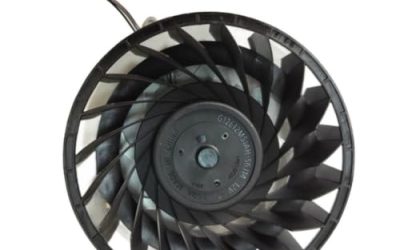
CPUs and GPUs reduce clock speed when they reach temperature or power limits. The result is a frame rate that starts well and then sags. Dusty heatsinks, poor case airflow, dried thermal paste on older systems and fans set to quiet curves are frequent contributors. On laptops, using the maker’s performance mode and keeping the machine plugged in matters. Follow the maker’s guidance when cleaning, and power the system off and unplug it before opening a case.
Video memory limits
When textures and frame buffers exceed VRAM, data spills into system memory over the PCIe bus, which is much slower, and you get hitching or sudden drops. Reviewers have repeatedly noted this on cards with smaller memory pools at high texture settings. The fix is lowering texture quality or resolution rather than shadows or effects.
Shader compilation and streaming stutter
Many modern games compile shaders on first run or during play, and this can cause hitches that fade after the cache is built. Some games offer a pre-compilation step at launch; letting it finish is worthwhile. Updating drivers can reset the driver shader cache, so a short return of stutter after an update is common. Installing the game on an SSD reduces streaming hitches.
Memory configuration
Insufficient system RAM or a single-channel memory setup can reduce performance in CPU-heavy games. Ensure modules sit in the slots your motherboard manual specifies for dual-channel use. Enabling the XMP or EXPO profile in firmware is common, but it is an overclock that may cause instability on some systems; use conservative settings and consult the manual.
Display sync settings
V-sync, G-Sync, FreeSync and frame caps interact. If your frame rate swings around your monitor’s refresh rate, a frame cap slightly below the maximum refresh in the game or driver panel can smooth pacing. Frame generation adds latency and can look uneven if the base frame rate is low, so reviewers advise a decent base frame rate before enabling it.
Which fix for which player
| Your situation | Best first move |
|---|---|
| Older GPU, newer game | Lower texture and shadow quality; enable upscaling |
| Mid-range GPU, high-refresh monitor | Cap frame rate; tune settings for stable frame times |
| Strong GPU, stutter in open worlds | Look for CPU limits, RAM speed or storage speed |
| Laptop gaming | Performance mode, power adapter, cooling pad or cleaning |
| Stutter began after an update | Roll back or update the driver; repair game files |
Common mistakes
- Buying hardware before measuring what is actually limiting performance.
- Running multiple overlays and recorders at once.
- Pushing textures beyond the card’s VRAM and blaming the GPU’s speed.
- Using aggressive overclocks or undervolts without stress testing; these can cause crashes and may affect warranty.
- Ignoring drive space, since a nearly full drive can slow streaming and shader caching.
- Changing many settings at once so nothing can be traced.
When to seek help
If frame rates collapse with fans at full speed and temperatures near the maker’s limit, stop and check cooling. Graphical glitches, crashes or artefacts can point to failing hardware; contact the maker or a qualified technician, especially under warranty. Do not open a power supply, and unplug the system before working inside the case.
Frequently Asked Questions
Why does my game stutter even with a high FPS counter?
The average FPS hides uneven frame times. A few very slow frames cause visible hitching even if most frames are quick. A frame-time graph shows these spikes and helps trace them to shaders, streaming, or background tasks.
Does more RAM fix stutter?
Only if you are running out. If system memory fills and Windows starts using the page file, stutter appears. Using matched modules in dual-channel can also help CPU-heavy games.
Is stutter a sign of a failing GPU?
Usually not. Stutter is far more often caused by settings, drivers, thermals or storage. Artefacts, crashes and black screens are more concerning and warrant contacting the maker.
Should I turn V-sync on or off?
It depends on your monitor. With a variable refresh rate display, many guides suggest enabling G-Sync or FreeSync and capping the frame rate just under the maximum refresh. Without variable refresh, V-sync removes tearing but can add input delay.
Will an SSD reduce stutter?
It can, particularly in games that stream assets or load shaders during play. A hard drive struggles with these workloads, so moving the game to a solid-state drive is a common recommendation.
FAQ
Why does my game stutter even with a high FPS counter?
Does more RAM fix stutter?
Is stutter a sign of a failing GPU?
Should I turn V-sync on or off?
Will an SSD reduce stutter?
More from Amazon
Programs that pair well with the guide above. Offers and eligibility are set by Amazon and may change.
Free shipping on eligible items, Prime Video and more. Eligible new members can start with a free trial.
Start a Prime free trialAd-free music streaming. Eligible new subscribers can start with a free trial.
Try Music Unlimited freeA Prime membership for ages 18-24 with a trial period. Eligibility is set by Amazon.
See Prime for Young AdultsAudiobooks and podcasts to listen to on the go. Eligible new members can start with a free trial.
Try Audible freeAs an Amazon Associate we earn from qualifying purchases.