Our Top Picks
The fastest fix for a PC that overheats while gaming is to power it off, unplug it, clear dust from filters and fans, confirm every fan is spinning in the right direction, and then check whether the cooler is mounted correctly with healthy paste. If temperatures stay high after those basics, the cause is usually an undersized cooler, restricted case airflow, an aggressive power or overclock setting, or a failing part.
Symptom, cause and fix table
| Symptom | Common cause | First fix |
|---|---|---|
| Fans loud, temperatures rising over minutes | Dust on filters, heatsink or radiator | Power off, unplug, clean with compressed air and a brush |
| CPU hits its limit within seconds of loading a game | Poor cooler contact, dried paste or loose mount | Reseat the cooler with fresh paste |
| GPU hot while CPU is fine | Weak case airflow or a blocked card fan | Improve intake and exhaust, clear fan blockages |
| Sudden stutter and falling FPS | Thermal throttling | Check temperatures in monitoring software; fix cooling first |
| Shutdowns or restarts under load | Overheat protection, or a power supply issue | Check temperatures; if they are normal, suspect power supply and contact the maker |
| Fans at 100 percent all the time | Fan curve set too aggressively or sensor misreading | Review the fan curve and sensor source |
| Fan not spinning at all | Failed fan, loose cable, wrong header mode | Check connections and header settings |
Step 1: confirm you actually have a heat problem
Use a monitoring tool to watch CPU and GPU temperatures, clock speeds and fan speeds while a game runs. Thermal throttling shows up as clock speeds dropping as temperatures reach the chip’s limit. The processor and graphics card makers list a maximum operating temperature on their product pages, so compare your readings against those figures instead of a rule of thumb. Short spikes during loading are normal on modern chips; a temperature that sits at the limit while performance falls is the real warning sign.

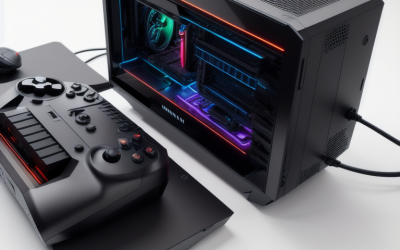
Gaming Console Fan 120mm Stable Performance Black | Brushless motor technology, quiet operation under load, distraction-free experience, for durable circuit board, wiring
Chosen because it specifies Brushless motor technology and quiet operation under load.
View on Amazon
SDVantage 2-Tier CPU Holder with Wheels, Computer Tower Stand Under Desk, Heavy Duty Metal Frame & Shelves, Max Load 110 Lbs, for Gaming Home,Gaming Setups,Black-65.5X49.6X35Cm
Chosen because it specifies Computer Tower Stand Under Desk and Heavy Duty Metal Frame & Shelves.
View on AmazonStep 2: clean the machine safely
Shut the PC down, switch off the power supply, and unplug the power cable. Press and hold the case power button briefly to discharge any remaining power. Take the side panel off, then clear dust from filters, fans, heatsinks and radiators using short bursts of compressed air while holding fans still so they do not overspin. Never open the power supply to clean it; if it is dusty, clear the vents and fan externally and contact the maker for service. Dust is the most common reason a PC that used to run cool slowly gets hotter.
Step 3: check airflow
- Intake fans should pull cool air in at the front or side and exhaust fans should push hot air out at the rear and top. Many fans have arrows on the frame showing the airflow and rotation direction.
- Make sure panels, cables and drive cages do not block the intake.
- Balance matters: slightly more intake than exhaust keeps pressure positive, which reduces dust entering through gaps. Case makers describe their intended layout in the manual.
- Case design counts. A solid-front case with limited intake can trap heat regardless of fan count.
- Keep the PC off carpet and away from closed cabinets or walls that block vents.
Step 4: fan speeds and curves
A fan curve that is too relaxed lets temperatures climb before fans respond. Open your BIOS or motherboard fan utility and raise speeds at the temperatures where your system gets hot. Make sure each header is set to the right mode, PWM for 4-pin fans and DC for 3-pin fans, as the motherboard manual describes. A hot graphics card may also be limited by its own fan curve, which you can adjust in the graphics maker’s driver tools or a tuning utility. Keep the changes modest and watch noise and temperatures together.
Step 5: check the CPU cooler
A cooler that is not seated evenly, or one mounted with the protective film still on the base, is a classic cause of a CPU that spikes to its limit within seconds. After powering down, remove the cooler as the manual directs, clean old paste with isopropyl alcohol, apply fresh paste in the quantity the paste maker suggests, and tighten the cooler evenly. For AIOs, check that the radiator is positioned so the pump is not at the highest point, as makers of liquid coolers commonly advise in their manuals, and that the pump header is receiving power. If the pump has failed, the CPU will heat very rapidly; stop gaming and contact the cooler maker.
Step 6: GPU-specific causes
| Issue | What to check |
|---|---|
| Dust on the heatsink fins | Look through the card’s fins with a light and clear carefully |
| Fans not spinning at low load | This is normal on many cards; fans start when temperature rises |
| Fans never start under load | Check power connectors and the card’s fan control |
| 12VHPWR or 12V-2×6 connector | Make sure it is fully seated and not sharply bent; if you see heat damage or discoloration, stop using it and contact the GPU and PSU makers |
| Memory or hot spot temperatures high | Improve airflow; if it persists, contact the maker about warranty service |
Step 7: software and settings
- Uncapped frame rates: menus and simple games running at hundreds of frames per second can push the graphics card to full load. A frame cap in the game or driver settings reduces heat and noise.
- Overclocks and voltage tweaks: these raise heat, can cause instability and may affect warranty. Return to default settings to see whether temperatures normalize.
- Power limits: some motherboards ship with permissive power settings that let processors draw more power than the maker’s baseline. The motherboard manual explains the options; any change should be conservative.
- Background software: check for programs using CPU time while you play.
- BIOS and driver updates: makers sometimes release updates that change fan behavior or boost behavior; read the release notes first.
Step 8: environment and case choices
A hot room matters because intake air is the starting temperature. Small cases, compact coolers and powerful graphics cards form a thermal bottleneck. If a build is simply too hot for its case, consider a larger cooler or a case with a ventilated front, since fan tweaks alone have limits.
Decision guide
| If this is true | Do this |
|---|---|
| Temperatures rose over months | Clean dust, replace paste if the cooler is old |
| Problem started after a build or cooler change | Recheck mounting, fan direction and cables |
| Only the GPU overheats | Improve intake, review the GPU fan curve, check the card for dust |
| Only the CPU overheats | Check the cooler mount and consider a stronger cooler |
| Shutdowns with normal temperatures | Consider power supply or hardware faults; contact a technician |
| Cooler pump is silent or noisy | Stop and contact the cooler maker |
When to stop and get help
Stop using the PC and unplug it if you smell burning, see melted plastic or discolored connectors, or hear a grinding fan. Do not open the power supply. Contact the component maker for warranty service, or a qualified technician, if the problem persists after cleaning and checking the cooler.
Frequently Asked Questions
What temperature is too hot for gaming?
It depends on the chip. The processor and graphics card makers publish a maximum operating temperature for each model. Staying clear of that figure, and watching for throttling, is a better guide than one number for every PC.
Why does my PC overheat only in certain games?
Some games load the CPU or GPU much harder than others, especially at uncapped frame rates or high settings. A frame cap and a sensible fan curve can help, and cleaning dust ensures the cooler has full capacity.
Does thermal paste need replacing?
Paste can dry out or pump out over time, and replacing it is a standard fix when temperatures rise on an older cooler. Follow the cooler and paste maker instructions when reapplying.
Will more fans fix overheating?
Not always. Fans help when airflow is the limit, but a blocked filter, poor placement or a mounting fault will still hold temperatures up. Fix those first.
Can overheating damage my PC?
Modern chips throttle and shut down to protect themselves, but repeated heat stress may shorten the life of components and cause crashes. Address the cause rather than ignoring warnings.
Should I undervolt to reduce heat?
Undervolting can lower temperatures but changes BIOS or driver settings and may cause instability or affect warranty. Keep changes small and follow the maker’s guidance.
FAQ
What temperature is too hot for gaming?
Why does my PC overheat only in certain games?
Does thermal paste need replacing?
Will more fans fix overheating?
Can overheating damage my PC?
Should I undervolt to reduce heat?
More from Amazon
Programs that pair well with the guide above. Offers and eligibility are set by Amazon and may change.
Free shipping on eligible items, Prime Video and more. Eligible new members can start with a free trial.
Start a Prime free trialAd-free music streaming. Eligible new subscribers can start with a free trial.
Try Music Unlimited freeA Prime membership for ages 18-24 with a trial period. Eligibility is set by Amazon.
See Prime for Young AdultsAudiobooks and podcasts to listen to on the go. Eligible new members can start with a free trial.
Try Audible freeAs an Amazon Associate we earn from qualifying purchases.