Our Top Picks
The fastest fix for a DisplayPort “no signal” message on an NVIDIA card is to power everything down, reseat the cable at both ends, plug into a different DisplayPort output on the card, and then try a different certified DisplayPort cable. If that fails, work through the monitor input setting, the DisplayPort version option in the monitor menu, a clean driver install, and the refresh rate and resolution being requested. Most cases come from the cable, the input selection, or a mode the link cannot carry.
Quick answer: what to try first
- Confirm the cable goes to the graphics card outputs on the back of the card, not the motherboard video ports.
- Set the monitor input manually to the DisplayPort input instead of leaving it on auto.
- Power off the PC and monitor, unplug both ends of the cable, wait a minute, reconnect firmly, then power the monitor on before the PC.
- Try another DisplayPort output on the card and another cable.
- Boot with a second display or the HDMI output to get a picture, then reinstall the driver.
Always shut down and unplug before touching cables inside or around the case. Do not open the power supply for any reason, and contact the monitor or card maker if a port looks physically damaged.

DisplayPort to HDMI 2.1 Cable 10FT 8K@60Hz 4K@120Hz Uni-Directional DP (Source) to HDMI (Display) Braided Cord Supports HDCP 2.3 HDR10 Display Port for AMD,NVIDIA,and PC
Chosen because it specifies NVIDIA and and PC.
View on Amazon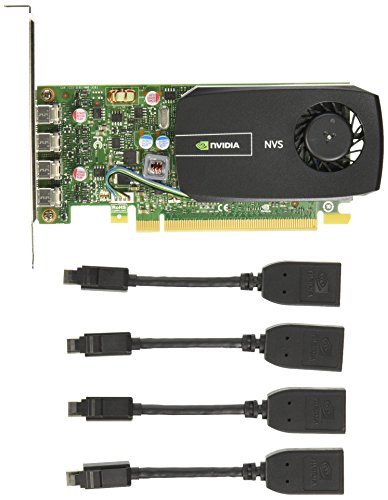

RUUPRRN 4K@60Hz 2-Pack Display Port to HDMI Adapter, Unidirectional | DP 1.2 to to HDMI 2.0 Adapter, Active DisplayPort (Source) to HDMI (Display) Converter for NVIDIA, AMD,Desktop,Gaming Monitor
Chosen because it specifies Unidirectional and DP 1.2 to to HDMI 2.0 Adapter.
View on Amazon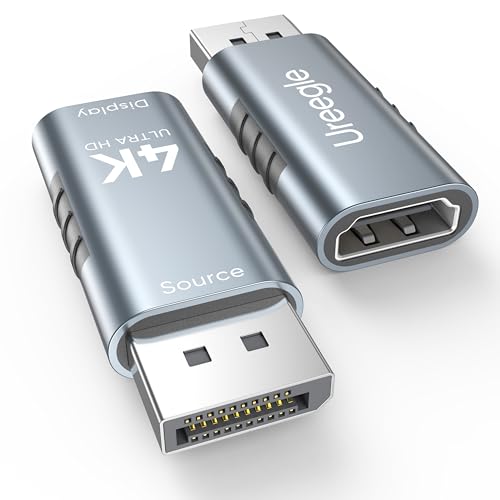
4K DisplayPort to HDMI Adapter 2 Pack, DP to HDMI Display Adapter Uni Directional, 4K@30Hz, 2K@60Hz, 1080P@120Hz, Male to Female Converter for Monitor, NVIDIA/AMD Desktop GPU, PC DisplayPort Output
Chosen because it specifies DP to HDMI Display Adapter Uni Directional and 4K@30Hz.
View on AmazonSymptom, cause and fix table
| Symptom | Common cause | First fix |
|---|---|---|
| No signal from the very first power-on | Cable in motherboard port, wrong monitor input, loose plug | Move cable to the graphics card, select DisplayPort input, reseat |
| Signal works, then drops to no signal at the desktop | Driver loading a refresh rate the cable cannot carry | Boot with another display and lower the refresh rate or resolution |
| Black screen after sleep or monitor power-off | Monitor deep sleep and DisplayPort handshake issue | Disable the monitor deep sleep or auto input feature if the menu lists one |
| Works on one monitor, not a second | Different cable quality or monitor DisplayPort setting | Swap cables between monitors to isolate the fault |
| Flicker or intermittent no signal at high refresh | Long or low-quality cable, loose connector | Use a shorter certified cable |
| No signal after a driver update | Corrupt install or leftover settings | Clean install via the driver installer option |
Check the basics before touching software
A surprising share of DisplayPort problems come from a cable that is not fully seated. DisplayPort plugs click into place and many have a latch, so push until it seats. If the monitor shows its own “no signal” message, the monitor is working and the video is not arriving or is not in a format it accepts. If the screen stays completely black with no message, check the monitor power and the input menu first.
Make sure the monitor is set to the correct input. Many gaming monitors list several DisplayPort and HDMI inputs, and auto-detect can pick the wrong one or fail to switch back after sleep. Selecting the input manually removes that variable.
Also confirm which port you are using. Desktop motherboards with a discrete GPU usually leave their own video outputs inactive. If the cable is in the motherboard port, the card never sees the monitor.
The cable is a frequent culprit
DisplayPort cables are not all equal. VESA, the standards body, runs a certification program and lists DP8K, DP40 and DP80 style labels for newer link rates, while older certified cables are labelled for HBR2 or HBR3 speeds. A cable made for an older speed may work at 1080p and fail at a high refresh rate or high resolution. The failure often shows as a black screen as soon as the driver switches to the full mode, which fits the pattern of the picture working in the BIOS and dying at the Windows login.
Cheap or very long cables are more likely to lose the link at high bandwidth. Reviewers commonly suggest keeping the run short, using a cable sold as certified for the needed version, and avoiding adapters in the chain when possible. If you use a DisplayPort to HDMI adapter or a splitter, remove it temporarily to test the direct connection.
Match the DisplayPort version setting to the card and cable
Some monitors have a menu option to choose a DisplayPort mode such as 1.2 or 1.4. The exact name and position vary by maker, so check the monitor manual. Setting a lower version can stabilise a link that drops at the higher one, at the cost of the top refresh rate or features such as high dynamic range at the highest modes. If a monitor ships with a mode that the cable cannot sustain, the lower setting is a reasonable troubleshooting step, not a permanent answer.
NVIDIA lists DisplayPort support for its current GeForce cards on each product page, and recent GeForce RTX 50 series cards are listed with DisplayPort 2.1b outputs by the maker, while earlier RTX 40 series cards are listed with DisplayPort 1.4a. Confirm your own card on its maker page. A newer card does not help unless the cable and monitor support the same link rate.
Reduce the requested mode
If the signal appears at boot and disappears when Windows loads, the driver may be requesting a mode the connection will not hold. Try this approach:
- Start the PC with a second monitor or the HDMI output connected, if you have one.
- Open Windows display settings and lower the refresh rate for the problem display.
- If needed, lower resolution as well, then raise values one step at a time.
- If no second display exists, start Windows in safe mode through the recovery menu and change the setting from there.
Windows display settings also lets you pick refresh rate under the advanced display page. Keep in mind that features like high refresh rate, high bit depth and HDR together demand more bandwidth than any one alone, so removing one can restore the signal.
Driver and software steps
If the cable and mode are fine, work through software changes in order:
- Download the current driver from NVIDIA directly.
- Run the installer, choose the custom option, and tick the clean installation checkbox the installer offers.
- Restart, then reconnect the DisplayPort cable.
- If a recent update caused the problem, roll back to the previous driver through Device Manager and wait for a later release.
Fast Startup in Windows can also leave the display link in a stale state after shutdown. Turning it off in the power options is a harmless test that some reviewers and support forums mention for no-signal after boot.
Sleep, wake and monitor power-saving behaviour
Another recurring pattern is a monitor that goes dark after sleep and says “no signal” even though the PC is awake. DisplayPort monitors can fully disconnect when they sleep, and Windows may rearrange windows or fail to re-detect the display. Look in the monitor menu for a deep sleep, auto input or power-saving option and try turning it off. Power cycling the monitor, then pressing a key on the PC, often brings the picture back.
If a second monitor works over HDMI while the DisplayPort one does not, that points toward the DisplayPort cable, port or monitor input rather than the entire card.
Decision table: what to test based on what you see
| If this is true | Next step |
|---|---|
| Same cable works in another PC | Problem is the card port or driver, test another card output |
| Different cable fixes it | Retire the old cable and buy a certified one |
| HDMI works but DisplayPort does not | Check the monitor DisplayPort setting and the cable, then the card port |
| Picture only at lower refresh | Cable or link bandwidth limit, use a certified cable |
| Nothing works on any output | Reseat the card in its slot with power off, check power connectors, contact the maker |
Common mistakes
- Leaving the cable in the motherboard port after installing a graphics card.
- Assuming any DisplayPort cable carries every refresh rate and resolution.
- Skipping the monitor input menu and trusting auto-detect.
- Stacking adapters, such as an HDMI to DisplayPort converter, then blaming the card.
- Forcing overclocked refresh rates in monitor menus without checking stability.
- Pulling cables while the system is running and assuming the card is damaged.
Safety and warranty notes
Shut the PC down and unplug it before reseating a graphics card or checking power connectors. If your card uses the 12VHPWR or 12V-2×6 connector, follow the card and power supply maker guidance on full insertion, and stop using the card if you see heat damage on the plug or socket. Never open a power supply. BIOS changes and monitor overclocking options can cause instability and may affect warranty, so keep settings conservative. If a port is bent, burned or loose, or if no cable and monitor combination works, contact NVIDIA, the board partner that made the card, or a qualified technician.
Frequently Asked Questions
Why does DisplayPort say no signal but HDMI works?
The monitor or card is fine in general, so the issue sits in the DisplayPort path. The cable, the monitor DisplayPort mode, or the specific card output is the usual cause. Test a different cable and a different output on the card to narrow it down.
Do I need a special DisplayPort cable for a high refresh rate monitor?
Often yes, in the sense that the cable should be certified for the link rate your monitor needs. A cable labelled for an older speed can pass a basic picture and still fail at high refresh or resolution. Check the monitor manual for the cable it ships with and use that one first.
Can a driver update cause a no signal problem?
It can, and users report that a clean installation or rollback to the previous driver clears it in many cases. Use the clean install option in the NVIDIA installer, and if the problem began after an update, roll back and wait for the next release.
Is a dead graphics card the cause of no signal?
It is possible but less common than a cable or setting problem. If every output on the card fails with several known-good cables and monitors, and the card also fails in another PC, contact the maker about warranty service.
Why does my screen go black when the PC wakes from sleep?
The monitor may not complete the DisplayPort handshake after waking. Turn off any deep sleep or auto input option in the monitor menu, and try power cycling the monitor. Updating the monitor firmware, when the maker offers it, is another step to consider.
Should I lower the DisplayPort version in the monitor menu?
Doing so is a useful test if the signal drops at the top mode. It reduces available bandwidth, so features such as the highest refresh rate or HDR may be limited. Treat it as a diagnostic, then look for a better cable to restore full performance.
FAQ
Why does DisplayPort say no signal but HDMI works?
Do I need a special DisplayPort cable for a high refresh rate monitor?
Can a driver update cause a no signal problem?
Is a dead graphics card the cause of no signal?
Why does my screen go black when the PC wakes from sleep?
Should I lower the DisplayPort version in the monitor menu?
More from Amazon
Programs that pair well with the guide above. Offers and eligibility are set by Amazon and may change.
Free shipping on eligible items, Prime Video and more. Eligible new members can start with a free trial.
Start a Prime free trialAd-free music streaming. Eligible new subscribers can start with a free trial.
Try Music Unlimited freeA Prime membership for ages 18-24 with a trial period. Eligibility is set by Amazon.
See Prime for Young AdultsAudiobooks and podcasts to listen to on the go. Eligible new members can start with a free trial.
Try Audible freeAs an Amazon Associate we earn from qualifying purchases.