Key takeaways
- Boot from the USB and choose “Try” to test hardware before committing.
- Run the installer and pick either full-disk or dual-boot.
- Set your username, password, and time zone.
- Reboot and remove the USB when prompted.
What's inside
Installing Linux for gaming in 2026 is a genuinely approachable project, even if you have never touched a terminal. The tools have matured, the drivers mostly install themselves, and thousands of Windows titles now run through Proton without a hitch. What stands between you and your first Linux gaming session is simply a clear, ordered process.
This guide walks through that process from backup to first launch. Keep a step-by-step reference like The Bazzite Linux Guide or Linux Mint Made Simple for Beginners at your side, and you will have a playable system in an afternoon.
As an Amazon Associate we earn from qualifying purchases at no extra cost to you.


⚡ Save on Your Next PC — Amazon Prime
Prime members get fast free shipping on the systems above, plus early access to Prime Day & Black Friday PC deals. New members get a 30-day free trial.
Watch: How To Install Linux For Gaming — Video Review
Prepare Your Hardware and Backups
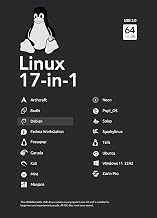
Before anything else, back up your files and note your GPU model. Free up disk space if you plan to dual-boot alongside Windows. A pre-loaded learning USB such as the Ubuntu 22.04 Bootable Flash Drive with Install Guide is handy here because it includes boot-repair tools if partitioning goes sideways.
Create Your Installation Media
Download your chosen distro’s ISO and write it to a USB stick, or buy a ready-made bootable drive to skip the flashing step. If you are moving off an aging Windows 10 machine, Goodbye Windows 10, Welcome Linux Mint covers this exact transition in plain language.
Install the Distro
- Boot from the USB and choose “Try” to test hardware before committing.
- Run the installer and pick either full-disk or dual-boot.
- Set your username, password, and time zone.
- Reboot and remove the USB when prompted.
Guides like Linux Mint 22.3 Zena: A Calm Beginner’s Guide to Switching from Windows mirror these screens closely if you want reassurance at each prompt.
Set Up Drivers and Gaming Tools
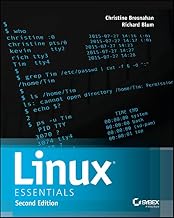
After first boot, install proprietary GPU drivers through your distro’s driver manager, then add Steam and enable Proton in Settings, Compatibility. Lutris covers non-Steam launchers. For a deeper understanding of what is happening under the hood, How Linux Works, 3rd Edition is an excellent companion.
Optimize and Launch Your First Game
Enable GameMode, update your system, and check ProtonDB for per-game tweaks. Install a title, hit play, and confirm frame rates feel right. A customization-focused book such as Linux Mint Cinnamon for Windows Users helps you fine-tune backups and updates once you are settled.
Frequently Asked Questions
Will I lose my Windows install?
Not if you choose dual-boot. Only a full-disk install erases Windows, so read each installer screen carefully and keep backups.
How long does installation take?
The install itself runs 15 to 30 minutes. Driver setup and adding your game library add another hour or so.
Do all my games work on Linux?
Most do through Proton, but some competitive titles with strict anti-cheat do not. Check ProtonDB before relying on a specific game.
Which beginner guide should I start with?
For an all-round path, Linux Mint Made Simple for Beginners is friendly and thorough; gamers eyeing an immutable base may prefer The Bazzite Linux Guide.
Conclusion
Installing Linux for gaming is less intimidating than its reputation suggests. Back up, create your media, install carefully, add drivers and Proton, then optimize and play. With a good beginner guide in hand, you will move from Windows switcher to confident Linux gamer faster than you thought possible.