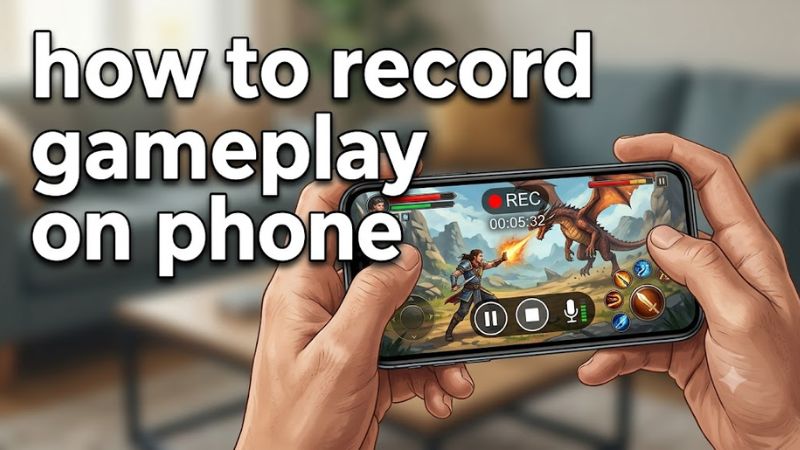
Recording mobile gameplay is usually straightforward: use your phone’s built-in screen recorder, choose the audio you want to capture, and start playing. Both Android phones and iPhones support screen recording, although the available options vary by device, operating system, and game.
This guide explains how to record gameplay on phone without installing extra apps, how to capture game audio and your voice, how to improve recording quality, and what to do if your clips have missing sound or poor performance.
How to Record Mobile Gameplay ?
- Android: Swipe down from the top of the screen twice, tap Screen recorder in Quick Settings, select your audio options, and start recording.
- iPhone: Open Control Center, tap Screen Recording, wait for the countdown, and launch or return to your game. Enable the microphone beforehand if you want commentary.
- For better results: Close unnecessary apps, check available storage, enable Do Not Disturb, and make a short test recording before capturing a full match.
How to Record Mobile Gameplay ?
You generally do not need a third-party recording app for ordinary gameplay clips. Built-in recording tools are a good starting point because they avoid additional app permissions and setup.
How to Record Gameplay on an Android Phone
Android includes a built-in screen recorder on many modern devices. The exact controls and audio options depend on the phone manufacturer and Android version.
Step 1: Open Quick Settings
- Unlock your phone and open the game you want to record, or leave it on the home screen while preparing.
- Swipe down from the top of the screen twice to expand Quick Settings.
- Find Screen recorder or Screen Record. You may need to swipe sideways to find it.
- If the button is missing, tap the edit control and check whether you can add Screen recorder to the available tiles.
Google documents this general process for supported Android devices. Menu labels and available options may differ between manufacturers.
Step 2: Choose your recording settings
Before starting, review the options presented by your phone’s recorder. Depending on the device, you may be able to choose:
- Device audio: Captures supported sounds from the game.
- Microphone: Records your voice and surrounding sounds.
- Device audio and microphone: Combines supported game audio with commentary.
- Show touches: Displays touch indicators, which can help when making tutorials but may clutter gameplay footage.
Choose the audio option that matches your goal. For a clean gameplay clip, device audio alone is often preferable. For a tutorial or commentary video, use the microphone option if available.
Some games and apps restrict audio or screen capture, so selecting an option does not guarantee every sound will be recorded.
Step 3: Start recording and play
- Tap the screen recorder control.
- Select the desired audio and touch-indicator settings.
- Tap Start and wait for the countdown.
- Return to your game and play normally.
- When finished, open the notification shade and tap the screen recorder’s Stop control.
The recording should be saved to your phone’s media library. On supported Google Pixel devices, Google directs users to Google Photos under Collections, On this device, and Movies. Other Android phones may save clips in Gallery or a similarly named album.
Samsung Galaxy: Recording gameplay
On supported Samsung Galaxy phones, the built-in Screen recorder is available through the Quick panel.
- Swipe down from the top of the screen to open the Quick panel.
- Locate Screen recorder. Expand the panel if necessary.
- Select the available sound option and start recording.
- Play your game, then stop the recording through the on-screen control or notification.
Samsung notes that screen recording availability varies by model. If your Galaxy phone does not show the feature, check its official support documentation rather than assuming every Galaxy device has identical controls.
How to Record Gameplay on an iPhone
iPhones have a built-in Screen Recording control in Control Center. You can record supported gameplay without downloading a separate app, and you can enable the microphone when you want to add commentary.
Step 1: Add Screen Recording to Control Center
- Open Control Center by swiping down from the top-right corner of your screen.
- Look for the Screen Recording button.
- If it is missing, edit the Control Center and add Screen Recording. The precise editing steps depend on your iOS version.
- Return to your game when you’re ready to record.
Step 2: Choose whether to record your voice
If you only want gameplay footage, you can start recording directly. If you want commentary, configure the microphone first.
- Open Control Center.
- Touch and hold the Screen Recording button.
- Turn on Microphone.
- Tap Start Recording and wait for the three-second countdown.
- Return to your game and begin playing.
Apple documents the microphone control as the way to add microphone audio to an iPhone screen recording. However, the availability of game audio and the behavior of individual apps can vary.
Step 3: Stop and find the video
When you’re finished:
- Tap the recording indicator at the top of the screen, or open Control Center.
- Tap the Stop control.
- Open the Photos app.
- Find the saved video in your library. Depending on the iOS version, you can also locate it under Collections and Screen Recordings.
Important: Some apps restrict screen capture, and iPhone cannot record its screen while screen mirroring is active. If a game displays a black screen or omits certain content, check whether the app restricts recording before trying another recorder.
How to Record Gameplay With Game Audio and Your Voice
Capturing both game sound and commentary requires the correct audio settings. The options differ between Android phones and iPhones.
| Recording goal | Android | iPhone |
| Gameplay video | Use Screen recorder | Use Screen Recording |
| Game audio | Select device or media audio if supported | Depends on the game’s audio and capture behavior |
| Voice commentary | Select microphone or device audio plus microphone, if offered | Enable Microphone before starting |
| Tutorial with visible touch indicators | Enable Show touches if available | No equivalent option is guaranteed by the built-in recorder |
| Silent gameplay footage | Choose no audio, if available | Keep the microphone off; verify the resulting audio in a test clip |
If you want clean gameplay audio
Choose device audio without the microphone when your Android phone offers that option. This reduces the chance of capturing room noise, breathing, or background conversations.
On an iPhone, leave the microphone off if you don’t need voice commentary. Test a short clip to confirm that the game’s sound is captured as expected.
If you want to narrate your gameplay
Enable the microphone and speak at a consistent volume. A quiet room helps reduce background noise, while a headset microphone may improve voice clarity if your setup and recording method support it.
If the game sound becomes difficult to hear beneath your commentary, adjust the game’s volume before recording. You can also balance audio tracks in a video editor if the recording and editing workflow supports it.
Do not assume that every phone can independently control game audio and microphone levels. Check the controls available on your device.
Best Settings for Recording Mobile Gameplay
The best recording settings depend on your phone’s capabilities, the game, and where you plan to publish the video. Higher-quality recordings can take up more storage and may increase the workload on the phone.
Resolution and frame rate
- 720p: A practical option for smaller files or less demanding recording setups.
- 1080p: A useful starting point for gameplay videos intended for YouTube, tutorials, and social media.
- 60 frames per second: Worth considering for fast-moving games when the phone and recorder support it.
- Higher resolutions or frame rates: Use them only when supported and when the resulting footage remains smooth.
These are general starting points, not guarantees that a particular phone can record at those settings. Some built-in recorders do not expose resolution or frame-rate controls, and the recorded frame rate may vary with device performance.
Prepare your phone before recording
Follow this checklist before a long session:
- Check available storage.
- Charge your phone sufficiently for the session.
- Enable Do Not Disturb or an appropriate notification-blocking mode.
- Close unnecessary resource-intensive apps.
- Set your preferred game graphics and frame-rate options.
- Confirm your audio source.
- Record a short test clip and play it back.
- Make sure the phone is not overheating before a demanding session.
Avoid covering the phone’s cooling surfaces during play. If recording causes the device to become unusually hot or gameplay to stutter, reduce the graphics workload or recording quality and allow the phone to cool.
How to Record Gameplay for YouTube, TikTok, or Shorts
The built-in recorder is usually enough for capturing gameplay, but publishing the clip requires a little additional preparation.
For YouTube
Landscape recording is generally suitable for conventional gameplay videos. Capture the game at a resolution and frame rate your phone can sustain, then trim the start and end to remove menus or unnecessary downtime.
For longer sessions, make sure you have sufficient storage before recording. Review the finished file to check that audio and video remain synchronized.
For TikTok and YouTube Shorts
Portrait footage is often more suitable for short-form content. Some mobile games are naturally portrait-oriented, while landscape games may need cropping or a different editing layout.
If you record a landscape game and crop it into a vertical frame, parts of the gameplay may be cut off. Check the composition before publishing so that important interface elements, player characters, and action remain visible.
For tutorials and walkthroughs
Enable touch indicators on Android if your device offers them. They can help viewers understand where you tap during a settings walkthrough or game tutorial.
For commentary, prepare your explanation before recording and test the microphone. If your phone does not provide the audio or visual controls you need, consider editing the clip afterward rather than installing multiple recording apps immediately.
How to Record Gameplay Without Lag
Screen recording adds work for the phone’s processor, graphics hardware, memory system, and storage. The additional workload can affect performance, particularly in demanding games or on devices that are already running near their limits.
Use these steps if gameplay becomes choppy while recording.
- Lower the recording quality. If your recorder exposes resolution or frame-rate settings, try a lower option.
- Reduce demanding game settings. Lower graphics quality or other expensive effects if the game begins to stutter.
- Close unnecessary apps. This may free resources, although it will not solve every performance problem.
- Check temperature. If the phone becomes hot, stop recording and allow it to cool.
- Test a shorter clip. Compare a short recording with gameplay when recording is disabled to determine whether recording contributes to the slowdown.
- Check storage space. Free up space safely if the phone is nearly full.
Avoid installing so-called RAM booster or game-optimization apps as a first response. They are not a substitute for diagnosing a recording bottleneck.
If the game runs smoothly without recording but becomes consistently choppy when recording begins, reducing the capture workload is a sensible first step. If the problem continues, check the phone manufacturer’s support documentation for device-specific limitations.
Troubleshooting: Why Is My Gameplay Recording Not Working?
The screen recorder is missing
On Android, expand Quick Settings and check the edit menu for a hidden Screen recorder tile. If the feature is unavailable, consult the manufacturer’s documentation for your exact model and software version.
On iPhone, open Control Center and add Screen Recording if necessary. Apple provides instructions for adding the control.
The recording has no sound
Check these items in order:
- Confirm that the game itself is not muted.
- On Android, reopen the recorder settings and select the intended audio source.
- On iPhone, check whether you enabled the microphone if you expected voice commentary.
- Make a short test recording and play it back.
- If the sound is still missing, check whether the game or app restricts audio capture.
Microphone audio and internal game audio are different sources. Enabling the microphone does not necessarily solve a problem with capturing game audio.
The video is black or certain content is missing
Some apps restrict screen recording or protected content capture. Apple explicitly notes that certain apps may not allow their content to be recorded. If the problem occurs only in one game or app, check that app’s documentation or support information before assuming your phone is defective.
The recording stops unexpectedly
Check available storage, battery level, temperature, and whether the recorder remains active during gameplay. Restart the phone if the issue persists, then try a short clip before recording a longer session.
If the recorder repeatedly stops in the same game, check for device-specific software updates or known restrictions. Do not delete game data or reset the phone as an initial troubleshooting step.
Frequently Asked Questions
1. Can I record gameplay on my phone without an app?
Yes, many Android phones and all supported iPhones provide built-in screen recording. On Android, look in Quick Settings; on iPhone, use Control Center. The available features depend on the device and software version.
2. How do I record gameplay with internal audio?
On Android, select device or media audio in the screen recorder settings if the option is available. On iPhone, start a screen recording and test the game’s audio behavior; some apps restrict capture. Enable the microphone separately if you also want to record your voice.
3. Does recording gameplay lower FPS?
It can, because recording adds processing and storage workload. The impact varies by phone, game, capture settings, and temperature. If you notice stuttering, try a lower recording quality or less demanding game settings and compare the results.
4. Where are gameplay recordings saved?
Android recordings are generally saved in the phone’s Gallery or Photos app, often in a Movies or screen-recordings location. iPhone recordings are saved to the Photos library, where you can find them under Screen Recordings on supported versions. Exact album names may vary.
Final Verdict
The simplest way to record gameplay on a phone is to start with its built-in screen recorder. Android users should check Quick Settings, while iPhone users should use Control Center. Both approaches can capture gameplay without requiring a dedicated recording app.
Before recording a full match, verify the audio, check available storage, and make a short test clip. If recording introduces lag, reduce the capture workload and check the phone’s temperature. For most players, these basic steps are enough to capture and share useful gameplay footage without adding unnecessary software.