Connecting a gaming laptop to an external monitor is usually straightforward: connect a compatible video cable, select the correct input on the monitor, and configure your display settings in Windows. The important part is choosing a connection that supports your monitor’s resolution and refresh rate, especially if you play competitive games at 144Hz, 165Hz, 240Hz, or higher.
This guide explains how to connect a gaming laptop to a monitor using HDMI, DisplayPort, or USB-C, configure Windows 11 or Windows 10, optimize the display for gaming, and troubleshoot common connection problems.
What You Need Before Connecting a Gaming Laptop to a Monitor
Before plugging in a cable, check the available ports on both devices and confirm that the connection supports your intended display settings.
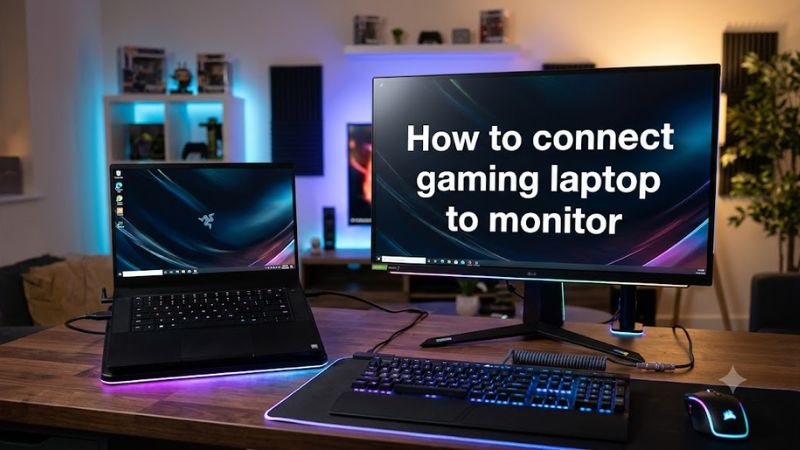
You will generally need:
- A gaming laptop with a compatible external video output.
- A monitor with a matching video input.
- An appropriate HDMI, DisplayPort, or USB-C video cable, or a compatible adapter.
- A power connection for the monitor.
- Windows display settings to configure resolution, screen arrangement, and display mode.
You do not need a separate graphics card or a docking station to connect one external monitor in a typical setup.
Which cable should you use?
| Connection | What to check | Best use |
| HDMI to HDMI | Supported HDMI capabilities on the laptop, monitor, and cable | The simplest option when both devices have compatible HDMI ports |
| USB-C to DisplayPort | USB-C video output support and DisplayPort compatibility | Gaming monitors with DisplayPort inputs |
| USB-C to HDMI | USB-C DisplayPort Alternate Mode or compatible Thunderbolt video output | Connecting a USB-C-equipped laptop to an HDMI monitor |
| DisplayPort to DisplayPort | Availability of a laptop DisplayPort output or compatible dock | High-refresh-rate monitors when supported by both devices |
| Docking station | Laptop, dock, cable, and monitor specifications | Setups with multiple displays and other peripherals |
Important: A USB-C connector does not automatically support video output. Check the laptop manufacturer’s specifications or manual for DisplayPort Alternate Mode or Thunderbolt video support before buying a cable or adapter.
Step 1: Identify the correct ports on your laptop and monitor
Look at the sides or rear edge of your gaming laptop for its video outputs. Then inspect the monitor’s connection panel.
The easiest connection is usually HDMI-to-HDMI because it does not require a separate adapter when both devices have compatible ports. If your monitor supports DisplayPort and your laptop has a video-capable USB-C port, a USB-C-to-DisplayPort cable may also be suitable.
Check the manufacturer’s specifications if you need a particular resolution or refresh rate. The connector’s physical shape alone does not establish the maximum display performance.
Step 2: Connect the gaming laptop to the monitor
Follow these steps in order:
- Place the monitor on a stable surface and connect its power cable.
- Connect one end of the video cable to the laptop’s supported video output.
- Connect the other end to the corresponding monitor input.
- Turn on the monitor and select the correct input using its on-screen menu or Input/Source button. For example, choose HDMI 1 if the cable is plugged into HDMI 1.
- Turn on the laptop or wait for Windows to recognize the connected display.
If the monitor shows your laptop’s desktop, the physical connection is working. If it displays “No Signal,” check the input selection and cable connections before changing Windows settings.
Step 3: Configure the external monitor in Windows
Once the cable is connected, choose how you want Windows to use the two screens.
- Open the display mode menu
Press Windows + P to open the Project menu. Choose the display mode that matches your setup.
- Open Display settings
Right-click an empty area of the desktop and select Display settings, or navigate to Settings → System → Display. Use Identify to see which numbered display corresponds to each screen.
- Select the external monitor
Select the monitor in the display diagram. Adjust its resolution, orientation, and other available settings as needed.
These menu paths are documented for Windows 11 and Windows 10, although the exact appearance may vary by version.
Which Windows display mode should you use?
| Mode | What it does | Best use |
| PC screen only | Uses the laptop’s built-in display | Playing on the laptop alone |
| Duplicate | Shows the same content on both screens | Presentations or mirroring |
| Extend | Creates a larger desktop across both screens | Gaming on one display while keeping chat or other apps on the laptop |
| Second screen only | Displays Windows on the external monitor | Using the monitor as your main gaming screen |
For most gaming setups, choose Second screen only if you want to play exclusively on the external monitor. Choose Extend if you want to keep the laptop screen available for other tasks.
Step 4: Set the correct resolution and refresh rate for gaming
Connecting the monitor does not necessarily mean Windows is using its maximum refresh rate. A monitor rated for 165Hz, for example, may initially run at a lower refresh rate.
To configure it:
- Open Settings → System → Display.
- Select your external monitor.
- Open Advanced display.
- Find the refresh-rate selector and choose a supported rate.
- Confirm that the displayed resolution matches your preferred setting.
The available options depend on the laptop’s video output, monitor specifications, cable, adapter, and any dock in the signal path. Windows can only offer modes supported by the detected configuration.
For gaming, use the following practical guidelines:
- 1080p at 144Hz or higher: Check that the entire connection supports the target refresh rate.
- 1440p at 144Hz or higher: Verify both the resolution and refresh-rate limits of the laptop output, monitor input, and cable.
- 4K at 120Hz or higher: Check the exact HDMI or DisplayPort capabilities of both devices. Do not assume every HDMI or USB-C connection supports this combination.
- Competitive games: Select the highest refresh rate available that your monitor and connection support reliably.
A higher refresh rate can display more frames per second, but it does not increase the laptop’s rendering performance by itself. The GPU must still produce enough frames for the game to take full advantage of the display.
Should you use the external monitor or the laptop screen for gaming?
An external monitor can offer a larger display, a higher refresh rate, or a different resolution. However, performance can depend on how the laptop routes video between its integrated GPU, discrete GPU, and external ports.
Some gaming laptops connect particular display outputs directly to the discrete GPU, while others use different display-routing arrangements. Check your laptop’s documentation rather than assuming every port behaves identically.
If your game runs more slowly on the external monitor, compare its resolution and graphics settings with those used on the laptop screen. A jump from 1920 × 1080 to 2560 × 1440 or 3840 × 2160 increases the number of pixels the GPU must render.
Step 5: Configure audio and gaming settings
Video may work even when sound continues to play through the laptop speakers.
To switch audio output in Windows 11:
- Select the speaker icon in the taskbar.
- Open the audio output selector.
- Choose the external monitor if it appears as an available audio device.
This works only if the monitor and connection support audio output. Many monitors also lack built-in speakers, so you may need headphones or separate speakers.
Next, open your game’s graphics settings and select the external monitor if the game offers a display selector. Set the desired resolution and fullscreen mode, then check that the game is running at the expected refresh rate. Some games apply display changes only after you confirm them or restart the game.
How to Fix a Gaming Laptop That Won’t Connect to a Monitor
If the monitor remains blank or the display settings look wrong, work through these checks from simplest to more involved.
| Problem | What to check | Next step |
| Monitor says “No Signal” | Wrong input or loose cable | Select the correct input and reconnect both ends |
| Monitor does not appear in Windows | Connection or display detection | Open Display settings and select Multiple displays → Detect |
| USB-C connection does not work | Port may not support video | Verify DisplayPort Alternate Mode or Thunderbolt support |
| Monitor works at a low refresh rate | Cable, adapter, input, or mode limitations | Check the supported resolution and refresh rate across the entire connection |
| Screen flickers or goes black | Cable, adapter, or signal compatibility | Try a known-compatible cable and a direct connection |
| Audio stays on the laptop | Incorrect Windows audio output | Select the monitor or your preferred audio device |
Windows includes a manual display-detection option, and Microsoft’s USB-C guidance specifically notes that the computer, adapter, cable, and display must support the relevant video mode.
If the monitor still is not detected
Try these additional steps:
- Disconnect any hub or docking station and connect the monitor directly to the laptop if possible.
- Test another compatible cable or video port.
- Restart the laptop with the monitor connected and powered on.
- Check for Windows updates and consult the laptop manufacturer’s support instructions for display-driver updates.
- Review the laptop and monitor manuals for supported display modes and port limitations.
Avoid changing BIOS settings or uninstalling graphics drivers as an initial troubleshooting step. A basic connection problem is better diagnosed by checking the signal path first.
Frequently Asked Questions
1. Can you connect a gaming laptop to a monitor with HDMI?
Yes, you can connect a gaming laptop to an HDMI monitor using an HDMI cable if both devices support compatible HDMI connections. After connecting the cable, select the monitor’s HDMI input and configure the display in Windows.
2. Can you connect a gaming laptop to a monitor using USB-C?
Yes, provided the laptop’s USB-C port supports video output and the cable or adapter supports the required display mode. A USB-C port intended only for data transfer will not output video to a monitor.
3. How do you use a monitor as the main screen for a gaming laptop?
Press Windows + P and select Second screen only to display Windows on the external monitor. You can also use Settings → System → Display to configure the monitor and choose supported resolution and refresh-rate settings.
4. Why is my gaming monitor running at 60Hz instead of 144Hz?
Your monitor may be using a default refresh rate, or a cable, adapter, port, or display mode may limit the available options. Open Settings → System → Display → Advanced display and select 144Hz if it is available; otherwise, verify the capabilities of every component in the connection.
Final Verdict
The simplest way to connect a gaming laptop to a monitor is to use a compatible HDMI cable, select the monitor’s input, and configure Windows to use the external display. For higher-refresh-rate gaming, verify the full connection’s supported resolution and refresh rate rather than relying on the connector type alone.
If the monitor does not work, check the input source, cable, port compatibility, and Windows display detection before moving on to more complicated fixes.