A failing power supply can cause anything from unexpected gaming crashes to a desktop that refuses to start. Recognizing the signs of failing psu early helps you distinguish power delivery problems from GPU, motherboard, and software faults. This guide explains the warning symptoms, safe diagnostic checks, and when replacement is necessary.
What the Signs of Failing PSU Really Come Down To
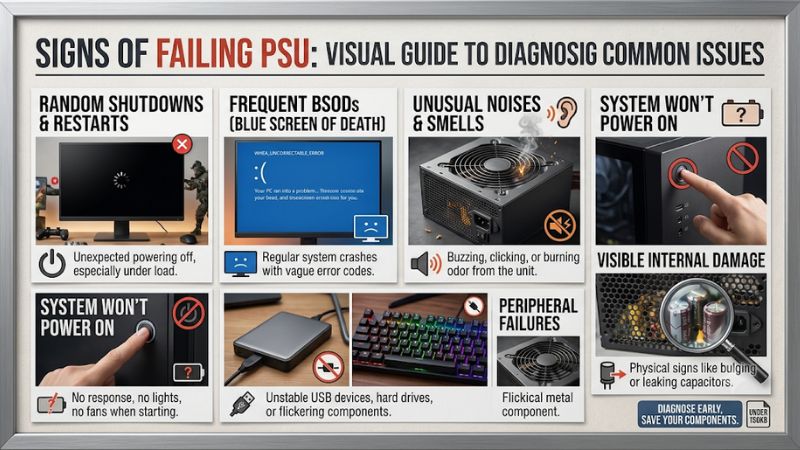
The most recognizable warning signs include sudden shutdowns, unexpected restarts, startup problems, unusual electrical odors, and instability during demanding workloads. However, none of these symptoms automatically confirms a defective power supply. Understanding when problems occur, what other components are doing, and whether the system recently changed helps narrow down the cause.
1. Unexpected Shutdowns During Gaming
Sudden shutdowns during gaming are among the more recognizable signs of failing psu problems. A desktop may operate normally while browsing or watching videos but switch off when a demanding game increases CPU and GPU power consumption. This pattern deserves attention, particularly if it started after a graphics card upgrade.
One possible explanation is that the PSU cannot consistently handle the system’s power requirements or sudden GPU power excursions. However, CPU or GPU overheating, unstable overclocking, and electrical connection problems can produce similar behavior. Record when shutdowns occur before deciding that the PSU needs replacement.
2. Random Restarts and Black Screens
A computer that suddenly restarts without displaying a blue screen may be experiencing unstable power delivery. The display might go black, the fans may stop briefly, and the motherboard may immediately begin another startup sequence. Repeated incidents during demanding workloads make the power supply worth investigating.
Nevertheless, black screens and restarts can also originate from graphics drivers, faulty memory, motherboard problems, or GPU instability. Pay attention to whether the entire computer loses power or whether the system remains running without video output. That distinction helps separate possible PSU problems from graphics-related faults.
3. Burning Smells, Electrical Noise, and Excessive Heat
A persistent burning-plastic or electrical odor coming from the PSU area is a serious warning. Damaged insulation, overheated connectors, or failing electrical components can produce unusual smells. If you notice smoke, sparks, or a burning odor, turn off the computer if safe, disconnect AC power, and stop using the system until it has been inspected.
Unusual grinding or rattling from the PSU fan can indicate a mechanical problem, while excessive heat may suggest inadequate cooling. However, not every sound indicates failure. Electrical coil whine can occur during normal operation, and some power supplies intentionally stop their fans at low loads through zero-RPM modes.
4. What Doesn’t Help: Guessing From One Symptom
Replacing a PSU immediately after one unexpected restart can waste money because several PC components share similar failure symptoms. Likewise, a computer that fails to start does not automatically have a defective power supply. A loose cable, faulty motherboard, damaged power button, or electrical outlet issue can produce comparable behavior.
Avoid opening the PSU to inspect its internal components. Power supplies can retain dangerous electrical energy even after being disconnected. Do not touch exposed internal circuitry, attempt component-level repairs, or use improvised electrical tests. External inspection and appropriate diagnostic equipment are safer ways to investigate suspected failures.
How to Diagnose Signs of Failing PSU: Step by Step
A sensible diagnosis starts with simple external checks before moving toward hardware testing. First, establish whether the computer loses power completely, crashes with an error, or simply loses its display signal. Then inspect external connections, review Windows logs, and consider system power requirements. The following steps help narrow down the problem without immediately purchasing replacement hardware.
1. Check the Power Outlet and External Connections
Start by checking the AC power cable connecting the computer to the wall outlet or surge protector. Make sure both ends are firmly connected and inspect the cable for damaged insulation, bent connectors, discoloration, or unusual heat. If anything looks damaged, stop using it and replace it with an appropriate cable.
You can also try a known-working, properly grounded outlet without the existing power strip or extension device. Check that the PSU’s rear rocker switch is set to the on position. These simple checks help rule out external power problems before investigating the internal hardware.
2. Inspect Internal Power Connections
If you are comfortable working inside a desktop, shut down the computer, switch off the PSU, disconnect the AC cable, and wait before opening the case. Check whether the motherboard’s 24-pin connector, CPU EPS connector, and GPU power connections appear properly seated. Never disconnect or reconnect internal power cables while the system is energized.
Pay particular attention to GPU power connectors, especially 12V-2×6 and older 12VHPWR connections. Look for incomplete insertion, damaged insulation, discoloration, or signs of overheating. Never force a connector into place. If a connection appears damaged or melted, stop using the computer and arrange professional inspection.
3. Review Windows Event Viewer
Windows provides useful information about unexpected shutdowns and restarts. Open Start, search for Event Viewer, and navigate to Windows Logs > System. Select Filter Current Log and look for critical or error events around the time the computer lost power.
Kernel-Power Event ID 41 indicates that Windows restarted without completing a normal shutdown. It does not independently identify a defective PSU. Check whether a bug check code or other relevant event appears around the same time. A recorded blue-screen error may direct attention toward a different hardware or software problem.
4. Check Power Requirements and Test With Known-Good Hardware
Compare your PSU’s rated output with the requirements of the installed CPU, GPU, and other components. Manufacturer recommendations and PSU calculators can help identify an undersized unit. Also consider whether a recent GPU upgrade increased the system’s power requirements or introduced different transient-load demands.
If other causes have been reasonably excluded, testing with a compatible, known-good PSU is a stronger diagnostic approach. The replacement unit must have adequate capacity, appropriate connectors, and cables approved for that exact PSU model. Never reuse modular cables from an unrelated power supply simply because their connectors physically fit.
| Diagnostic step | Where | How to Verify | Cost |
| Check AC connections | Wall outlet and PSU | Inspect cable and confirm stable external power | Free |
| Inspect internal cables | Inside PC case | Check connector seating and visible damage | Free |
| Review shutdown events | Windows Event Viewer | Examine Event ID 41 and surrounding events | Free |
| Test with a known-good PSU | Desktop hardware | Check whether the original symptoms disappear | Depends on access to replacement hardware |
When Should You Replace a Failing PSU?
Replacement becomes reasonable when electrical damage is visible, the unit repeatedly shuts down despite other causes being excluded, or a known-good replacement resolves the instability. A PSU that produces smoke, sparks, or a persistent burning odor should not remain in service while you continue troubleshooting. Safety takes priority over collecting additional diagnostic evidence.
1. Recognize When Replacement Is Necessary
The clearest reasons to stop using a PSU include melted connectors, damaged cables, visible electrical damage, smoke, and repeated abnormal operation accompanied by overheating or unusual odors. Do not continue gaming or run stress tests to reproduce these conditions. Disconnect the computer from AC power when it is safe to do so.
Aging alone does not establish that a PSU has failed, but operating history matters. A heavily used unit in a hot environment may deserve closer attention than a lightly used system. If the power supply is still covered by its warranty, contact the manufacturer before attempting repairs or opening the enclosure.
2. Choose an Appropriate Replacement Capacity
When replacing a power supply, consider the complete system rather than selecting a wattage based only on the graphics card. CPU power consumption, GPU requirements, additional drives, cooling equipment, and manufacturer recommendations all influence the appropriate capacity.
Also check the PSU’s available PCIe or native GPU power connectors, ATX compatibility, physical dimensions, and efficiency certification. An 80 PLUS rating describes efficiency under specified conditions; it does not independently establish build quality or guarantee reliability. Choose a reputable model with suitable protections and warranty coverage.
3. Install the New PSU Safely
Before installation, shut down the computer, switch off the old PSU, disconnect the AC cable, and allow the system to power down completely. Remove the old unit and install the replacement according to its manufacturer’s instructions. Ensure that the motherboard, CPU, and graphics card receive the correct power connections.
Use only the modular cables supplied with the replacement PSU or cables explicitly approved for that exact model. Modular cable pinouts can differ between manufacturers and product families, even when the connectors look identical. Reusing incompatible cables can damage storage devices, graphics cards, and other components.
4. Verify System Stability After Replacement
Once installation is complete, check that all connectors are properly seated and that no cables interfere with fans. Power on the computer and confirm that Windows starts normally. Check whether the previous shutdowns, black screens, or startup problems have disappeared during ordinary desktop use.
If the computer operates normally, gradually return to your usual gaming workloads while monitoring CPU and GPU temperatures. Avoid immediately restoring aggressive overclocking or undervolting settings. If instability continues with a suitable known-good PSU, investigate the motherboard, graphics card, memory, cooling, and other potential causes instead of repeatedly replacing power supplies.
Frequently Asked Questions
1. How Long Does a PC Power Supply Usually Last?
A quality PC power supply can operate for many years, but its lifespan depends on component quality, operating temperature, workload, and usage conditions. Manufacturer warranties provide useful information about product coverage, although they do not guarantee that every unit will last for the same period.
2. Can a Failing PSU Damage Other PC Components?
Yes, a defective power supply can potentially damage connected components, particularly when electrical faults or inadequate protection are involved. Modern PSUs generally include protective circuits, but these should not be treated as a reason to continue using a visibly damaged unit.
3. Can a Bad PSU Cause Low FPS in Games?
A PSU problem can contribute indirectly to poor gaming performance if unstable power causes hardware instability, crashes, or protective shutdowns. However, consistently low FPS is more commonly investigated through GPU utilization, CPU limitations, temperatures, graphics settings, and driver behavior.
4. Can I Test a PSU Without Removing It?
Yes, some external PSU testers and suitable electrical diagnostic equipment can check power outputs without removing the unit from the case. However, basic startup tests cannot establish that a PSU performs reliably under every workload. For uncertain cases, professional testing or substitution with a known-good compatible PSU is more informative.
Final Thoughts
Recognizing the signs of failing psu early can help prevent repeated crashes and potential hardware damage. Start with external connections, Windows logs, and power requirements before considering replacement. Never ignore burning smells or damaged connectors, and seek professional assistance when electrical faults or unsafe testing conditions are involved.
More from Amazon
Programs that pair well with the guide above. Offers and eligibility are set by Amazon and may change.
Free shipping on eligible items, Prime Video and more. Eligible new members can start with a free trial.
Start a Prime free trialAd-free music streaming. Eligible new subscribers can start with a free trial.
Try Music Unlimited freeA Prime membership for ages 18-24 with a trial period. Eligibility is set by Amazon.
See Prime for Young AdultsAudiobooks and podcasts to listen to on the go. Eligible new members can start with a free trial.
Try Audible freeAs an Amazon Associate we earn from qualifying purchases.