Our Top Picks
 ASUS TUF Gaming VG279Q3A 27 Inch 1080p 180HzOne Size24.2 x 7.5 x 17.8 inches10.1 poundsCheck on Amazon
Variable refresh rate (VRR) lets a monitor change its refresh rate on the fly to match the frame rate your graphics card is producing, which removes screen tearing and reduces the stutter you get when the two are out of step. G-Sync is NVIDIA’s branded version, FreeSync is AMD’s, and both are built on the same idea, so the practical question for most gamers is not which one wins but which labels your monitor and graphics card both support.
The Problem VRR Solves
A fixed-refresh monitor redraws the screen at a steady rate, for example 144 times per second. A graphics card produces frames at an uneven rate that rises and falls with the scene. When a new frame arrives in the middle of a screen refresh, you see tearing, a visible split line. Turning on V-Sync avoids tearing by making the card wait for the next refresh, but that can add input delay and cause stutter when frame rate falls below the refresh rate.
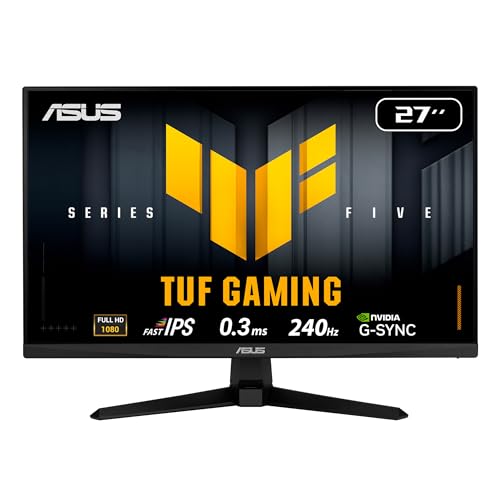
ASUS TUF VG279QM5A 27 Inch 1080p 240Hz Fast IPS G-SYNC Gaming Monitor | ELMB Sync, 0.3ms, FreeSync Premium, Variable Overdrive, 99% sRGB, HDMI, DisplayPort, 3yr warranty
Chosen because it specifies ELMB Sync and 0.3ms.
View on Amazon
LG 27GR83Q-B 27-inch Ultragear QHD (2560x1440) IPS Gaming Monitor, 240Hz, 1ms, DisplayHDR 400, G-Sync AMD FreeSync Premium, HDMI 2.1 DisplayPort, 4-Pole HP Out DTS GP:X, Tilt/Height/Pivot Stand, Black
Chosen because it specifies 240Hz and 1ms.
View on AmazonASUS TUF Gaming VG279Q3A 27 Inch 1080p 180Hz Fast IPS G-SYNC Gaming Monitor | ELMB Sync, 1ms, FreeSync Premium, Variable Overdrive, 99% sRGB, HDMI, DisplayPort, 3yr warranty
Chosen because it specifies ELMB Sync and 1ms.
View on Amazon
ASUS TUF Gaming VG279Q5A 27 Inch 1080p 200Hz Fast IPS G-SYNC Gaming Monitor | ELMB Sync, 1ms, FreeSync Premium, Variable Overdrive, 99% sRGB, HDMI, DisplayPort, 3yr warranty
Chosen because it specifies ELMB Sync and 1ms.
View on AmazonVRR flips the relationship. The monitor waits for the frame instead of the other way around, so each frame is shown when it is ready, within the range the monitor supports.
How the Names Fit Together
The technology underneath is largely standardized. Reference material on FreeSync explains that AMD announced it in 2014 and that the original implementation uses the Adaptive-Sync feature that VESA added to DisplayPort 1.2a. AMD describes FreeSync as royalty-free. NVIDIA’s older G-Sync used its own hardware module in the monitor, and NVIDIA later added a tier that validates monitors using standard Adaptive-Sync without that module.
| Label | Who runs it | What it means (as the makers describe it) |
|---|---|---|
| VESA Adaptive-Sync | VESA (standard) | The optional DisplayPort feature that lets refresh rate vary |
| FreeSync | AMD | Base tier built on Adaptive-Sync with requirements for low latency and refresh matching |
| FreeSync Premium | AMD | Adds low framerate compensation and a minimum of 120 Hz at Full HD |
| FreeSync Premium Pro | AMD | Adds HDR requirements for luminance and color gamut |
| G-Sync Compatible | NVIDIA | No NVIDIA processor in the monitor; validated by NVIDIA for a basic tear-free, stutter-free VRR experience |
| G-Sync | NVIDIA | Uses an NVIDIA G-Sync processor; offers full variable refresh range and variable overdrive |
| G-Sync Ultimate | NVIDIA | Top tier with NVIDIA’s premium processor, aimed at HDR and low latency, with a long validation process |
Which Graphics Card Works With Which Monitor
NVIDIA GeForce cards can run VRR on many FreeSync-class monitors, and the monitors NVIDIA has tested carry the G-Sync Compatible badge. Reference sources note that NVIDIA’s Pascal-generation and newer cards support Adaptive-Sync monitors through a driver update. AMD Radeon cards support FreeSync monitors. Intel Arc graphics also support Adaptive-Sync. Consoles are in the picture too: the FreeSync entry notes support on Xbox One through Xbox Series X and S, and many current consoles use HDMI VRR for the same purpose.
A monitor can work without carrying the badge. The label means the maker or NVIDIA ran validation. An unbadged monitor that advertises Adaptive-Sync may still work, but the experience can vary, especially at the low end of the supported range.
Key Terms You Will See
VRR range
The monitor only syncs inside a stated refresh range, such as 48 to 144 Hz. Below the bottom of the range, the monitor falls back to fixed behavior unless it has frame multiplication.
Low framerate compensation (LFC)
When the frame rate drops under the minimum refresh, LFC repeats frames so the display stays inside its range. FreeSync Premium lists it as a requirement. It generally needs the top of the range to be at least about double the bottom, so wide ranges work better.
Variable overdrive
Overdrive speeds up pixel transitions but can cause overshoot when the refresh rate changes. NVIDIA lists variable overdrive among features of the module-based G-Sync tier, and some other monitors adjust overdrive with refresh rate through their own firmware.
Motion blur reduction
Strobing backlight modes help clarity but usually cannot run at the same time as VRR on most monitors. Monitor manuals state which combinations are allowed.
How to Turn VRR On
- Connect the monitor with a cable that supports it. DisplayPort is the dependable route on a PC, and HDMI works when both ends support HDMI VRR.
- Enable the feature in the monitor’s on-screen menu. It may be named FreeSync, Adaptive-Sync or G-Sync Compatible, and some monitors ship with it off.
- Enable it in the graphics driver. In the NVIDIA Control Panel, the G-Sync setting is under display setup. In AMD Software, the setting is in the display section. The exact menu names vary with driver version.
- Set the refresh rate to the monitor’s highest supported mode in Windows display settings.
- Launch a game and use the exclusive full-screen or the windowed-and-borderless mode your driver supports.
Common Mistakes and Quirks
- Leaving the monitor setting off. Many monitors need VRR turned on in their menu.
- Using the wrong cable or port. An old HDMI port or cable may not support the VRR mode.
- Capping frames incorrectly. A common recommendation among reviewers is to keep the frame rate a little under the maximum refresh rate so the game stays within VRR range. Whether and how to cap depends on the game and driver settings.
- Expecting VRR to raise frame rates. It smooths delivery; it does not add performance.
- Brightness flicker on some panels. Some panels, particularly certain VA and OLED models, can show brightness variation when the frame rate swings, especially in menus and loading screens. This depends on the panel, and a firmware update or a refresh-rate cap may help.
- Mixing up tiers. A higher tier label does not always mean a better monitor. Resolution, panel type and response matter too.
Which One Should You Look For?
| Your graphics card | Good monitor labels to look for |
|---|---|
| GeForce RTX or GTX | G-Sync Compatible; G-Sync or G-Sync Ultimate for module-based screens |
| Radeon RX | FreeSync Premium or Premium Pro |
| Intel Arc | Adaptive-Sync over DisplayPort; FreeSync-labeled monitors |
| Console | HDMI VRR support; check the console maker’s display settings |
| You may change brands later | A monitor with both G-Sync Compatible and FreeSync Premium listed |
Do You Need the Premium G-Sync Hardware?
Reviewers have often noted that standard Adaptive-Sync monitors validated by the maker cover most players’ needs. The module-based G-Sync tiers add features such as variable overdrive across the whole range, and they usually cost more because of the extra hardware. If you play competitive games at very high frame rates or want the strictest validation, those tiers may still appeal. For everyone else, a well-reviewed monitor with a G-Sync Compatible or FreeSync Premium label is a sensible target.
Frequently Asked Questions
Is G-Sync better than FreeSync?
Module-based G-Sync adds hardware features and strict validation, while FreeSync is a royalty-free approach based on a VESA standard. In everyday use on a good monitor the difference is small, so the monitor’s overall quality matters more than the badge.
Can I use FreeSync with an NVIDIA graphics card?
Yes, in most cases. NVIDIA drivers support Adaptive-Sync monitors on recent GeForce cards, and tested monitors carry the G-Sync Compatible label. You turn it on in the driver’s display settings.
Do I need VRR if I have a high-refresh monitor?
It helps when your frame rate does not stay at the monitor’s maximum, which is common in demanding games. If your frame rate always matches the refresh rate, you gain less.
Should I use V-Sync together with G-Sync or FreeSync?
Many guides suggest enabling V-Sync in the driver along with VRR, so tearing is avoided if the frame rate rises above the range. Settings advice varies by game and driver version, so follow the graphics maker’s current guidance.
Does HDMI support variable refresh rate?
Yes. HDMI 2.1 includes VRR, and some earlier HDMI ports offer a FreeSync-over-HDMI mode. Both ends of the connection and the cable need to support it.
Why does my screen flicker with VRR on?
Brightness flicker is usually tied to the panel type and large frame rate swings. Capping the frame rate, trying a different cable or checking for monitor firmware are common first steps, and the monitor maker can advise if it continues.
FAQ
Do You Need the Premium G-Sync Hardware?
Is G-Sync better than FreeSync?
Can I use FreeSync with an NVIDIA graphics card?
Do I need VRR if I have a high-refresh monitor?
Should I use V-Sync together with G-Sync or FreeSync?
Does HDMI support variable refresh rate?
Why does my screen flicker with VRR on?
More from Amazon
Programs that pair well with the guide above. Offers and eligibility are set by Amazon and may change.
Free shipping on eligible items, Prime Video and more. Eligible new members can start with a free trial.
Start a Prime free trialAd-free music streaming. Eligible new subscribers can start with a free trial.
Try Music Unlimited freeA Prime membership for ages 18-24 with a trial period. Eligibility is set by Amazon.
See Prime for Young AdultsAudiobooks and podcasts to listen to on the go. Eligible new members can start with a free trial.
Try Audible freeAs an Amazon Associate we earn from qualifying purchases.