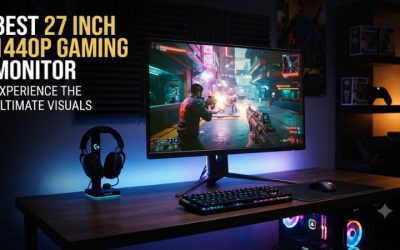
Choosing between a 1080p vs 1440p gaming monitor comes down to how much you value image detail versus frame rate and hardware cost. Both resolutions deliver a good gaming experience, but they suit different PCs, screen sizes, and playing styles. This comparison explains the practical differences and helps you choose without overspending.
What 1080p vs 1440p Gaming Really Comes Down To
The biggest difference is the number of pixels your graphics card must render. A 1080p display offers a lighter workload and makes high frame rates easier to achieve, while 1440p provides noticeably sharper images. Your GPU, monitor size, favorite games, and target refresh rate determine which trade-off makes more sense.
1. Resolution and Image Sharpness
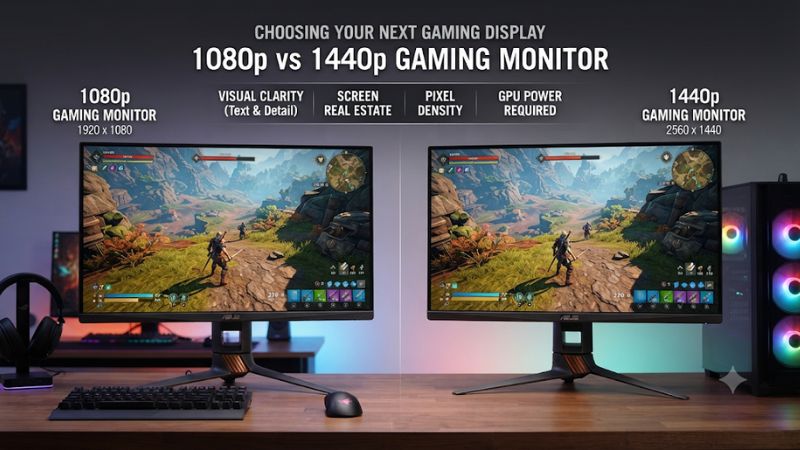
A 1080p monitor uses a resolution of 1920 × 1080 pixels, giving it approximately 2.07 million pixels. A 1440p monitor uses 2560 × 1440 pixels, totaling approximately 3.69 million pixels. That represents about 78% more pixels, allowing QHD displays to show finer details and smoother edges.
The difference becomes particularly noticeable when playing open-world games, exploring detailed environments, or reading small interface elements. Textures, distant objects, and thin lines generally appear more defined at 1440p. In the 1080p vs 1440p gaming monitor comparison, QHD has a clear image-quality advantage, especially on larger desktop screens.
2. GPU Performance and Frame Rates
Higher resolution increases the amount of rendering work required from your graphics card. At the same graphics settings, moving from 1080p to 1440p can reduce FPS because the GPU must process more pixels for every frame. However, the actual performance difference depends on the game engine, graphics settings, CPU, and GPU.
For competitive shooters, 1080p can make it easier to reach high frame rates with less expensive hardware. This matters when playing games such as Counter-Strike 2, Valorant, and Fortnite, where responsive controls and consistent performance are important. Meanwhile, 1440p offers a more detailed presentation when your graphics card has sufficient rendering capacity.
3. Screen Size and Pixel Density
Screen size influences how sharp each resolution looks. A 24-inch 1080p monitor provides approximately 92 pixels per inch (PPI), while a 27-inch 1440p monitor delivers approximately 109 PPI. The higher pixel density makes images and text look more refined at a similar desktop viewing distance.
A 27-inch 1080p display spreads its pixels across a larger physical area, making individual pixels and softer text edges easier to notice. By comparison, 1440p is a particularly attractive option for 27-inch monitors. You can also choose 32-inch QHD, although the pixel density is lower than on a 27-inch panel.
4. Monitor Cost and Overall Value
1080p monitors generally offer a more affordable entry point, particularly if you want a high-refresh-rate IPS display without spending heavily on your setup. They also allow gamers to allocate more of their budget toward a better graphics card, CPU, or other components.
The 1440p market offers more choices for gamers seeking a combination of image quality and smooth gameplay. However, the monitor itself is only part of the expense. You may need a more capable GPU to maintain your preferred frame rate at QHD, increasing the overall cost of the upgrade.
1080p vs 1440p Gaming Monitor: Detailed Comparison
Comparing specifications alone does not determine which monitor is better. You also need to consider how each resolution behaves with different games, graphics cards, refresh rates, and display sizes. The following breakdown highlights the practical differences so you can match a monitor to your existing PC rather than buying based on resolution alone.
1. Side-by-Side Technical Comparison
The table below summarizes the most important differences between Full HD and Quad HD displays. These figures describe standard 16:9 monitor resolutions rather than ultrawide formats. They provide a useful starting point, but actual gaming performance still depends on the complete hardware configuration.
| Category | 1080p (FHD) | 1440p (QHD) |
| Resolution | 1920 × 1080 | 2560 × 1440 |
| Total pixels | 2.07 million | 3.69 million |
| Relative pixel count | 100% | 178% |
| GPU workload | Lower | Higher |
| Image sharpness | Good | Sharper |
| Common screen size | 24 inches | 27 inches |
| Typical gaming focus | Competitive gaming | Mixed and immersive gaming |
| Hardware requirements | More accessible | More demanding |
| Overall cost | Generally lower | Generally higher |
One important distinction is that resolution does not determine refresh rate. Both Full HD and QHD monitors are available with high refresh rates, depending on the model. A 1440p 165Hz monitor is not automatically faster than a 1080p 240Hz monitor.
2. Which Resolution Is Better for Competitive Gaming?
For competitive gaming, 1080p remains a practical choice because it reduces GPU rendering demands. Players using entry-level or older graphics cards can often achieve higher frame rates without lowering as many graphical settings. This can make it easier to take advantage of 144Hz, 240Hz, or higher-refresh-rate displays.
However, choosing 1080p does not automatically make someone a better competitive player. A monitor’s pixel response behavior, input lag, refresh rate, and motion clarity also matter. A well-designed 1440p monitor can provide excellent competitive performance if your PC consistently delivers enough frames for its refresh rate.
3. Which Resolution Is Better for AAA Games?
For visually demanding games, 1440p generally provides a more detailed experience. Games featuring expansive environments, complex lighting, detailed character models, and distant scenery benefit from the additional pixel count. You can notice the difference when exploring landscapes or examining smaller environmental details.
Games such as Cyberpunk 2077, Red Dead Redemption 2, and Microsoft Flight Simulator can benefit from the sharper presentation. However, demanding graphics settings can put substantial pressure on your GPU. If native QHD performance is lower than your target, reducing selected settings or enabling supported upscaling can help restore a more comfortable frame rate.
4. Refresh Rate, Upscaling, and Image Quality
Refresh rate describes how frequently a monitor can update its displayed image. A 144Hz monitor can refresh up to 144 times per second, while a 240Hz monitor supports up to 240 refreshes per second. Your PC must also produce enough frames to take full advantage of those refresh opportunities.
Upscaling technologies add another consideration when choosing a resolution. NVIDIA DLSS, AMD FSR, and Intel XeSS can reconstruct a higher-resolution output from a lower internal rendering resolution in supported games. These technologies can improve the performance balance at 1440p, although image quality varies with the game, implementation, and selected quality mode.
How to Choose Between 1080p and 1440p for Your Gaming Setup
The right resolution depends on your actual hardware and gaming habits rather than a universal recommendation. A competitive player with a high-refresh-rate target may prefer Full HD, while someone who enjoys detailed single-player games may appreciate QHD more. Consider the following scenarios before deciding which monitor deserves your money.
1. Choose 1080p for Budget Gaming PCs
If your PC uses an entry-level graphics card, 1080p is often the more sensible starting point. It requires fewer rendered pixels and gives you more flexibility to prioritize higher frame rates. This is particularly useful if you play competitive games or want to avoid upgrading several PC components at once.
A 24-inch 1080p monitor is also a practical combination for smaller desks. You can find displays with fast refresh rates without paying for the additional resolution. If your current graphics card already struggles to maintain your desired FPS at Full HD, moving to QHD may require additional compromises.
2. Choose 1440p for Midrange and High-End PCs
A capable midrange or high-end graphics card makes 1440p more attractive. The additional detail is especially noticeable on 27-inch displays, and the resolution offers a useful balance between image quality and rendering demands. It is a strong choice for gamers who regularly switch between competitive titles and graphically demanding releases.
Before upgrading, check performance in the games you actually play. Look at independent benchmarks using your GPU or a comparable configuration, paying attention to average FPS and 1% lows. Make sure the test resolution and graphics settings match your intended experience instead of relying on unrelated benchmark numbers.
3. Consider Your Games and Preferred Refresh Rate
Your gaming preferences should influence the decision as much as your hardware. If you spend most of your time playing Valorant, Counter-Strike 2, or other fast-paced competitive games, prioritize a refresh rate your PC can consistently support. A 1080p high-refresh-rate monitor may offer better overall value.
For RPGs, racing games, strategy titles, and open-world adventures, 1440p can make environments and interface elements look considerably sharper. You may prefer a 144Hz or 165Hz QHD display rather than spending more on an extremely high refresh rate that your PC cannot consistently utilize.
4. Think About Future Upgrades and Compatibility
A 1440p monitor can remain useful when you upgrade your graphics card later. Unlike a GPU, which may need replacing as game requirements increase, a good display can serve several PC builds. This makes QHD an appealing long-term purchase if you expect to improve your hardware over time.
Before purchasing, verify the monitor’s maximum resolution and refresh rate over its available HDMI and DisplayPort connections. Check your GPU’s output specifications, cable bandwidth, adaptive-sync support, and operating-system compatibility. Remember that achieving the monitor’s maximum refresh rate may require a specific connection, cable, or display setting.
Frequently Asked Questions
Is 1440p significantly better than 1080p for gaming?
Yes, 1440p provides noticeably sharper images because it contains approximately 78% more pixels than 1080p. The improvement is particularly visible on 27-inch monitors and in games with detailed environments. However, the visual advantage comes with higher GPU rendering demands.
Can I use a 1440p monitor to play games at 1080p?
Yes, most 1440p monitors can accept a 1080p input signal, provided the connection and display support the format. However, scaling 1080p across a 1440p panel can produce a softer image because the pixel dimensions do not scale evenly. Native 1440p is generally preferable for everyday desktop use.
Does 1440p reduce FPS compared with 1080p?
Yes, 1440p generally reduces FPS when other graphics settings and hardware remain the same because the GPU renders more pixels per frame. The size of the performance difference varies by game, graphics card, CPU limitations, and rendering settings. Upscaling can help improve performance in supported titles.
Is a 27-inch 1080p monitor worth buying?
A 27-inch 1080p monitor can still be worthwhile when affordability and high refresh rates are your priorities. However, its lower pixel density makes images and text less sharp than on a 27-inch QHD display. If your budget and graphics card allow it, 1440p is usually the more attractive option at this size.
Final Thoughts
The 1080p vs 1440p gaming monitor decision ultimately depends on your GPU, preferred games, screen size, and performance expectations. Full HD remains attractive for affordable competitive gaming, while QHD offers sharper visuals and greater versatility. For most gamers building a balanced midrange setup, a 27-inch 1440p monitor is a sensible place to start.
More from Amazon
Programs that pair well with the guide above. Offers and eligibility are set by Amazon and may change.
Free shipping on eligible items, Prime Video and more. Eligible new members can start with a free trial.
Start a Prime free trialAd-free music streaming. Eligible new subscribers can start with a free trial.
Try Music Unlimited freeA Prime membership for ages 18-24 with a trial period. Eligibility is set by Amazon.
See Prime for Young AdultsAudiobooks and podcasts to listen to on the go. Eligible new members can start with a free trial.
Try Audible freeAs an Amazon Associate we earn from qualifying purchases.