Key takeaways
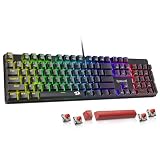
- Keycap puller: A wire puller lifts keycaps without scratching them; many boards, like several Redragon models, include one.
- Compressed air or a blower: Blasts loose dust and crumbs out from between the switches.
- Soft brush: A small anti-static or detailing brush loosens grime around switches and edges.
- Isopropyl alcohol and microfiber cloth: Alcohol evaporates cleanly and is ideal for wiping the case and stubborn spots.
- Warm soapy water and a bowl: For soaking removed keycaps during a deep clean.
What's inside
- Watch: How to Clean a Mechanical Keyboard — Video Review
- Gather the Right Tools First
- The Quick Weekly Clean
- The Deep Clean With Keycaps Removed
- Cleaning Around and Between the Switches
- Dealing With Spills and Drying Safely
- Tips
- Related Guides
- Frequently Asked Questions
- Conclusion
- Related Articles
- Related Guides
Mechanical keyboards are built to last for years, but the open space around their switches and keycaps is a magnet for dust, crumbs, skin oils, and the occasional drink splash. Left unchecked, that grime dulls the look of your board, makes keys feel sticky or scratchy, and can eventually cause switches to chatter or stick. A regular cleaning routine keeps your keyboard feeling crisp and responsive and extends its life significantly.
- Watch: How to Clean a Mechanical Keyboard — Video Review
- Gather the Right Tools First
- The Quick Weekly Clean
- The Deep Clean With Keycaps Removed
- Cleaning Around and Between the Switches
- Dealing With Spills and Drying Safely
- Tips
- Related Guides
- Frequently Asked Questions
- Conclusion
- Related Articles
- Related Guides
This guide walks you through cleaning a mechanical keyboard safely, from a quick surface tidy-up to a deeper clean that involves pulling the keycaps. You will learn what tools to use, what to avoid, and how to handle spills, so you can keep your board in top shape whether it is a hot-swappable custom or a rugged everyday gaming keyboard.
As an Amazon Associate we earn from qualifying purchases at no extra cost to you.








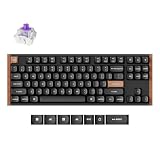
The keyboards above are popular, cleaning-friendly picks we like, including hot-swappable and PBT-keycap models that make maintenance easier, and they are great examples of boards worth keeping in pristine condition.
⚡ Save on Your Next PC — Amazon Prime
Prime members get fast free shipping on the systems above, plus early access to Prime Day & Black Friday PC deals. New members get a 30-day free trial.
Watch: How to Clean a Mechanical Keyboard — Video Review
Gather the Right Tools First
- Keycap puller: A wire puller lifts keycaps without scratching them; many boards, like several Redragon models, include one.
- Compressed air or a blower: Blasts loose dust and crumbs out from between the switches.
- Soft brush: A small anti-static or detailing brush loosens grime around switches and edges.
- Isopropyl alcohol and microfiber cloth: Alcohol evaporates cleanly and is ideal for wiping the case and stubborn spots.
- Warm soapy water and a bowl: For soaking removed keycaps during a deep clean.
The Quick Weekly Clean
For routine upkeep you do not need to remove anything. Power off or unplug the board first, then turn it upside down and give it a gentle shake to dislodge loose debris. Use compressed air in short bursts across the rows to blow out dust, working from one side to the other. Finish by wiping the keycaps and case with a microfiber cloth lightly dampened with isopropyl alcohol. Done once a week, this five-minute routine prevents most buildup and keeps a board like a Razer BlackWidow or Logitech G413 looking and feeling fresh.
The Deep Clean With Keycaps Removed
Every few months, or whenever keys feel gritty, do a full clean. Unplug the board and take a reference photo of the layout so you can put keycaps back correctly. Using the puller, remove the keycaps, pulling straight up; be extra careful with larger stabilized keys like the spacebar and enter. Soak standard keycaps in warm soapy water for a couple of hours, then rinse and lay them out to dry completely. Meanwhile, brush and blow out the exposed plate and switches, and wipe the case. Never submerge the keyboard body itself, only the loose keycaps.
Cleaning Around and Between the Switches
With the keycaps off, the switches are exposed and easy to reach. Hold the board at an angle and use compressed air to push dust away from, not into, the switch housings. A soft brush lifts stubborn debris caught around each switch stem. For hot-swappable boards like the AULA F75 Pro, you have the option of pulling individual switches for a more thorough clean, but for most people brushing and blowing is plenty. Avoid pouring liquid directly onto switches, and if you use alcohol near them, apply it to a cloth or swab rather than dripping it in.
Dealing With Spills and Drying Safely
If you spill liquid on your keyboard, act fast: unplug it immediately, turn it upside down to drain, and blot up what you can. Water-resistant boards such as the SteelSeries Apex 3 tolerate splashes better, but no keyboard should sit in liquid. Let the board dry fully for at least 24 to 48 hours before plugging it back in, ideally with keycaps removed and the board angled so moisture can escape. Sugary or sticky drinks require pulling the keycaps and cleaning the affected switches, since residue left behind will cause keys to stick.
Tips
- Always unplug the keyboard before cleaning, and take a layout photo before removing keycaps.
- Let keycaps dry completely before reinstalling; trapped moisture can cause switch issues.
- Use isopropyl alcohol rather than water on the case and switches, since it evaporates cleanly.
- Do a quick weekly blow-out to prevent the heavy buildup that forces a full deep clean.
Frequently Asked Questions
How often should I clean my mechanical keyboard?
A quick surface clean once a week keeps dust from building up, while a full deep clean every three to six months, or whenever keys feel gritty, keeps switches responsive. Heavy eaters and pet owners may want to clean more often.
Can I wash mechanical keyboard keycaps in water?
Yes, removed keycaps can soak in warm soapy water, then be rinsed and dried fully before reinstalling. Never submerge the keyboard body itself, only the loose keycaps, since the electronics and switches must stay dry.
Is it safe to use compressed air on switches?
Yes, as long as you angle the board so the air pushes debris away from the switch openings rather than deeper inside. Short bursts work best, and holding the can upright prevents propellant from spraying out as liquid.
What should I do if I spill a drink on my keyboard?
Unplug it at once, flip it over to drain, and blot the liquid. Then let it dry for a day or two before use. Sugary drinks require pulling the keycaps and cleaning the affected switches so residue does not make keys stick.
Conclusion
Keeping a mechanical keyboard clean is simple once you have the right tools and a routine: a quick weekly blow-out prevents buildup, and an occasional deep clean with the keycaps removed restores that fresh, crisp feel. Always unplug first, keep liquid away from the electronics, and dry everything fully before reassembling. Treat your board this way and it will stay responsive and look great for many years of gaming.