Key takeaways
- Enabling XMP/EXPO is technically a factory-tested overclock, but it is safe and expected.
- Choose Profile 1 for daily use; it is the manufacturer-validated speed for your kit.
- Expect one or two slow reboots as the board trains memory, this is normal behavior.
- Verify the applied speed in CPU-Z or Task Manager, remember CPU-Z shows half the DDR rating.
Here is a fact that surprises many builders: your expensive DDR5-6000 memory runs at just 4800MT/s out of the box until you flip one setting. Motherboards boot RAM at slow, guaranteed-safe JEDEC speeds by default, and it is up to you to enable the rated profile. That profile is called XMP on Intel systems and EXPO on AMD, and turning it on is the single easiest performance upgrade you can make.
This guide shows you exactly how to enable XMP or EXPO in your BIOS, what the difference is between them, and how to confirm your RAM is actually running at full speed. It takes about two minutes and can lift gaming frame rates and application performance for free, using memory you already paid for.
Our top picks




As an Amazon Associate we earn from qualifying purchases at no extra cost to you. Ratings are shown as listed on Amazon.
⚡ Save on Your Next PC — Amazon Prime
Prime members get fast free shipping on the systems above, plus early access to Prime Day & Black Friday PC deals. New members get a 30-day free trial.
Watch: How to Enable XMP / EXPO for Faster RAM — Video Review
Understand What XMP and EXPO Do
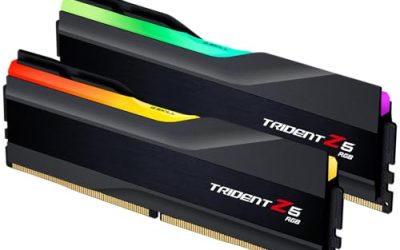
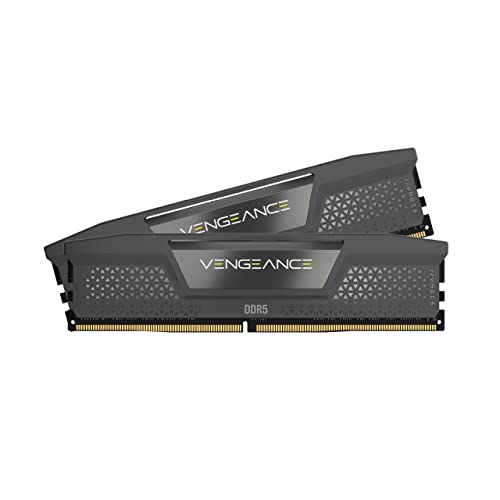
RAM chips are certified at a baseline JEDEC speed for universal compatibility, but manufacturers factory-test kits to run faster with specific timings and voltage. XMP (Extreme Memory Profile, Intel) and EXPO (Extended Profiles for Overclocking, AMD) store those faster settings as a one-click profile. Enabling it applies the frequency, timings, and voltage your kit like a G.SKILL Trident Z5 Neo (EXPO) or Corsair Vengeance DDR5 was actually built for, no manual tuning needed.
Enter the BIOS and Find the Profile Setting
Restart your PC and press Delete (or F2 on many boards) repeatedly during boot to enter the BIOS/UEFI. Switch to Advanced or Extreme mode if your board opens in an EZ view. Look for a setting labeled XMP, EXPO, DOCP, or A-XMP, usually near the top of the main or ‘Ai Tweaker’/’OC’ page. On AMD boards the option may read EXPO or DOCP; on Intel it reads XMP.
Select and Apply the Profile
Click the XMP/EXPO dropdown and choose Profile 1, which loads your kit’s rated speed such as 6000MT/s CL30. Some kits offer a second, more aggressive profile, Profile 1 is the safe, tested choice for daily use. The board fills in frequency, timings, and DRAM voltage automatically. You do not need to change anything manually; that is the entire point of these profiles.
Save, Reboot, and Verify
Press F10 to save and exit. The system reboots, and it may take a couple of restarts as the board trains the memory, this is normal, do not panic if the first boot is slow. Once in Windows, open Task Manager’s Performance tab or CPU-Z’s Memory/SPD tabs and confirm the speed. CPU-Z reports the real clock as half the rated number (e.g., 3000MHz shown = DDR5-6000), so it is working correctly.
Troubleshoot a Failed Profile
Occasionally a board fails to POST after enabling a profile, especially with four DIMMs or very high-speed kits. If that happens, the BIOS usually resets to defaults automatically after a few failed attempts, or you can clear CMOS. Then try the profile again; if it still fails, your CPU’s memory controller may not handle that speed with all slots filled, so a small manual step down in frequency will get you stable.
Tips
- Enabling XMP/EXPO is technically a factory-tested overclock, but it is safe and expected.
- Choose Profile 1 for daily use; it is the manufacturer-validated speed for your kit.
- Expect one or two slow reboots as the board trains memory, this is normal behavior.
- Verify the applied speed in CPU-Z or Task Manager, remember CPU-Z shows half the DDR rating.
Frequently Asked Questions
Is XMP the same as EXPO?
They do the same thing, apply your RAM’s rated speed with one click, but XMP is Intel’s standard and EXPO is AMD’s. Many DDR5 kits include both profiles for either platform.
Is enabling XMP or EXPO safe?
Yes. It applies factory-tested settings within the kit’s specification. It is technically an overclock, but a validated one that manufacturers design and warranty for.
Why is my RAM running slower than advertised?
Because XMP/EXPO is off by default. The board runs a safe JEDEC speed until you enable the profile, which is why your DDR5-6000 kit may show 4800MT/s until you flip the setting.
Does XMP void my warranty?
In practice, no. XMP and EXPO are official manufacturer features designed to be used, and both memory and CPU makers support their standard profiles.
Conclusion
Enabling XMP or EXPO is the fastest free upgrade in PC building: one BIOS toggle takes your memory from a slow default to its full rated speed. Choose Profile 1, save, let the board train, and verify in CPU-Z. Two minutes of work unlocks the performance you already paid for.