Key takeaways
- Only update the BIOS to fix a real issue or add CPU/RAM support, not for its own sake.
- Download the file only from your exact board model’s official support page, never a similar one.
- Prefer BIOS Flashback when available, it is the safest, CPU-free update method.
- Never interrupt the flash; use stable power and wait for the reboot to complete.
Updating your motherboard BIOS sounds intimidating, but it is often the fix for real problems: support for a new CPU, better memory compatibility, security patches, and stability improvements. A modern Ryzen or Intel board frequently needs a BIOS update to recognize the latest processors, so knowing how to flash safely is an essential PC-building skill.
This guide explains when you should update, how to do it safely using tools like BIOS Flashback, and how to avoid the one mistake that can brick a board: interrupting the flash. We will cover both the modern flashback method and the traditional in-BIOS updater so you can choose the right approach for your motherboard.
Our top picks
 ASRock B860M Pro A DDR5 8666 MHz
- 10+1+1+1+1 Power Phase, Dr.MOS for VCore+GT+SA
- 4 x DDR5 DIMMs Supports Dual Channel, up…
- Graphics Output Options: 1 HDMI, 1 DisplayPort
 ASUS TUF Gaming B550-PLUS WiFi II AMD
- AMD AM4 Socket and PCIe 4.0: The perfect…
- Robust Power Design: 8+2 DrMOS power stages with…
- Optimized Thermal Solution: Fanless VRM and PCH heatsink,…
 ASRock B860 Pro A WiFi 6E Intel
- 10+1+1+1+1 Power Phase, Dr.MOS for VCore+GT+SA
- 4 x DDR5 DIMMs Supports Dual Channel, up…
- Graphics Output Options: 1 HDMI, 1 DisplayPort
| Product | Key specs | |
|---|---|---|
| ASRock B860M Pro A DDR5 8666 MHz | 10+1+1+1+1 Power Phase, Dr.MOS for VCore+GT+SA 4 x DDR5 DIMMs Supports Dual Channel, up… Graphics Output Options: 1 HDMI, 1 DisplayPort | Check price |
| ASUS TUF Gaming B550-PLUS WiFi II AMD | AMD AM4 Socket and PCIe 4.0: The perfect… Robust Power Design: 8+2 DrMOS power stages with… Optimized Thermal Solution: Fanless VRM and PCH heatsink,… | Check price |
| ASRock B860 Pro A WiFi 6E Intel | 10+1+1+1+1 Power Phase, Dr.MOS for VCore+GT+SA 4 x DDR5 DIMMs Supports Dual Channel, up… Graphics Output Options: 1 HDMI, 1 DisplayPort | Check price |
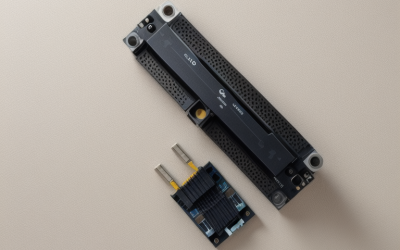
 Anu Limen TPM 1.2 Security Module 20-Pin | Enhanced PC Security: This TPM 1.2 module provides… Standalone Encryption Processor: Featuring an independent 20-pin LPC… Broad Motherboard Compatibility: Designed for motherboards with a… | Check price |
 BAFOVY PC Diagnostic Card 4 Digit Post | Dual PCI ISA Interface: Works with both PCI… Clear POST Code Readout: Shows current and previous… Built for Repair Shops: SMD components and durable… | Check price |
As an Amazon Associate we earn from qualifying purchases at no extra cost to you.
⚡ Save on Your Next PC — Amazon Prime
Prime members get fast free shipping on the systems above, plus early access to Prime Day & Black Friday PC deals. New members get a 30-day free trial.
Watch: How to Update Your Motherboard BIOS — Video Review
Know When You Actually Need to Update
Do not update the BIOS on a stable, working system for no reason, the old advice ‘if it isn’t broken, don’t flash it’ still holds. Update when you are installing a newer CPU the board does not yet support, chasing better RAM compatibility, applying a security or stability fix, or resolving a specific bug. Boards like the ASUS TUF Gaming B550-PLUS WiFi II or ASRock B860M Pro A often ship needing an update for the newest chips.
Identify Your Exact Board and Current Version
Flashing the wrong file can brick a board, so precision matters. Find your exact motherboard model and revision (printed on the PCB or shown in the BIOS), then note your current BIOS version. Download the latest BIOS strictly from that model’s official support page. Never use a file for a similarly named board, an ASUS Prime B450M-A II and a TUF B550 are not interchangeable.
Use BIOS Flashback for the Safest Update
Many modern boards include BIOS Flashback (sometimes called Q-Flash Plus or Flashback), which updates firmware without a CPU, RAM, or GPU installed. Format a USB drive to FAT32, copy the BIOS file, rename it exactly as the manual specifies, plug it into the dedicated Flashback port, and press the button. This method is the safest because it runs on an isolated controller, making a failed core-CPU update almost impossible.
Or Flash From Inside the BIOS
If your board lacks Flashback, use the built-in updater (EZ Flash, M-Flash, or Instant Flash). Put the BIOS file on a FAT32 USB drive, enter the BIOS, open the update utility, select the file, and confirm. The system reads and writes the firmware, then reboots. Do not touch anything until it finishes, this is the step where interruptions cause damage.
Protect Against Power Loss and Recover if Needed
The cardinal rule: never interrupt a BIOS flash. A power cut mid-write can corrupt the firmware and prevent the board from booting. Use a UPS or at least a stable outlet, and never flash during a storm. If a flash does fail, boards with dual BIOS or Flashback can usually recover; a diagnostic POST card can also help pinpoint a no-boot issue afterward. When done, load optimized defaults and re-enable XMP/EXPO.
Tips
- Only update the BIOS to fix a real issue or add CPU/RAM support, not for its own sake.
- Download the file only from your exact board model’s official support page, never a similar one.
- Prefer BIOS Flashback when available, it is the safest, CPU-free update method.
- Never interrupt the flash; use stable power and wait for the reboot to complete.
Frequently Asked Questions
Can updating the BIOS damage my PC?
Only if the flash is interrupted or you use the wrong file. Follow the correct file and never cut power mid-update, and the process is very safe on modern boards.
Do I need a CPU to update the BIOS?
With BIOS Flashback, no, that is its whole purpose, letting you flash for a new CPU the board cannot yet boot. Without Flashback you need a working, supported CPU installed.
How do I know my BIOS version?
It appears on the BIOS main screen at boot and in Windows via System Information (look for ‘BIOS Version/Date’). Compare it to the latest on your board’s support page.
Will a BIOS update reset my settings?
Yes. A flash reverts to default settings, so you will need to re-enable XMP/EXPO, fan curves, and boot order afterward. Note your key settings before updating.
Conclusion
Updating your BIOS is safe and worthwhile when done for the right reason: use BIOS Flashback where possible, download only your exact board’s file, ensure stable power, and never interrupt the write. Do that, and you unlock new CPU support, better memory compatibility, and important fixes without risk.
FAQ
Can updating the BIOS damage my PC?
Do I need a CPU to update the BIOS?
How do I know my BIOS version?
Will a BIOS update reset my settings?
More from Amazon
Programs that pair well with the guide above. Offers and eligibility are set by Amazon and may change.
Free shipping on eligible items, Prime Video and more. Eligible new members can start with a free trial.
Start a Prime free trialAd-free music streaming. Eligible new subscribers can start with a free trial.
Try Music Unlimited freeA Prime membership for ages 18-24 with a trial period. Eligibility is set by Amazon.
See Prime for Young AdultsAudiobooks and podcasts to listen to on the go. Eligible new members can start with a free trial.
Try Audible freeAs an Amazon Associate we earn from qualifying purchases.