Choosing between positive vs negative pressure PC case configurations affects how your gaming PC handles dust, airflow, and heat. Positive pressure generally helps keep dust out, while negative pressure can remove warm air efficiently. Understanding both setups helps you arrange case fans, improve cooling consistency, and maintain a cleaner system.
What Positive and Negative PC Case Pressure Really Mean
PC case pressure describes the relationship between the amount of air entering the enclosure and the amount leaving it. Intake fans pull fresh air inside, while exhaust fans remove heated air. Neither configuration automatically produces better temperatures because fan performance, case restrictions, filters, and component placement also influence cooling.
What Is Positive Air Pressure?
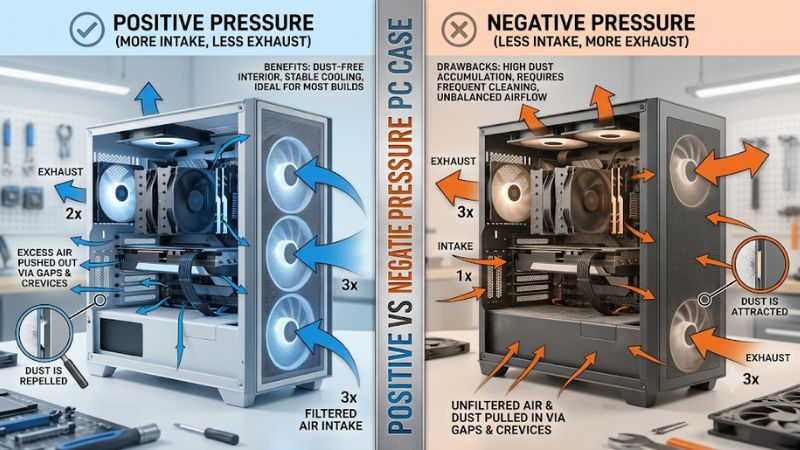
Positive air pressure occurs when intake fans deliver more air into the case than exhaust fans remove. The additional air escapes through openings around panels, expansion slots, and other gaps. When intake air passes through dust filters, this arrangement can reduce the amount of unfiltered dust entering the enclosure.
This configuration is particularly useful for gaming PCs operating in dusty rooms or environments where regular cleaning is inconvenient. However, positive pressure does not mean adding as many intake fans as possible. Excessive intake without an effective exhaust path can create inefficient airflow and allow warm air to remain around components.
What Is Negative Air Pressure?
Negative air pressure happens when exhaust fans remove more air than intake fans supply. The resulting pressure difference draws replacement air through available openings, including unfiltered gaps around the case panels and expansion slots.
This arrangement can help move heated air out of an enclosure, particularly when exhaust fans have a clear path to remove heat from the CPU and GPU areas. However, the additional air entering through unfiltered openings can carry dust directly into the system, making maintenance more demanding.
What Is Neutral Air Pressure?
Neutral pressure describes a configuration where intake and exhaust airflow are approximately balanced. Instead of strongly favoring either direction, the fans establish a relatively even exchange of air through the enclosure.
This approach can work well when the case has properly positioned intake and exhaust fans. It also provides flexibility when using different radiator positions or additional side-mounted fans. However, achieving perfectly neutral pressure is difficult because real airflow changes with fan speeds, filters, and internal restrictions.
Why Case Pressure Matters for Gaming PCs
Gaming components produce substantial heat during demanding workloads. Graphics cards, processors, motherboard power delivery components, and storage devices all depend on adequate cooling to operate within their intended temperature ranges.
Case pressure influences where replacement air enters and how heated air leaves. A poorly arranged system might repeatedly circulate warm air around the GPU or CPU cooler instead of supplying cooler room air. A well-planned configuration establishes a predictable airflow path across important components.
Pressure should therefore be considered alongside total airflow rather than as an isolated cooling specification. A balanced fan arrangement with unobstructed intake and exhaust paths can outperform a configuration with more fans but poorly directed airflow.
Positive vs Negative Pressure PC Case: Comparing the Options
The practical difference between these configurations becomes clearer when considering dust management, cooling behavior, and fan placement. For most gaming builds, slightly positive pressure is a sensible starting point, but the best arrangement depends on the case design, radiator restrictions, and cooling requirements.
Positive vs Negative Pressure: Main Differences
| Factor | Positive Pressure | Negative Pressure |
| Airflow balance | Intake exceeds exhaust | Exhaust exceeds intake |
| Dust management | Generally better with filtered intake | More dust can enter through gaps |
| Heat removal | Depends on exhaust capacity | Strong exhaust can remove warm air effectively |
| Fan arrangement | More effective intake airflow | More effective exhaust airflow |
| Maintenance | Potentially less frequent cleaning | May require more frequent cleaning |
| Best application | General gaming PCs | Specific airflow-focused configurations |
Neither arrangement guarantees lower CPU or GPU temperatures. The table describes typical airflow characteristics, not universal performance results.
Cooling Performance and Component Temperatures
Positive pressure can supply fresh air to the GPU and CPU cooler while encouraging excess air to escape through case openings. This is particularly useful when front or side intake fans have access to unobstructed ventilation.
Negative pressure can also provide effective cooling because exhaust fans actively remove heated air. In certain cases, this can help prevent warm air from accumulating around components, especially when the enclosure has restricted intake ventilation.
However, the actual temperature difference depends on the hardware and airflow path. A graphics card with three fans may benefit more from unobstructed bottom or front intake than from simply increasing the speed of rear exhaust fans.
Dust Accumulation and Filter Protection
Dust management is one of the strongest reasons to choose positive pressure. When filtered intake airflow exceeds exhaust airflow, excess air generally escapes through openings instead of allowing unfiltered air to enter through them.
Negative pressure creates the opposite situation. Replacement air enters wherever the enclosure offers the least resistance, including gaps that do not have dust filters. This can gradually introduce dust around the graphics card, motherboard, and other internal components.
Regardless of pressure configuration, clean dust filters remain important. A clogged filter restricts incoming airflow, potentially changing the pressure balance and reducing cooling effectiveness. Check front, bottom, and side filters regularly, particularly if the computer operates near carpeting or pets.
Noise, Fan Speed, and Airflow Restrictions
Case pressure does not directly determine how noisy a gaming PC will be. Noise depends on fan design, rotational speed, bearing quality, mounting vibration, and airflow resistance.
A positive-pressure configuration might require higher intake fan speeds if the front panel or dust filters restrict airflow. Similarly, negative pressure can become noisy when multiple exhaust fans operate at high RPM to compensate for limited intake ventilation.
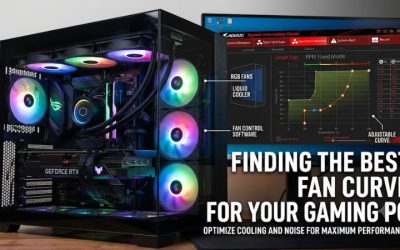
Fan curves offer a practical way to manage these trade-offs. Adjusting intake and exhaust speeds independently allows you to maintain a preferred airflow balance without running every fan at maximum speed. Check temperatures and noise during gaming before settling on a configuration.
Which Pressure Configuration Should You Choose?
For most gaming PCs, slightly positive pressure is the better starting point because it supports filtered intake and reduces dust entering through unfiltered openings.
However, there are situations where a neutral or slightly negative configuration makes sense. For example, a compact case with restricted front ventilation might benefit from a different exhaust arrangement, provided fresh air can still reach the GPU and CPU cooler.
Consider these general recommendations:
- General gaming PC: Start with slightly positive pressure and filtered front intake.
- Dusty environment: Prioritize filtered intake and avoid excessive negative pressure.
- Compact gaming build: Experiment with intake and exhaust positions based on available ventilation.
- Liquid-cooled PC: Account for radiator resistance and the direction of radiator airflow.
- Temperature-focused build: Compare CPU and GPU temperatures under the same gaming workload.
How to Set Up and Balance PC Case Airflow
Once you understand the differences, configuring your fans is relatively straightforward. You do not need specialized pressure-measuring equipment for an ordinary gaming PC. Start with a conventional front-to-back airflow arrangement, check the direction of every fan, and adjust fan speeds according to component temperatures.
Step 1: Identify Intake and Exhaust Directions
Before changing fan positions, determine which direction each fan moves air. Most conventional case fans have small arrows printed along the frame indicating airflow direction and blade rotation.
If the arrows are unavailable, the side with the supporting frame struts is generally the exhaust side on conventional fans. The opposite side is usually the intake side. Some specialized fans use different blade arrangements, so consult their manufacturer documentation when necessary.
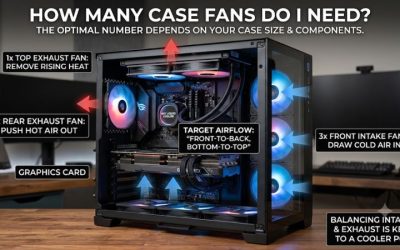
A typical gaming PC uses front fans as intake and rear fans as exhaust. Top-mounted fans generally exhaust warm air, while bottom-mounted fans commonly supply fresh air toward the graphics card.
Step 2: Establish a Slightly Positive Configuration
A practical starting arrangement is two front intake fans and one rear exhaust fan. This provides a straightforward airflow path while giving the intake side a numerical advantage.
For larger cases, three front intake fans combined with one rear exhaust fan can provide additional airflow. You can also add a rear-positioned top exhaust fan when the CPU and GPU cooling arrangements benefit from it.
Remember that fan count is only a starting point. Different fan sizes, RPM levels, dust filters, and radiators can significantly change effective airflow. Three restricted intake fans do not necessarily move more air than two unrestricted exhaust fans.
Step 3: Adjust Fan Speeds and Radiator Positions
Use your motherboard’s UEFI or BIOS fan-control interface, or its manufacturer’s fan-control software, to adjust case fan speeds. Look for the hardware monitoring or fan-control section and identify the headers connected to your case fans.
If the intake side is restricted by a radiator or dust filter, you may need higher intake speeds to maintain positive pressure. Conversely, an oversized exhaust arrangement may require slower exhaust speeds to avoid excessive negative pressure.
For an AIO liquid cooler, remember that radiator placement changes the temperature of air entering or leaving the case. A front-mounted radiator configured as intake supplies air warmed by the radiator to the interior, while a top-mounted exhaust radiator removes internal air through the cooling assembly.
Step 4: Verify Airflow and Monitor Temperatures
After adjusting the fans, check the airflow direction and observe whether air enters through filtered openings and exits through the intended exhaust positions.
You can use a small strip of lightweight tissue near an accessible case opening to observe the general airflow direction. Keep it away from fan blades and never insert objects into moving fans. This method indicates airflow direction rather than providing an accurate pressure measurement.
Next, monitor CPU and GPU temperatures using hardware monitoring software during a representative gaming session. Compare results under similar room temperatures, game settings, and workloads. If temperatures increase, inspect filters, radiator restrictions, and possible airflow obstructions before making further adjustments.
| Setting or Step | Where | Effect | Risk |
| Front intake fans | Front or side mounts | Supplies fresh air | Restricted filters reduce airflow |
| Rear exhaust fan | Rear mount | Removes heated air | Excessive speed can create negative pressure |
| Top exhaust fan | Top mounts | Releases warm internal air | Front-positioned exhaust can disrupt CPU cooler airflow |
| Fan speed adjustment | BIOS/UEFI or motherboard software | Balances airflow and noise | Incorrect settings can reduce cooling |
FAQ
Is Positive or Negative Pressure Better for a Gaming PC?
Slightly positive pressure is generally better for most gaming PCs because it helps reduce dust entering through unfiltered case openings. It also provides a practical starting point for conventional front-to-back airflow.
However, negative pressure can work effectively when the enclosure has a suitable intake path and strong exhaust ventilation. Choose based on actual component temperatures, dust conditions, and case design rather than assuming one configuration always performs better.
Does Positive Air Pressure Reduce PC Temperatures?
Positive air pressure does not automatically reduce PC temperatures because cooling depends on total airflow, fan placement, and internal restrictions. Its main advantage is encouraging filtered air to enter the enclosure.
If intake airflow is insufficient or exhaust ventilation is obstructed, warm air can still accumulate. Monitor CPU and GPU temperatures under gaming workloads to determine whether your arrangement provides adequate cooling.
How Many Intake and Exhaust Fans Should a Gaming PC Have?
Two front intake fans and one rear exhaust fan provide a reasonable starting configuration for many conventional gaming PCs. Larger cases may benefit from additional intake or exhaust fans depending on their ventilation design.
Do not choose fan numbers based exclusively on pressure targets. Consider fan size, airflow specifications, radiator resistance, and available mounting positions before adding more hardware.
Can Negative Pressure Damage PC Components?
Negative pressure does not inherently damage PC components, but it can increase dust entering through unfiltered openings. Excessive dust accumulation can restrict heatsinks and filters, eventually affecting cooling performance.
Regular cleaning and suitable filtration help manage this issue. If your system develops unexpectedly high temperatures, inspect the cooling system and airflow path rather than assuming negative pressure is responsible.
Final Thoughts
Choosing between positive vs negative pressure PC case configurations is primarily about balancing cooling, dust protection, and noise. Slightly positive pressure is a sensible default for most gaming systems, especially with filtered intake fans. Start with a conventional airflow layout, monitor temperatures, and adjust fan speeds to suit your build.
More from Amazon
Programs that pair well with the guide above. Offers and eligibility are set by Amazon and may change.
Free shipping on eligible items, Prime Video and more. Eligible new members can start with a free trial.
Start a Prime free trialAd-free music streaming. Eligible new subscribers can start with a free trial.
Try Music Unlimited freeA Prime membership for ages 18-24 with a trial period. Eligibility is set by Amazon.
See Prime for Young AdultsAudiobooks and podcasts to listen to on the go. Eligible new members can start with a free trial.
Try Audible freeAs an Amazon Associate we earn from qualifying purchases.