Key takeaways
- Only update the BIOS to fix a real issue or add CPU/RAM support, not for its own sake.
- Download the file only from your exact board model’s official support page, never a similar one.
- Prefer BIOS Flashback when available, it is the safest, CPU-free update method.
- Never interrupt the flash; use stable power and wait for the reboot to complete.
Updating your motherboard BIOS sounds intimidating, but it is often the fix for real problems: support for a new CPU, better memory compatibility, security patches, and stability improvements. A modern Ryzen or Intel board frequently needs a BIOS update to recognize the latest processors, so knowing how to flash safely is an essential PC-building skill.
This guide explains when you should update, how to do it safely using tools like BIOS Flashback, and how to avoid the one mistake that can brick a board: interrupting the flash. We will cover both the modern flashback method and the traditional in-BIOS updater so you can choose the right approach for your motherboard.
Our top picks




As an Amazon Associate we earn from qualifying purchases at no extra cost to you. Ratings are shown as listed on Amazon.
⚡ Save on Your Next PC — Amazon Prime
Prime members get fast free shipping on the systems above, plus early access to Prime Day & Black Friday PC deals. New members get a 30-day free trial.
Watch: How to Update Your Motherboard BIOS — Video Review
Know When You Actually Need to Update
Do not update the BIOS on a stable, working system for no reason, the old advice ‘if it isn’t broken, don’t flash it’ still holds. Update when you are installing a newer CPU the board does not yet support, chasing better RAM compatibility, applying a security or stability fix, or resolving a specific bug. Boards like the ASUS TUF Gaming B550-PLUS WiFi II or ASRock B860M Pro A often ship needing an update for the newest chips.
Identify Your Exact Board and Current Version
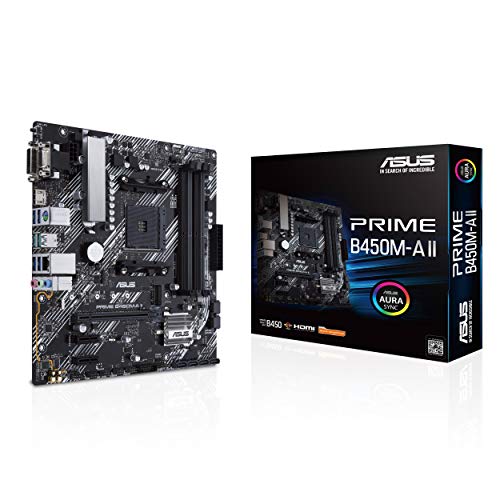
Flashing the wrong file can brick a board, so precision matters. Find your exact motherboard model and revision (printed on the PCB or shown in the BIOS), then note your current BIOS version. Download the latest BIOS strictly from that model’s official support page. Never use a file for a similarly named board, an ASUS Prime B450M-A II and a TUF B550 are not interchangeable.
Use BIOS Flashback for the Safest Update
Many modern boards include BIOS Flashback (sometimes called Q-Flash Plus or Flashback), which updates firmware without a CPU, RAM, or GPU installed. Format a USB drive to FAT32, copy the BIOS file, rename it exactly as the manual specifies, plug it into the dedicated Flashback port, and press the button. This method is the safest because it runs on an isolated controller, making a failed core-CPU update almost impossible.
Or Flash From Inside the BIOS
If your board lacks Flashback, use the built-in updater (EZ Flash, M-Flash, or Instant Flash). Put the BIOS file on a FAT32 USB drive, enter the BIOS, open the update utility, select the file, and confirm. The system reads and writes the firmware, then reboots. Do not touch anything until it finishes, this is the step where interruptions cause damage.
Protect Against Power Loss and Recover if Needed
The cardinal rule: never interrupt a BIOS flash. A power cut mid-write can corrupt the firmware and prevent the board from booting. Use a UPS or at least a stable outlet, and never flash during a storm. If a flash does fail, boards with dual BIOS or Flashback can usually recover; a diagnostic POST card can also help pinpoint a no-boot issue afterward. When done, load optimized defaults and re-enable XMP/EXPO.
Tips
- Only update the BIOS to fix a real issue or add CPU/RAM support, not for its own sake.
- Download the file only from your exact board model’s official support page, never a similar one.
- Prefer BIOS Flashback when available, it is the safest, CPU-free update method.
- Never interrupt the flash; use stable power and wait for the reboot to complete.
Frequently Asked Questions
Can updating the BIOS damage my PC?
Only if the flash is interrupted or you use the wrong file. Follow the correct file and never cut power mid-update, and the process is very safe on modern boards.
Do I need a CPU to update the BIOS?
With BIOS Flashback, no, that is its whole purpose, letting you flash for a new CPU the board cannot yet boot. Without Flashback you need a working, supported CPU installed.
How do I know my BIOS version?
It appears on the BIOS main screen at boot and in Windows via System Information (look for ‘BIOS Version/Date’). Compare it to the latest on your board’s support page.
Will a BIOS update reset my settings?
Yes. A flash reverts to default settings, so you will need to re-enable XMP/EXPO, fan curves, and boot order afterward. Note your key settings before updating.
Conclusion
Updating your BIOS is safe and worthwhile when done for the right reason: use BIOS Flashback where possible, download only your exact board’s file, ensure stable power, and never interrupt the write. Do that, and you unlock new CPU support, better memory compatibility, and important fixes without risk.