Key takeaways
- Nothing at all (no fans, no LEDs): a power delivery problem, focus on the PSU and cables.
- Fans spin but no image: the system has power but fails to POST, focus on RAM, GPU, and CPU.
- Fans spin briefly then stop, repeating: a short circuit or failed component protection.
- Beep codes or debug LEDs: your motherboard is telling you the fault, look it up in the manual.
Pressing the power button and getting nothing, no fans, no lights, no beeps, is one of the most heart-stopping moments a PC gamer can face. But a dead PC is rarely as catastrophic as it feels. The overwhelming majority of no-boot cases trace back to a loose cable, a power-related issue, or a single misseated component, all of which you can diagnose at home with patience and a systematic approach.
This guide walks through the troubleshooting sequence a repair tech uses, from the simplest checks to the deeper hardware tests, so you can isolate the fault without replacing parts blindly. Whether it’s total silence or fans spinning with no display, the steps below narrow it down. A beginner-friendly build reference or a troubleshooting handbook can help you follow along if you’re new to working inside a case.
Our top picks




As an Amazon Associate we earn from qualifying purchases at no extra cost to you. Ratings are shown as listed on Amazon.
⚡ Save on Your Next PC — Amazon Prime
Prime members get fast free shipping on the systems above, plus early access to Prime Day & Black Friday PC deals. New members get a 30-day free trial.
Watch: Why Won’t My Gaming PC Turn On? (2026 Fixes) — Video Review
Check Power at the Wall and PSU
Start with the absolute basics, because “no power at all” usually means exactly that. Confirm the wall outlet works by plugging in something else. Check the PSU’s rear power switch is set to the on (I) position, a step easy to overlook. Reseat the main power cable at both ends, and if you use a surge protector, plug directly into the wall to rule it out. If the PSU has a self-test switch or you own a PSU tester, use it now to confirm the unit powers on and outputs correct voltages.
Distinguish “No Power” From “No Display”
These are two very different problems and treating them the same wastes time. Listen and look carefully when you press power.
- Nothing at all (no fans, no LEDs): a power delivery problem, focus on the PSU and cables.
- Fans spin but no image: the system has power but fails to POST, focus on RAM, GPU, and CPU.
- Fans spin briefly then stop, repeating: a short circuit or failed component protection.
- Beep codes or debug LEDs: your motherboard is telling you the fault, look it up in the manual.
Reseat RAM and Graphics Card
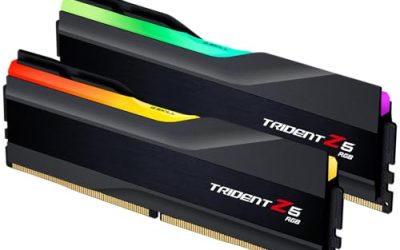
If fans spin but you get no display, a poorly seated memory stick or GPU is the most common cause, especially after moving the PC. Power down, unplug, and press each RAM stick firmly until both clips snap shut. Remove the GPU, check its PCIe power cables are fully connected, and reseat it until the slot latch clicks. Try booting with a single RAM stick in the slot your manual recommends; faulty or mismatched memory frequently prevents POST entirely.
Clear the CMOS and Check the Front Panel
A corrupted BIOS setting can stop a PC from booting. Clearing CMOS resets the BIOS to defaults: with the system unplugged, either move the CLR_CMOS jumper briefly or remove the coin-cell battery for a few minutes. Also verify the tiny front-panel power-switch connector on the motherboard is attached correctly; if it’s loose or on the wrong pins, the power button does nothing even though the system is fine. You can test by briefly touching the two power-switch pins with a screwdriver.
Isolate a Failed Component
If it still won’t boot, strip the build to essentials to find the culprit. Disconnect all drives, extra fans, and USB devices, leaving only the CPU, one RAM stick, and the GPU (or integrated graphics). Try booting on this minimal configuration outside the case on a non-conductive surface to rule out a case short. Add components back one at a time until the failure returns; the last part you added is your suspect. A troubleshooting reference guide is handy for interpreting debug LEDs at this stage.
Tips
- Work with the PC unplugged and discharge residual power by holding the button for 5 seconds.
- Photograph connections before unplugging so you can reassemble correctly.
- Motherboard debug LEDs (CPU, DRAM, VGA, BOOT) point straight to the failing subsystem, use them.
- A failing PSU is a top suspect for total no-power, so test or swap it early if you can.
Frequently Asked Questions
My fans spin but there’s no display, what’s wrong?
The system has power but isn’t completing POST. The usual causes are unseated RAM or GPU, so reseat both first. Check motherboard debug LEDs; a lit DRAM or VGA light tells you exactly where the fault is.
Could a dead PSU cause a no-boot?
Absolutely, it’s one of the most common causes of total no-power. A PSU tester confirms it in seconds. If you don’t have one, swapping in a known-good PSU is the definitive test.
What does clearing CMOS do?
It resets the BIOS to factory defaults, which fixes no-boot situations caused by a bad setting or failed overclock. Remove the coin battery for a few minutes or use the CLR_CMOS jumper with the system unplugged.
Should I take it to a shop?
Work through the cable, reseat, CMOS, and minimal-config steps first, since they solve most cases for free. If it still won’t boot after isolating to a single suspect part, a shop can confirm and replace the faulty component.
Conclusion
A PC that won’t turn on is almost always fixable at home if you stay methodical. Verify power at the wall and PSU, determine whether you have no power or no display, reseat RAM and GPU, clear CMOS, and finally strip to a minimal config to isolate the culprit. Nine times out of ten the problem is a cable, a setting, or a single component you can reseat or replace, not a dead PC.