Key takeaways
- After connecting a high-refresh monitor, open your display settings and manually select the highest refresh rate, since Windows often defaults to 60Hz.
- Enable FreeSync or G-Sync Compatible mode in both the monitor menu and your GPU control panel to eliminate screen tearing.
- Match your monitor’s refresh rate to the frame rates your GPU realistically hits in your favorite games, not to the biggest number available.
- Use a DisplayPort cable or a high-speed HDMI connection, as older cables can silently cap your refresh rate.
What's inside
- Watch: What Is Refresh Rate? Gaming Monitors Explained — Video Review
- What Refresh Rate Actually Means
- Refresh Rate vs Frame Rate
- When a Higher Refresh Rate Helps
- Adaptive Sync: FreeSync and G-Sync
- Matching Your Monitor to Your Hardware
- Tips
- Related Guides
- Frequently Asked Questions
- Conclusion
- Related Articles
Walk into any conversation about gaming monitors and you will hear numbers like 144Hz and 240Hz thrown around as if they are self-explanatory. For newcomers, though, refresh rate is one of the most misunderstood specifications in gaming, often confused with frame rate and frequently overvalued or dismissed for the wrong reasons. Understanding what refresh rate actually is, and how it works together with your graphics card, is the key to buying a monitor that feels as good as it looks.
- Watch: What Is Refresh Rate? Gaming Monitors Explained — Video Review
- What Refresh Rate Actually Means
- Refresh Rate vs Frame Rate
- When a Higher Refresh Rate Helps
- Adaptive Sync: FreeSync and G-Sync
- Matching Your Monitor to Your Hardware
- Tips
- Related Guides
- Frequently Asked Questions
- Conclusion
- Related Articles
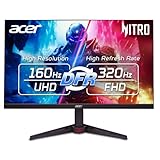
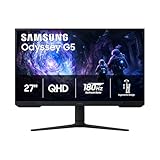
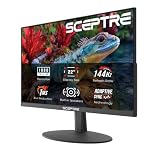
This guide explains refresh rate in plain language: what the Hz number means, how it differs from frames per second, when a higher rate genuinely helps, and why syncing technology matters. You will learn how to tell whether your setup can take advantage of a fast panel and how to avoid paying for speed you cannot use. Our recommended high-refresh 1080p monitors above show how affordable a smooth, responsive display has become in 2026.
As an Amazon Associate we earn from qualifying purchases at no extra cost to you.






⚡ Save on Your Next PC — Amazon Prime
Prime members get fast free shipping on the systems above, plus early access to Prime Day & Black Friday PC deals. New members get a 30-day free trial.
Watch: What Is Refresh Rate? Gaming Monitors Explained — Video Review
What Refresh Rate Actually Means
Refresh rate is how many times per second your monitor redraws the image on screen, measured in hertz. A 60Hz panel refreshes 60 times a second, while a 144Hz panel refreshes 144 times. A higher refresh rate means the display can show you more updated images each second, which makes motion appear smoother and more fluid. Think of it as how often the monitor is able to tell you something new about what is happening in your game.
Refresh Rate vs Frame Rate
The most common confusion is between refresh rate and frame rate, and they are not the same thing. Frame rate, measured in frames per second, is how many images your graphics card produces. Refresh rate is how many it can display. Both need to be high to feel the benefit: a 144Hz monitor only shines if your GPU is actually producing enough frames to fill it, and a powerful GPU pushing 200 frames is wasted on a 60Hz screen. The two work as a team.
When a Higher Refresh Rate Helps
The benefit of a high refresh rate is most dramatic in fast-paced games. In competitive shooters and racing titles, more frames on screen mean smoother tracking of moving targets and a more immediate connection between your inputs and the action. The jump from 60Hz to 144Hz is transformative and immediately noticeable to almost everyone. Beyond that, gains from 144Hz to 240Hz and higher are real but more subtle, and matter most to dedicated competitive players.
Adaptive Sync: FreeSync and G-Sync
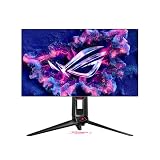
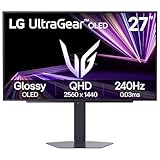
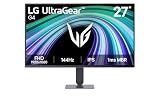
Even a fast monitor can show ugly screen tearing if its refresh rate and your frame rate fall out of step. Adaptive sync technologies, marketed as AMD FreeSync and NVIDIA G-Sync Compatible, solve this by letting the monitor adjust its refresh timing on the fly to match the frames your GPU delivers. The result is tear-free, stutter-free motion across a wide range of frame rates. Most modern gaming monitors, including the LG Ultragear and ASUS TUF panels above, support this and it is well worth enabling.
Matching Your Monitor to Your Hardware
The smartest refresh-rate decision considers your whole setup, not just the monitor. There is little point buying a 240Hz display if your graphics card struggles to produce 100 frames in the games you play, and equally no point pairing a high-end GPU with a 60Hz panel that throttles all that power. For most gamers in 2026, a 144Hz to 165Hz monitor is the ideal balance: fast enough to feel dramatically smoother than 60Hz, yet realistic for a wide range of graphics cards to actually drive.
Tips
- After connecting a high-refresh monitor, open your display settings and manually select the highest refresh rate, since Windows often defaults to 60Hz.
- Enable FreeSync or G-Sync Compatible mode in both the monitor menu and your GPU control panel to eliminate screen tearing.
- Match your monitor’s refresh rate to the frame rates your GPU realistically hits in your favorite games, not to the biggest number available.
- Use a DisplayPort cable or a high-speed HDMI connection, as older cables can silently cap your refresh rate.
Frequently Asked Questions
Is 144Hz enough for gaming?
For the vast majority of gamers, yes. 144Hz delivers a huge, immediately noticeable improvement over 60Hz and is realistic for many graphics cards to drive. Higher rates like 240Hz offer additional smoothness, but 144Hz is the widely recommended sweet spot for balanced performance and value.
Can I notice the difference between 60Hz and 144Hz?
Almost everyone can. The jump from 60Hz to 144Hz is one of the most obvious upgrades in gaming, making everything from cursor movement to fast in-game action look dramatically smoother. It is often more noticeable than a resolution increase.
Do I need a powerful GPU for a high-refresh monitor?
You need a GPU capable of producing enough frames to take advantage of it. A high-refresh monitor only helps if your graphics card actually pushes high frame rates in your games, so balance the two. Fortunately, hitting high frame rates at 1080p is achievable with mid-range cards.
What is the difference between refresh rate and response time?
Refresh rate is how often the screen redraws per second, while response time measures how quickly individual pixels change color, usually stated in milliseconds. Both affect motion clarity, but they are separate specs; a fast refresh rate with a slow response time can still show blur, so look at both.
Conclusion
Refresh rate is simply how many times per second your monitor updates the image, and a higher number means smoother, more responsive motion, especially in fast games. The key is understanding that it works hand in hand with your frame rate and graphics card, so the goal is balance rather than the biggest number. For most gamers in 2026, a 144Hz panel with adaptive sync enabled hits the ideal blend of smoothness, responsiveness, and value.