Key takeaways
- Intake: mount fans at the front (and optionally bottom) to pull cool air in.
- Exhaust: place fans at the rear and top to push hot air out.
- Balance: aim for slightly more intake than exhaust to create positive pressure, which keeps dust out.
- Clear the path: avoid blocking intakes with the case against a wall or inside an enclosed desk.
What's inside
Heat is the silent enemy of every gaming PC. When components run hot they throttle themselves to survive, quietly stealing the frame rates you paid for, and sustained high temperatures shorten the lifespan of the expensive parts inside your case. A well-cooled system, by contrast, holds its performance longer, runs quieter, and lasts for years. Cooling is not just for overclockers; it is fundamental to getting what you paid for.
This guide explains how to keep your gaming PC cool in 2026 without guesswork. We will cover how to choose between air and liquid CPU cooling, how case airflow really works, why cable management and dust affect temperatures, how thermal paste and mounting matter more than people think, and how to monitor and tune your fans. Follow these steps and your PC will run cooler, quieter, and faster under load.
As an Amazon Associate we earn from qualifying purchases at no extra cost to you.






⚡ Save on Your Next PC — Amazon Prime
Prime members get fast free shipping on the systems above, plus early access to Prime Day & Black Friday PC deals. New members get a 30-day free trial.
Watch: How to Cool Your Gaming PC (2026 Guide) — Video Review
Air Cooling vs Liquid Cooling
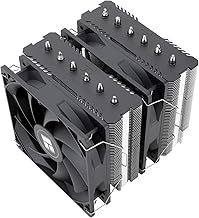
The first decision is how to cool your CPU, and both approaches work well when chosen sensibly. A quality air cooler like the Thermalright Peerless Assassin 120 SE delivers cooling that rivals mid-range liquid units for a fraction of the price, with no pump to ever fail. A 360mm all-in-one liquid cooler such as the ARCTIC Liquid Freezer III Pro 360 or CORSAIR Nautilus 360 RS handles the hottest high-core-count CPUs and clears space around the socket, at higher cost and slightly more complexity. For most builds, a top-tier air cooler is the pragmatic choice; reach for a 360mm AIO only when running a flagship chip or chasing a specific clean aesthetic.
Getting Case Airflow Right
A great cooler cannot help if the case is starved of fresh air, so airflow planning matters as much as the cooler itself. The goal is a smooth front-to-back, bottom-to-top path:
- Intake: mount fans at the front (and optionally bottom) to pull cool air in.
- Exhaust: place fans at the rear and top to push hot air out.
- Balance: aim for slightly more intake than exhaust to create positive pressure, which keeps dust out.
- Clear the path: avoid blocking intakes with the case against a wall or inside an enclosed desk.
Cable Management and Dust Control
Two of the cheapest cooling upgrades cost nothing but time. Messy cables blocking the airflow path force your fans to work harder for worse results, so route them behind the motherboard tray and out of the main chamber. Dust is the slow killer: it coats heatsinks and fan blades, insulating the very surfaces meant to shed heat. Clean your dust filters every few weeks, blow out the interior with compressed air every few months, and keep the PC off carpet where it inhales fibers. A positive-pressure setup with good filters dramatically slows dust buildup in the first place.
Thermal Paste and Cooler Mounting
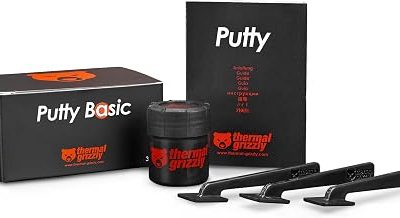
The contact between your CPU and cooler is a make-or-break detail that many overlook. Thermal paste fills the microscopic gaps between the chip and the cooler’s base; too little leaves air pockets, too much makes a mess, and a proper pea-sized amount in the center usually spreads perfectly under mounting pressure. Just as important is even, firm mounting, since a cooler tightened unevenly makes poor contact on one side and runs hot. If your temperatures are unexpectedly high on a good cooler, a fresh, careful reapplication of quality paste and a re-seat is often the fix. Paste also dries out over years, so a refresh on an aging system can restore lost cooling.
Monitoring and Tuning Your Fans
You cannot manage what you do not measure, so start by watching your temperatures. Free monitoring software shows CPU and GPU temps in real time; run a demanding game or stress test and watch for a CPU staying below roughly 85 degrees Celsius and a GPU below the low 80s under sustained load. If you are running hot, build a custom fan curve in your motherboard’s BIOS or a fan utility so fans ramp up with temperature rather than blasting constantly or lagging behind. A good curve strikes the balance between noise and cooling, keeping the PC quiet at idle and assertive under load.
Tips
- A premium dual-tower air cooler matches most mid-range liquid coolers for less money and zero pump risk.
- Set up front/bottom intake and rear/top exhaust with slightly positive pressure to cool well and repel dust.
- Clean dust filters every few weeks and reapply thermal paste every few years to prevent creeping temperatures.
- Use monitoring software plus a custom fan curve to balance quiet operation against cooling under load.
Frequently Asked Questions
Is liquid cooling better than air cooling?
Not automatically. High-end air coolers rival mid-range liquid coolers in performance while costing less and having no pump to fail. Liquid cooling pulls ahead on the hottest flagship CPUs and offers a cleaner look around the socket. For most gamers, a quality air cooler is the smarter, safer choice.
What temperatures are safe for gaming?
Under sustained gaming load, aim to keep your CPU below about 85 degrees Celsius and your GPU in the low 80s. Brief spikes higher are normal, but if your components sit near their thermal limits constantly, improve airflow, clean out dust, or check your cooler mounting.
How often should I clean my PC and replace thermal paste?
Clean dust filters every few weeks and do a deeper interior cleaning every three to six months depending on your environment. Thermal paste generally lasts several years, but reapplying it on an older system that has started running hotter is an easy way to recover lost cooling performance.
Do I need more intake or exhaust fans?
Aim for slightly more intake than exhaust to create positive air pressure. This ensures air enters through your filtered intakes rather than being sucked in through unfiltered gaps, which keeps the interior noticeably cleaner while still moving plenty of air through the case.
Conclusion
Keeping a gaming PC cool comes down to a few reliable fundamentals: a good CPU cooler sized to your chip, a clear front-to-back airflow path, clean filters and tidy cables, proper thermal paste and mounting, and a sensible fan curve you can verify with monitoring. None of it requires exotic hardware, and together it recovers the performance heat would otherwise steal. Invest a little time in these basics and your system will run faster, quieter, and longer.