Key takeaways
- Refresh rate at native resolution: Check that the advertised refresh rate applies at full 4K, not just at lower resolutions. A 160Hz panel that only hits 160Hz at 1440p is a 4K 60Hz monitor with marketing on top. Verify the spec at 3840×2160 specifically.
- Panel type: IPS is the safe default at this price — strong viewing angles, accurate colour, and good enough contrast for most gaming. VA panels deliver deeper blacks and suit dark, atmospheric games, but can smear in fast motion. Avoid TN at 4K; the colour compromise isn’t worth it.
- Adaptive sync compatibility: FreeSync Premium or G-SYNC Compatible certification matters more than raw refresh rate for perceived smoothness, especially since hitting 120fps+ at 4K is demanding even on current hardware. Confirm the variable refresh range covers the framerates you’ll realistically hit.
- Connectivity and cable standards: You need DisplayPort 1.4 or HDMI 2.1 to drive 4K at high refresh rates. Older HDMI 2.0 ports cap you at 4K 60Hz regardless of what the panel supports. USB-C with power delivery is a genuine bonus if you’re also connecting a laptop.
- Realistic HDR expectations: Under $500, HDR means wider colour coverage rather than transformative highlight detail. Look for high DCI-P3 coverage as the meaningful metric. Treat DisplayHDR 400 badges as a colour indicator, not a promise of dynamic range.
What's inside
Shopping for a 4K gaming monitor under $500 in 2026 means navigating a market full of half-truths. Panels advertise 4K resolution but cap out at 60Hz. Others promise high refresh rates that only apply at 1080p. Some list HDR support that amounts to little more than a software toggle with no real backlight control behind it. The result is a category where the spec sheet and the actual experience often diverge, and buyers end up paying for numbers that never translate into smoother gameplay or better image quality.
This guide cuts through that noise. Every monitor below is a genuine 4K panel that regularly sells under $500, and each one earns its place through a specific strength — whether that’s refresh rate, colour accuracy, connectivity, or sheer screen real estate. We’ve focused on what actually matters when you’re gaming at 3840×2160: real motion clarity, dependable adaptive sync, and panels that don’t fall apart in dark scenes. Below you’ll find our top picks, a practical buying framework, and answers to the questions that come up most often.
As an Amazon Associate we earn from qualifying purchases at no extra cost to you.





⚡ Save on Your Next PC — Amazon Prime
Prime members get fast free shipping on the systems above, plus early access to Prime Day & Black Friday PC deals. New members get a 30-day free trial.
Watch: Best 4K Monitor Under $500 — Video Review
How to Choose 4K Monitor Under $500
- Refresh rate at native resolution: Check that the advertised refresh rate applies at full 4K, not just at lower resolutions. A 160Hz panel that only hits 160Hz at 1440p is a 4K 60Hz monitor with marketing on top. Verify the spec at 3840×2160 specifically.
- Panel type: IPS is the safe default at this price — strong viewing angles, accurate colour, and good enough contrast for most gaming. VA panels deliver deeper blacks and suit dark, atmospheric games, but can smear in fast motion. Avoid TN at 4K; the colour compromise isn’t worth it.
- Adaptive sync compatibility: FreeSync Premium or G-SYNC Compatible certification matters more than raw refresh rate for perceived smoothness, especially since hitting 120fps+ at 4K is demanding even on current hardware. Confirm the variable refresh range covers the framerates you’ll realistically hit.
- Connectivity and cable standards: You need DisplayPort 1.4 or HDMI 2.1 to drive 4K at high refresh rates. Older HDMI 2.0 ports cap you at 4K 60Hz regardless of what the panel supports. USB-C with power delivery is a genuine bonus if you’re also connecting a laptop.
- Realistic HDR expectations: Under $500, HDR means wider colour coverage rather than transformative highlight detail. Look for high DCI-P3 coverage as the meaningful metric. Treat DisplayHDR 400 badges as a colour indicator, not a promise of dynamic range.
The Best Picks Reviewed
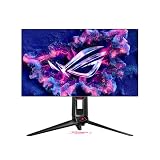
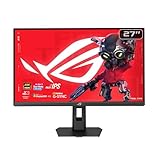
ASUS ROG XG27UCSR 27″ 4K 162Hz
The most complete package here, pairing a genuine 162Hz 4K panel with USB-C connectivity and G-SYNC compatibility — a combination that usually costs considerably more. It’s the pick for anyone who wants a single monitor that handles both a gaming PC and a work laptop without compromise.
Acer Nitro VG270K V4 27″ 4K 160Hz
Acer’s dual-mode approach lets you run native 4K at 160Hz or drop to a lower resolution for 320Hz when you’re playing competitive shooters, which is a genuinely useful trick rather than a spec-sheet gimmick. The IPS panel holds up well for colour work between sessions, making it a strong all-rounder.
ASUS TUF Gaming VG27UQ1A 27″ 4K 160Hz
With 95% DCI-P3 coverage and Extreme Low Motion Blur Sync, this one leans harder into image quality than most panels at this price, and the colour performance is noticeably above average. The three-year warranty is worth factoring in if you’re keeping this monitor for the long haul.
Samsung Odyssey G7 (G75F) 37″ 4K Curved
At 37 inches this is a different proposition entirely — immersive in a way no 27″ panel can match, particularly for racing, flight sims, and open-world games. The curve works well at this size, though you’ll want a deep desk and should expect it to sit at the very top of the budget.
Dell S2725QS 27″ 4K 120Hz
The value option, trading the 160Hz ceiling of its rivals for a lower price while keeping a quality IPS panel and FreeSync Premium. If you’re gaming at 4K on mid-range hardware where 120fps is already ambitious, you’re not losing anything you’d actually use.
Frequently Asked Questions
Do I need a high-end GPU for 4K gaming?
For 60fps at 4K with settings turned down, mid-range cards manage fine in most titles. Pushing 120fps+ at native 4K in demanding games still requires upper-tier hardware, though upscaling technologies like DLSS and FSR have narrowed that gap considerably.
Is 27 inches too small for 4K?
At 27 inches, 4K gives you roughly 163 pixels per inch — exceptionally sharp, though you may want display scaling for desktop work. If you want 4K primarily for screen real estate rather than pixel density, a larger panel makes more sense.
Should I choose 4K 120Hz or 1440p 240Hz?
It depends on what you play. Competitive shooters benefit more from the higher framerate and lower latency of 1440p; single-player and visually driven games reward the detail of 4K. If you split your time evenly, dual-mode monitors offer a reasonable compromise.
Is HDMI 2.1 essential?
For PC gaming, DisplayPort 1.4 with DSC handles 4K at high refresh rates perfectly well. HDMI 2.1 matters most if you’re connecting a PS5 or Xbox Series X, where it’s the only route to 4K 120Hz.
Final Thoughts
For most buyers, the ASUS ROG XG27UCSR is the strongest overall choice under $500, combining a true 162Hz 4K panel with USB-C connectivity that few competitors match at this price. The Acer Nitro VG270K V4 is the smarter pick if you switch between competitive and cinematic gaming, thanks to its dual-mode refresh rate. And if your budget is tighter or your GPU is mid-range, the Dell S2725QS delivers genuine 4K quality without asking you to pay for headroom you won’t use.
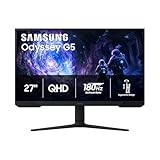
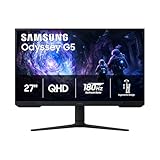
Note: the Samsung Odyssey G5 (G51F) is a QHD 1440p panel rather than 4K, so it falls outside this guide’s scope and has been excluded from the picks above.